
Client Chats
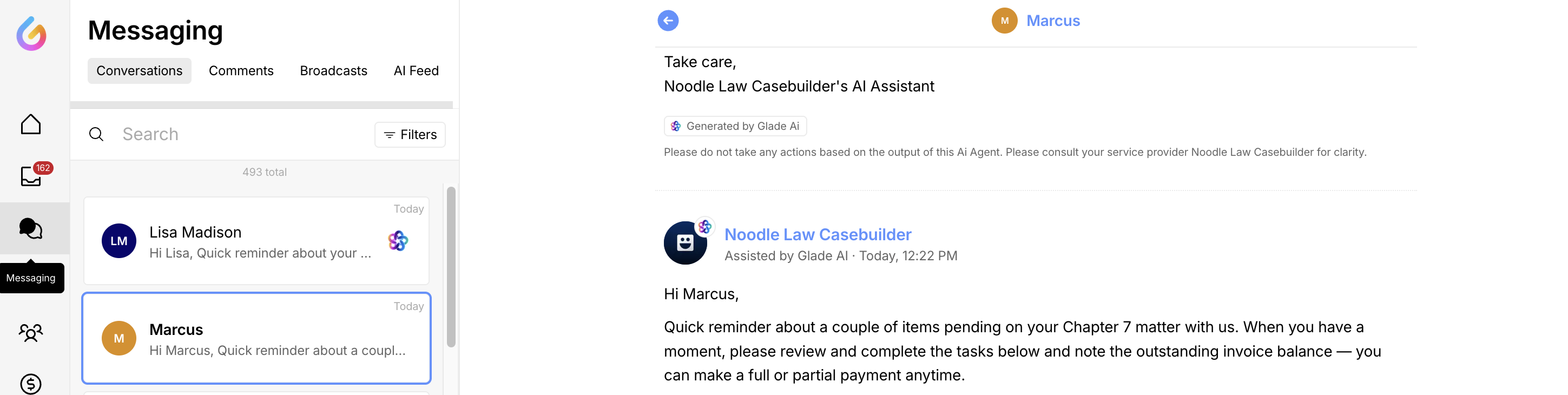
Dashboard Messaging (Direct Messages)
The Messaging tab in your Glade Dashboard is where you receive and respond to direct messages (DMs) from clients. These messages are not tied to a specific workflow step or case discussion—they function more like general inquiries or support questions sent to your firm.
What Dashboard Messaging Is Used For
Dashboard messages are ideal for:
General questions from clients
Requests for help navigating the platform
Clarifications unrelated to a specific workflow step
Administrative or logistical questions
Quick messages sent through your Glade public page or chat widget
These messages show up as standalone conversations, similar to SMS or email threads.
How to Access Messages
In your Dashboard, open the left navigation menu
Click Messaging
View all client inbound messages in one unified inbox
You’ll see every conversation your firm has across all clients, regardless of their case or workflow status.
How Dashboard Messaging Differs From Case Discussions
It’s important to understand the distinction:
Dashboard Messaging (DMs)
General-purpose, firm-wide messaging
Not tied to a specific case step
Clients use it like a chat or texting support
Good for quick questions, clarifications, or administrative issues
Case Discussions (inside a case)
Located within a specific client’s case
Used for questions or issues about that particular case
Ideal for discussing documents, tasks, decisions, or next steps
Keeps all case-related communication in context
(Covered in a separate help article)
If a client sends a general question or needs help unrelated to a specific workflow step, it will appear in Dashboard Messaging.
If they’re inside a workflow and click “Ask a question about your case,” it goes to Case Discussion instead.
Filters to Stay Organized
The Messaging inbox includes filters to help you focus on what needs attention.
Key Filter: “Needs Response”
Use this to see only:
Messages awaiting your reply
Conversations with unanswered client questions
DMs that require human follow-up
This helps ensure timely communication across your entire client base.
Glade Admin Support
If your firm uses Glade Admin assistance:
Glade Admins can jump into conversations to provide support
They can answer general client questions
You’ll always see their messages in the same thread
Your firm retains full visibility and control
This helps reduce administrative workload and ensures clients get fast responses.
Inside a DM Conversation
When you open a conversation, you can:
Read all client messages
See system reminders sent by the AI
Reply directly to the client
Toggle the AI Assistant on/off for the thread
Click into the client’s case (if needed)
Complete linked tasks (when applicable)
Everything stays in one place, making it easy to manage communication.
Why Dashboard Messaging Matters
Dashboard Messaging helps your firm:
Centralize all non-case-specific communication
Avoid juggling email, text, and external chat tools
Provide quick responses to everyday client questions
Ensure no message is missed using the “Needs Response” filter
Keep case discussions clean and focused by separating general inquiries