
Import creditors directly into lists and run the de-duplicator
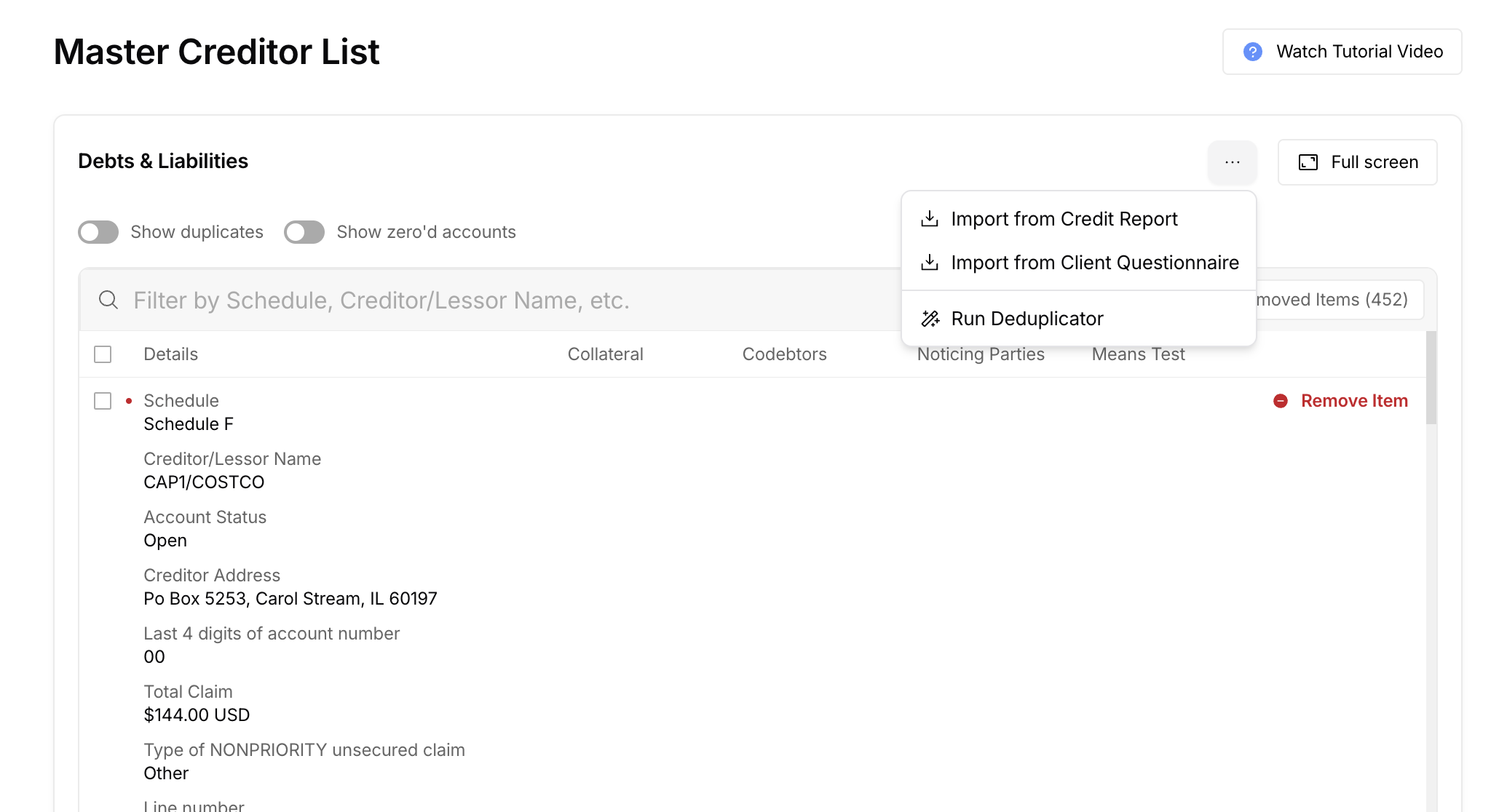
Typically, creditors will import into the Client Questionnaire and Schedules automatically if you kick those steps off in the following order:
Credit Report
Client Questionnaire (submit and complete)
Schedules
When done in order, the data flows through each step automatically (this is still recommended best practice). But sometimes, you may need to do things out of order, or you may want to re-import data from the credit report directly.
Here's how you can:
When in the Client Questionnaire or the Schedules builder, navigate to the debt list (Debts & Liabilities in Client Questionnaire, or the Master Creditor List in the Schedules).
Click the 3 dots in the top of the list
Click 'Import from Credit Report'
Doing so will import all creditors directly from the credit report and over-write whatever was previously in the list. You can always restore items by clicking 'Removed Items' in the top right of the list, selecting the items you want to restore, and clicking 'Restore Items'
Once the creditors are imported, you also have the option of running the de-duplicator any time. This will go through the creditor list and identify likely duplicates, marking them as duplicates and omitting them from your creditor list.
You can still use the 3-dot menu in the top right of the entire questionnaire as well to import data. That option will overwrite data throughout the questionnaire. This new option allows you to target just the creditor lists and import data directly into that list.