
Client Account Details
Client Account Details Overview
Each client has an Account page inside their Glade portal where they can manage their personal information and communication preferences. As a law firm, it’s helpful to understand what clients can update and how these details impact their experience.
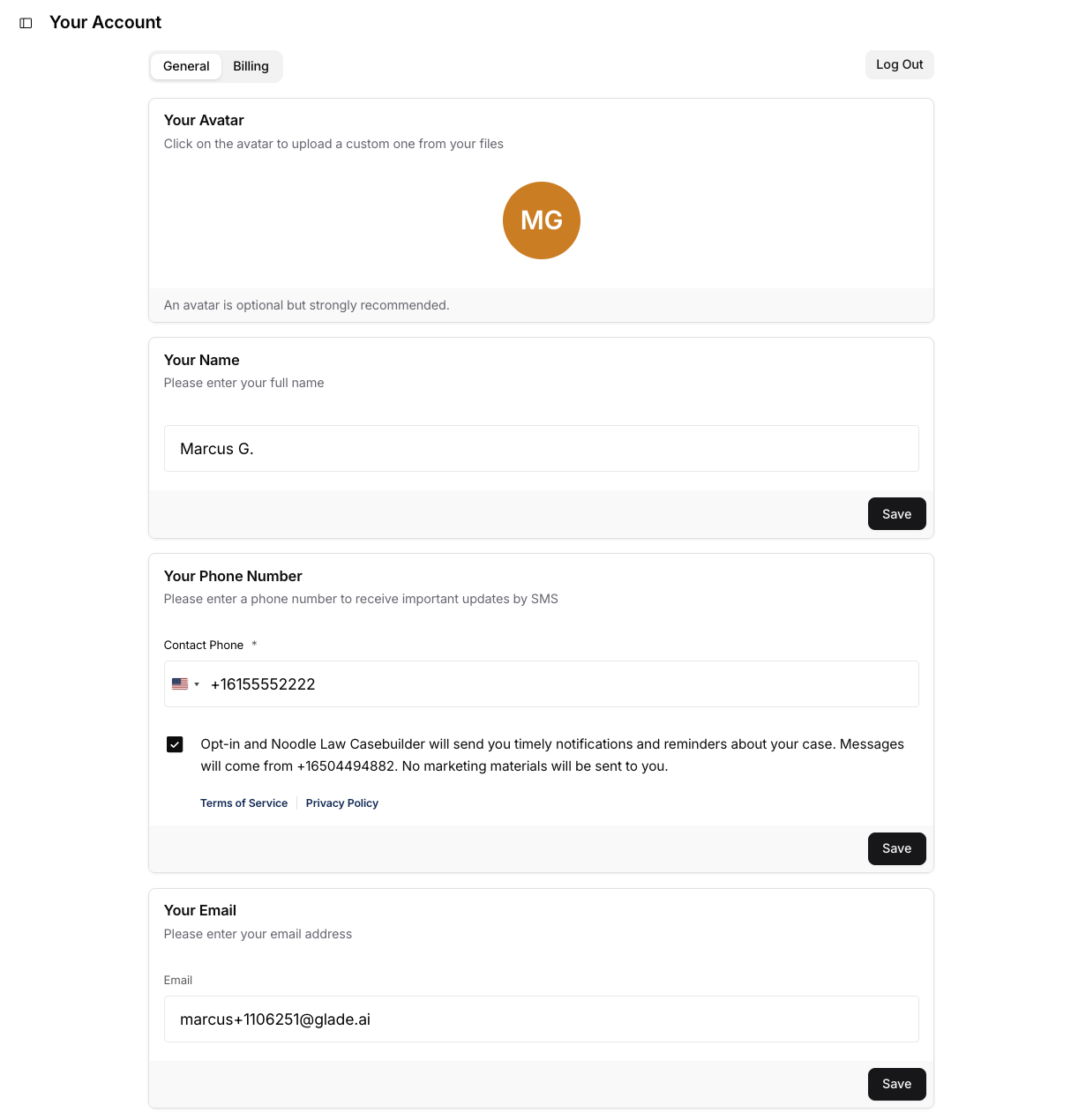
What Clients Can Update
1. Avatar (Profile Photo)
Clients can upload a profile image by clicking their avatar circle.
This is optional, but helps your team visually identify clients in messaging threads.
If no avatar is uploaded, Glade generates an initial-based placeholder.
2. Name
Clients can edit the display name associated with their account.
This is the name you will see in messaging, workflows, and case records.
You may want to confirm legal names separately for filings.
3. Phone Number
Clients can input or update their mobile number.
This enables SMS reminders for tasks, deadlines, appointments, and workflow updates.
Clients must opt in to receive text messages.
Glade and your firm will never send marketing SMS — only case-related notifications.
Accurate phone numbers help ensure clients don’t miss important updates.
4. Email Address
Clients can update the email tied to their account login and notifications.
This is where they receive reminders, document requests, and communication from your firm.
If a client changes their email, it updates immediately across their Glade profile.
Why This Matters for Your Firm
Encouraging clients to keep their Account page up to date ensures:
Reliable delivery of task reminders
Accurate information for your filings and records
Fewer missed deadlines or communication gaps
Smoother onboarding and case progression
Your team benefits from having correct, current contact information at all times.
Where Clients Access This Page
In the client portal, they can reach their Account page by selecting Your Account in the left navigation menu.
From there, they can make updates anytime — no firm intervention required.