Collecting Paystubs (Income Organizer)
Using the income organizer video tutorial: https://www.loom.com/share/5e578d5ff0ff435fb4dd6f913ada7c05
Schedule I calculator video tutorial: https://www.loom.com/share/0e8073a0400141a8bc10663c25056ac6
Means test calculator video tutorial: https://www.loom.com/share/3bbe4c72481d4e748733f66e1e88c3ce
Cell breakdown (multi-value totals) video tutorial: https://www.loom.com/share/c4c1ec06abb04c8c87ab668a53e0fb1e
YTD single paystub calculation video tutorial: https://www.loom.com/share/19fa3c44465f4e118f32bd25b788d577
Glade's Income Organizer Overview
The Income Organizer is a tool within Glade's workflow that helps you collect and organize client income—primarily pay stubs and other earnings like social security, unemployment, rental income, etc. It works similarly to Glade's Document Requests, but it's tailored for managing income from one or more sources.
Glade's AI automatically extracts income data from uploaded documents and enters it into the Pay Table.
Example use case:
Bankruptcy attorneys use the Income Organizer to collect income information from clients - a critical part of filing the final bankruptcy petition.
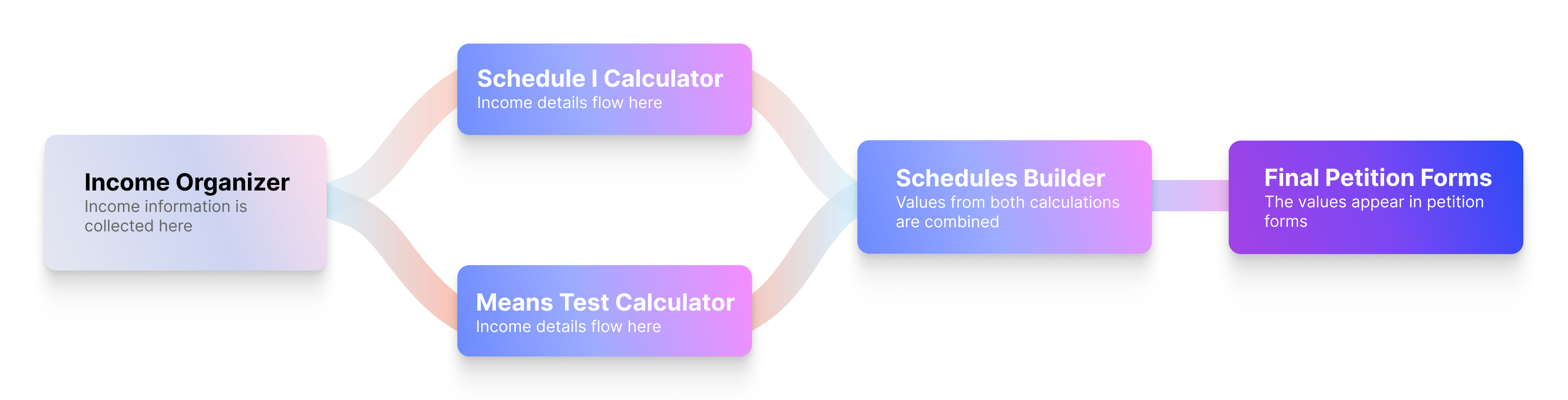
The data collected in the income organizer flows into:
The Schedule I Calculator
The Means Test Calculator
The values in those calculators will flow into the Schedules Builder and appear in the final petition forms.
Two Views Available
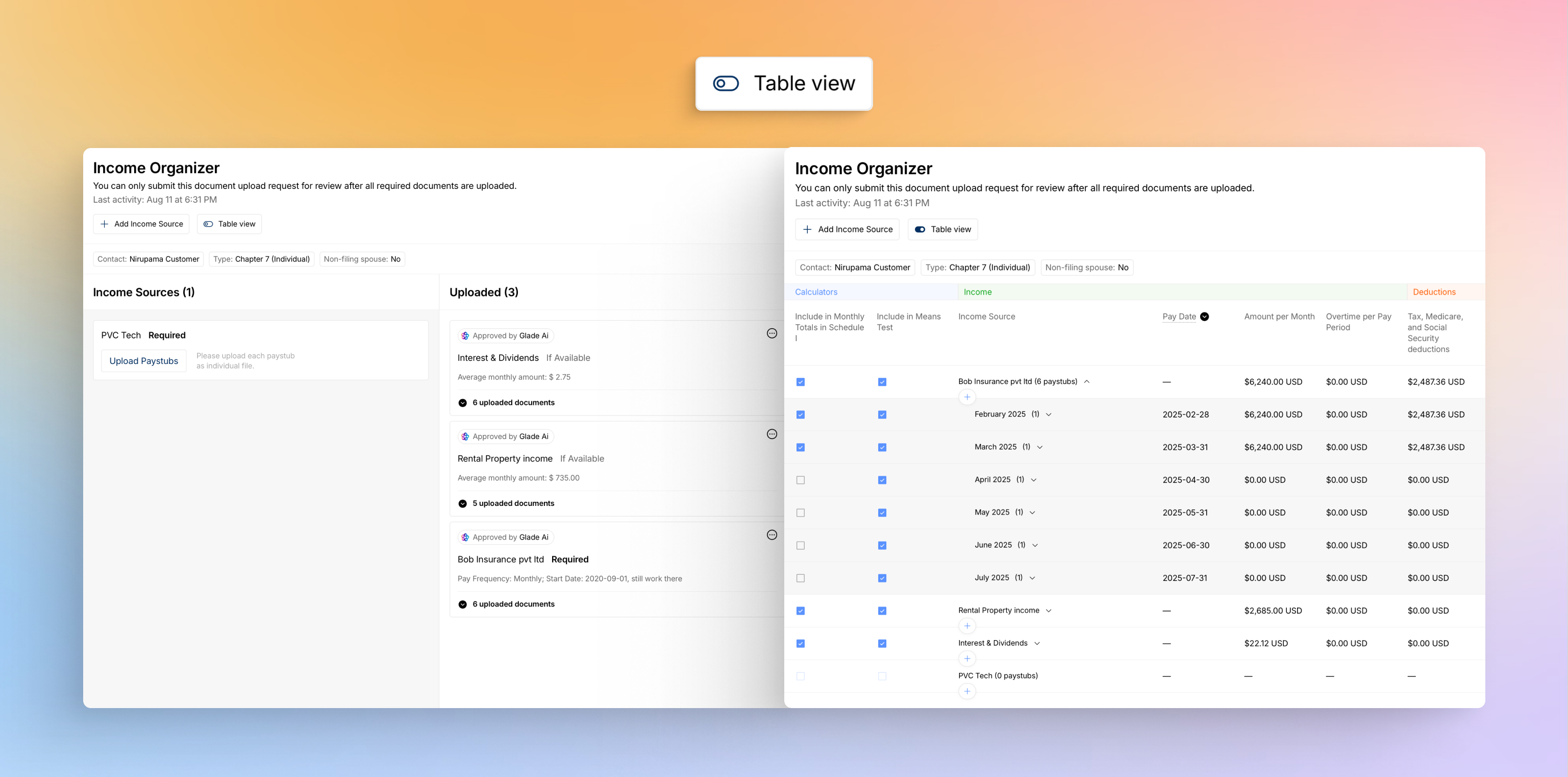
Uploader View – Designed for clients to easily upload documents.
Table View – Ideal for attorneys and paralegals to analyze income and make adjustments.
To toggle between views, use the "Table View" toggle in the header.
How to Use the Income Organizer
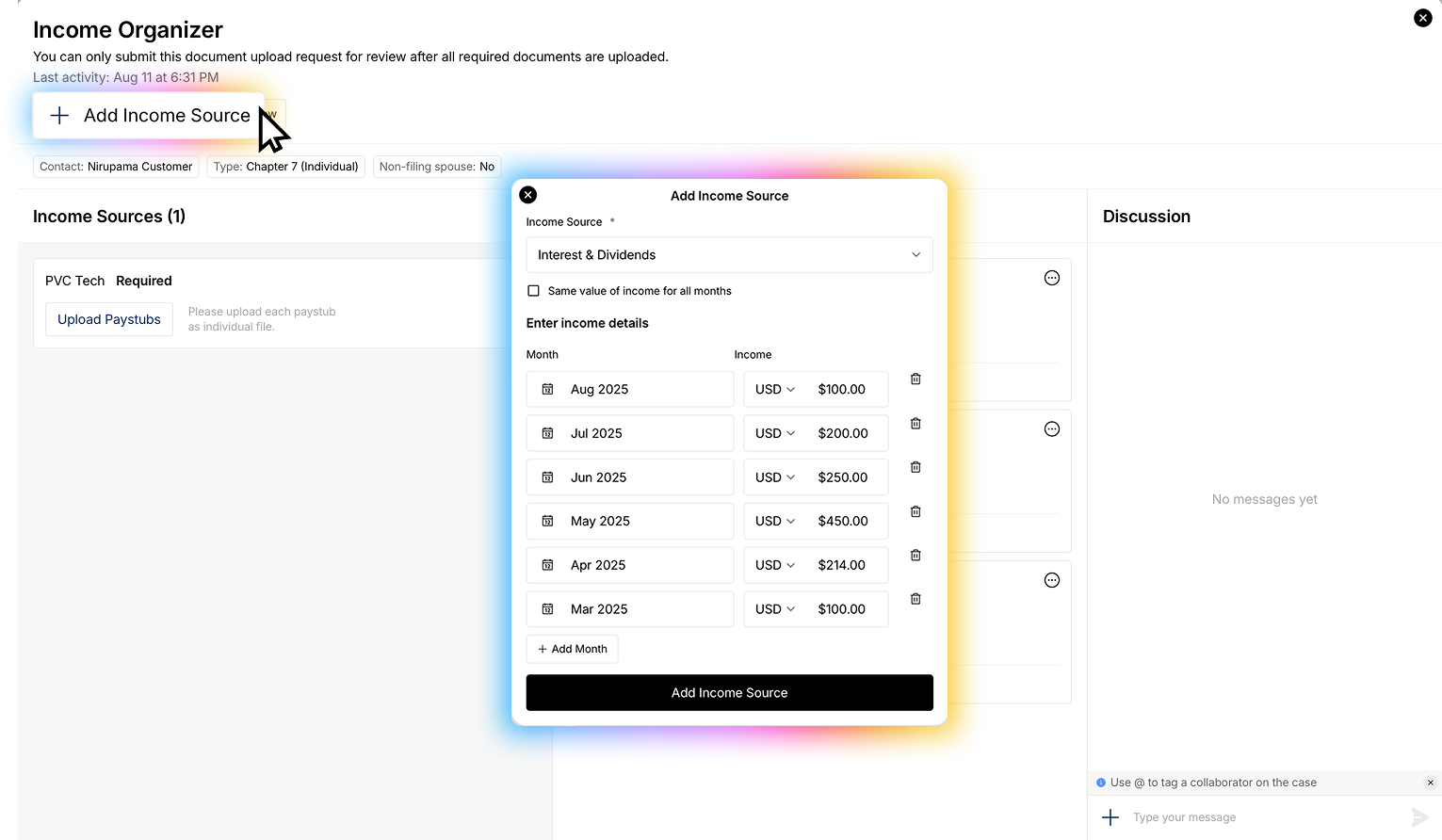
1. Add an Income Source
Anyone—attorney, paralegal, or client—can add an income source. You'll enter:
Type of income (e.g., wages, rental income)
If employment income, you'll add the employer name.
If non-employment income, you'll add the income received for that income source over the past 6 months. You can add more months if you wish.
2. Add Income
"Income" refers to a payment event, such as:
A biweekly paycheck
Monthly unemployment benefits
Semi-weekly rental income
All income will be grouped by month within the pay table, showing you monthly income for each income source.
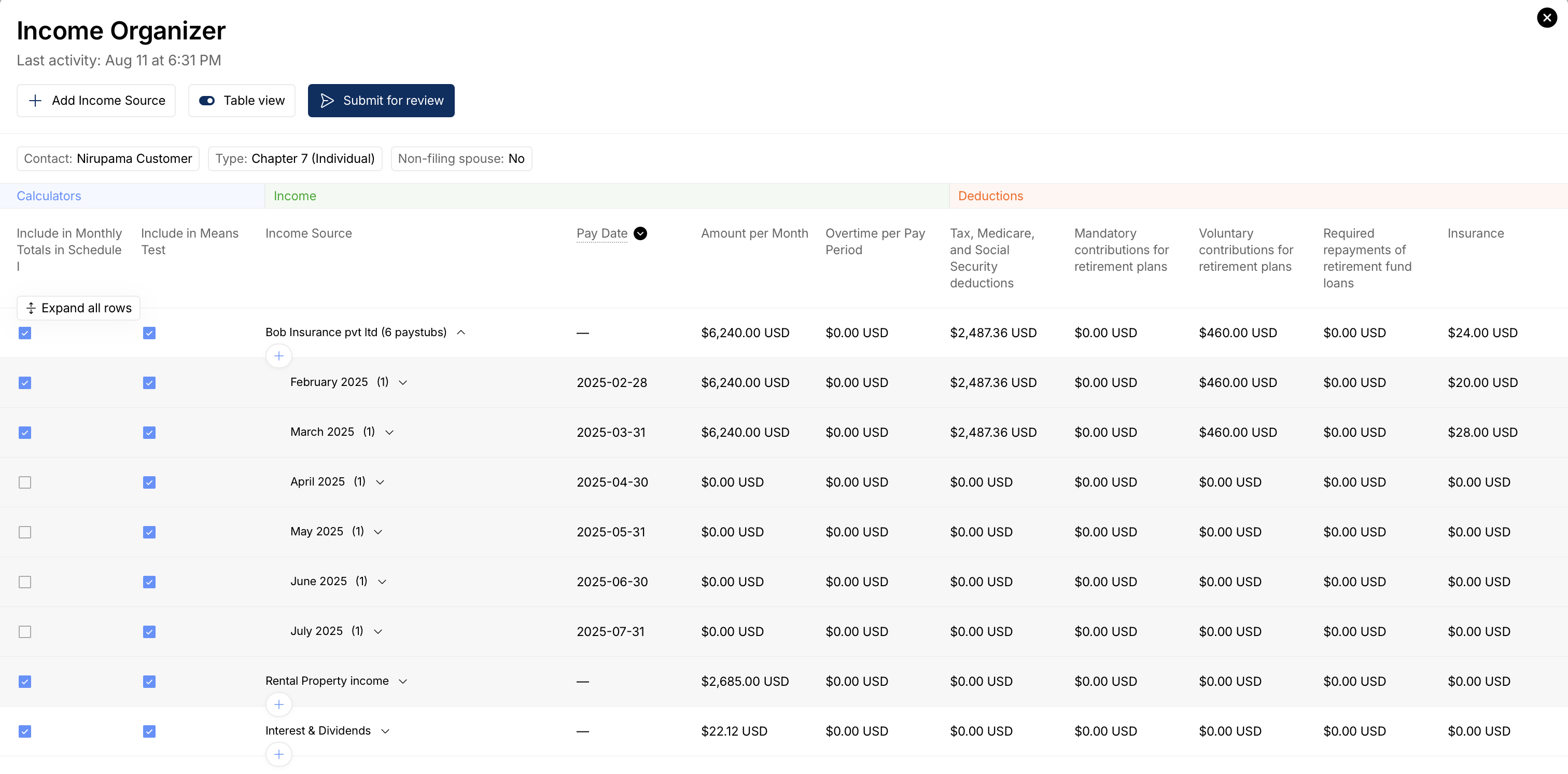
For employment income:
Upload pay stubs directly to the relevant income source folder.
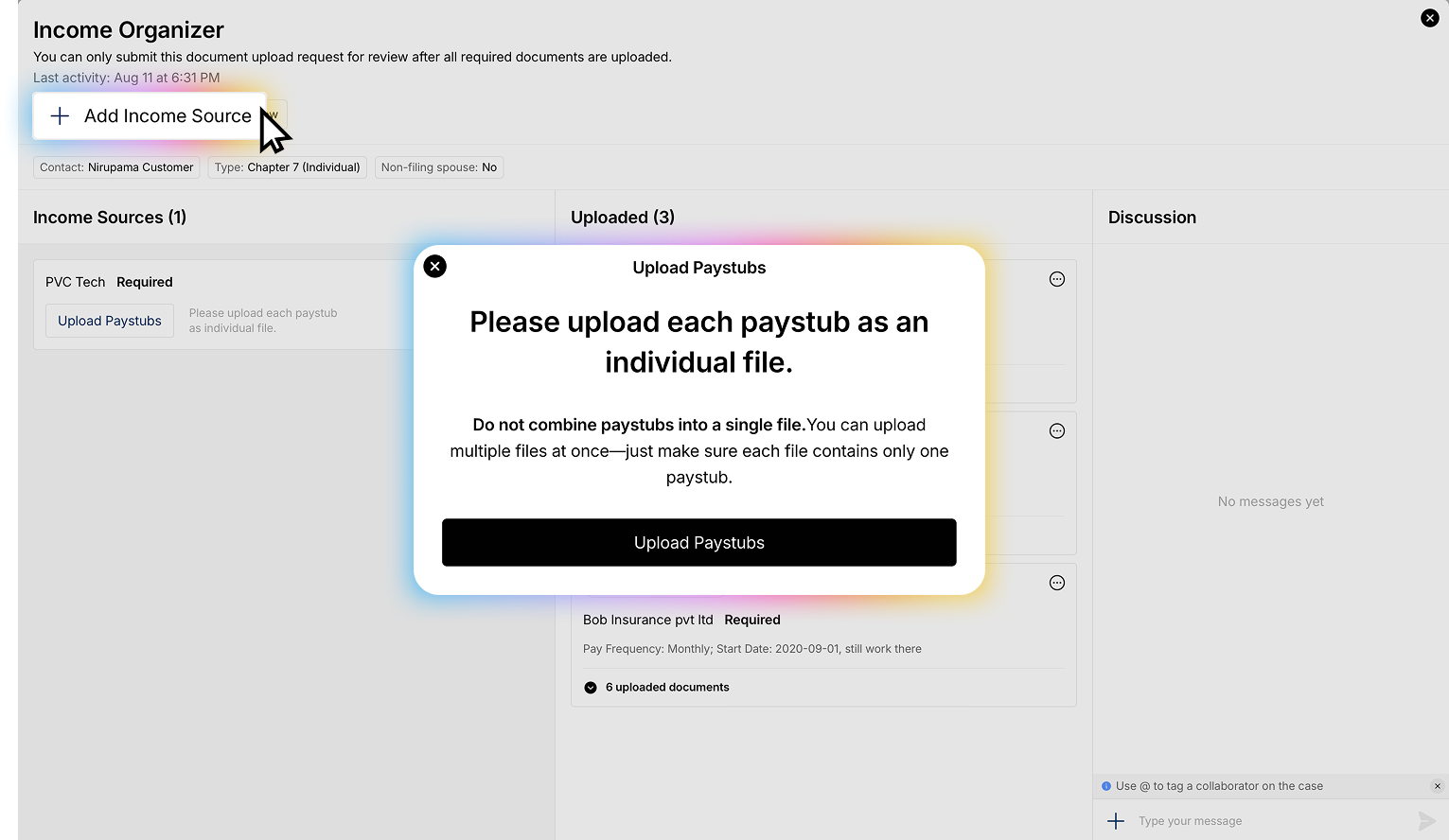
For non-employment income:
Documents are optional, but you can upload them if desired.
Glade's AI will extract relevant data from each uploaded income document.
Editing Income with the Pay Table
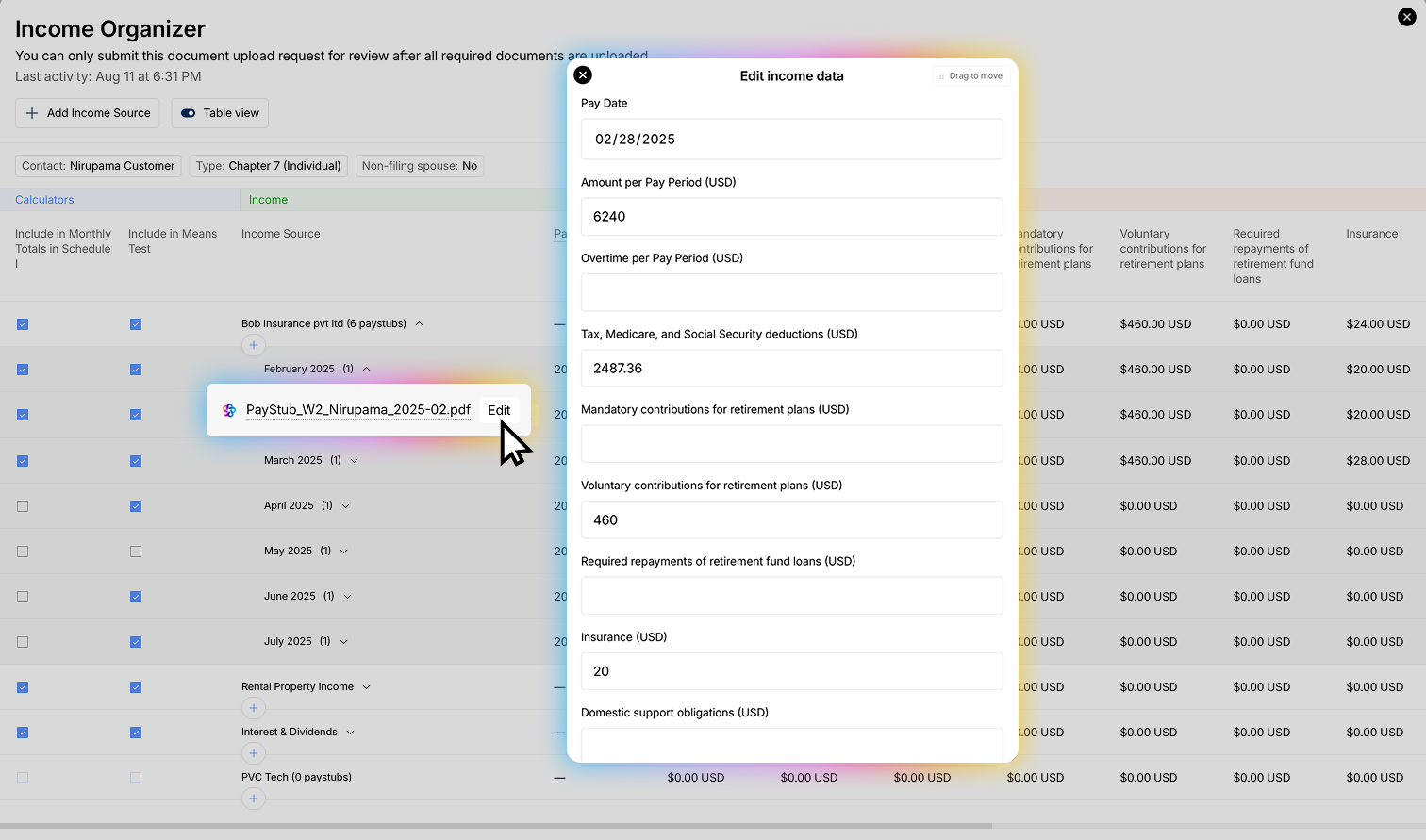
The Pay Table shows all income sources and associated payments. From here, you can:
Edit income source or payment details
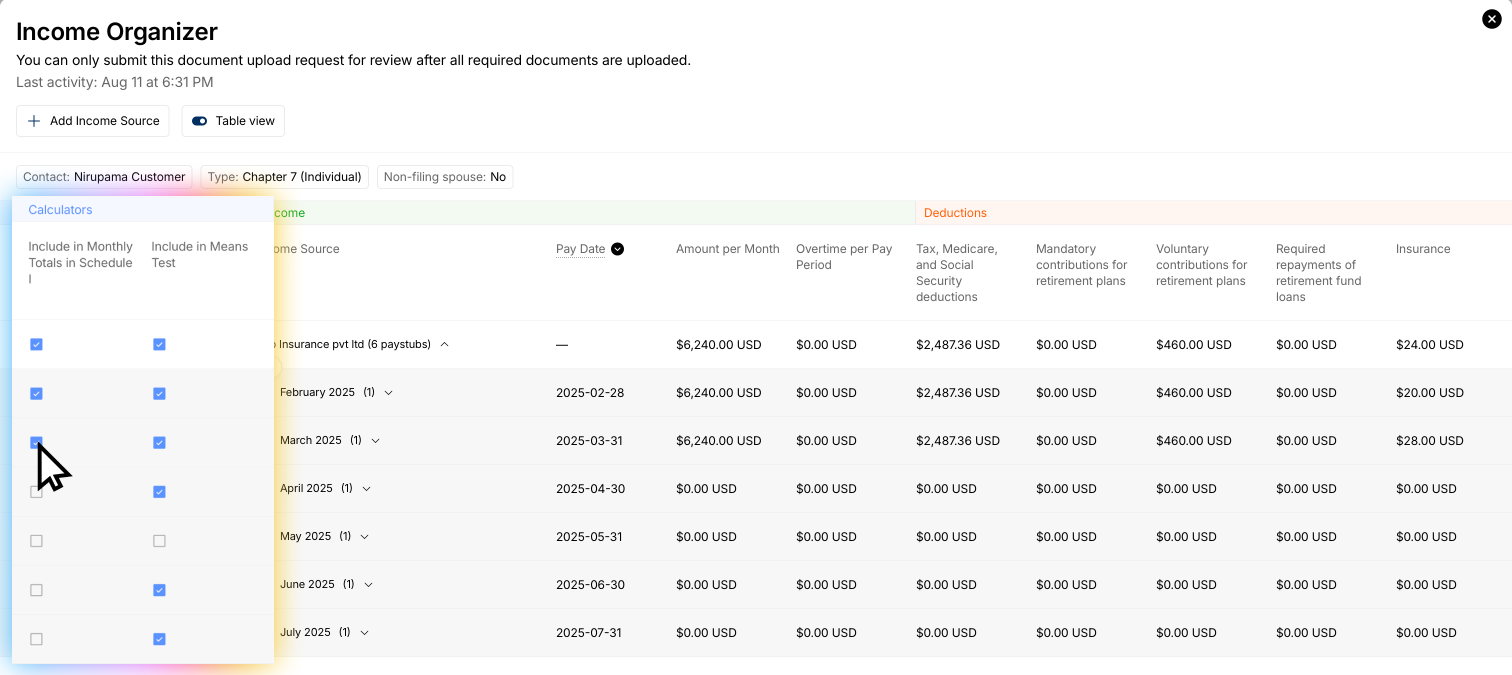
Select which pay lines are included in:
Schedule I
Means test forms
Understanding the Pay Table Layout
Income Source Row
Displays average monthly income for that source (based on selected stubs).
Income Row (Pay Stub)
Shows AI-extracted values per pay stub.
Fields are editable.
Includes a checkbox to:
Include the pay stub in Schedule I and average calculations
Or exclude it, keeping it in the case but omitting it from totals
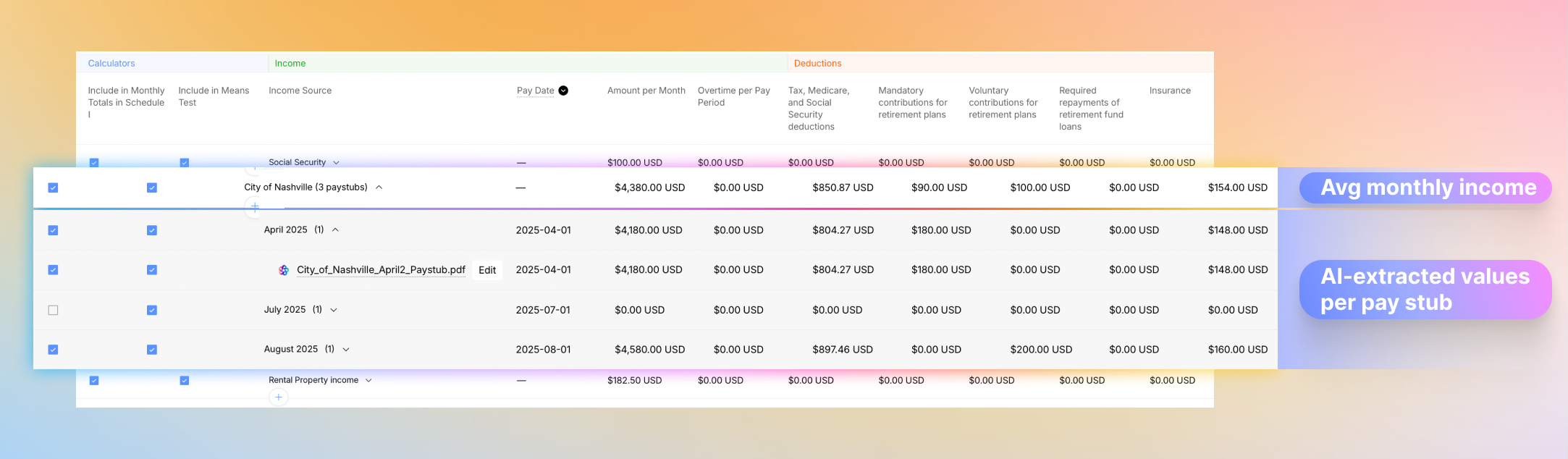
Tip: To use only one representative pay stub for Schedule I, select that single stub. The rest will remain in the case but won't affect the final numbers.
Cell Breakdown (Multi-Value Totals)
Some cells in the Pay Table can be made up of multiple values that add up to a single total. For example, if a client has multiple earnings categories on a single pay stub (e.g., regular pay + overtime + bonuses), you can break down the cell to see and edit each component individually while the cell displays the combined total.
To view or edit the breakdown of a cell, click on a cell that contains multiple values. You'll see each component listed separately, and the total will update automatically as you adjust individual amounts.
For a walkthrough, watch the video tutorial: https://www.loom.com/share/c4c1ec06abb04c8c87ab668a53e0fb1e
Schedule I Calculator
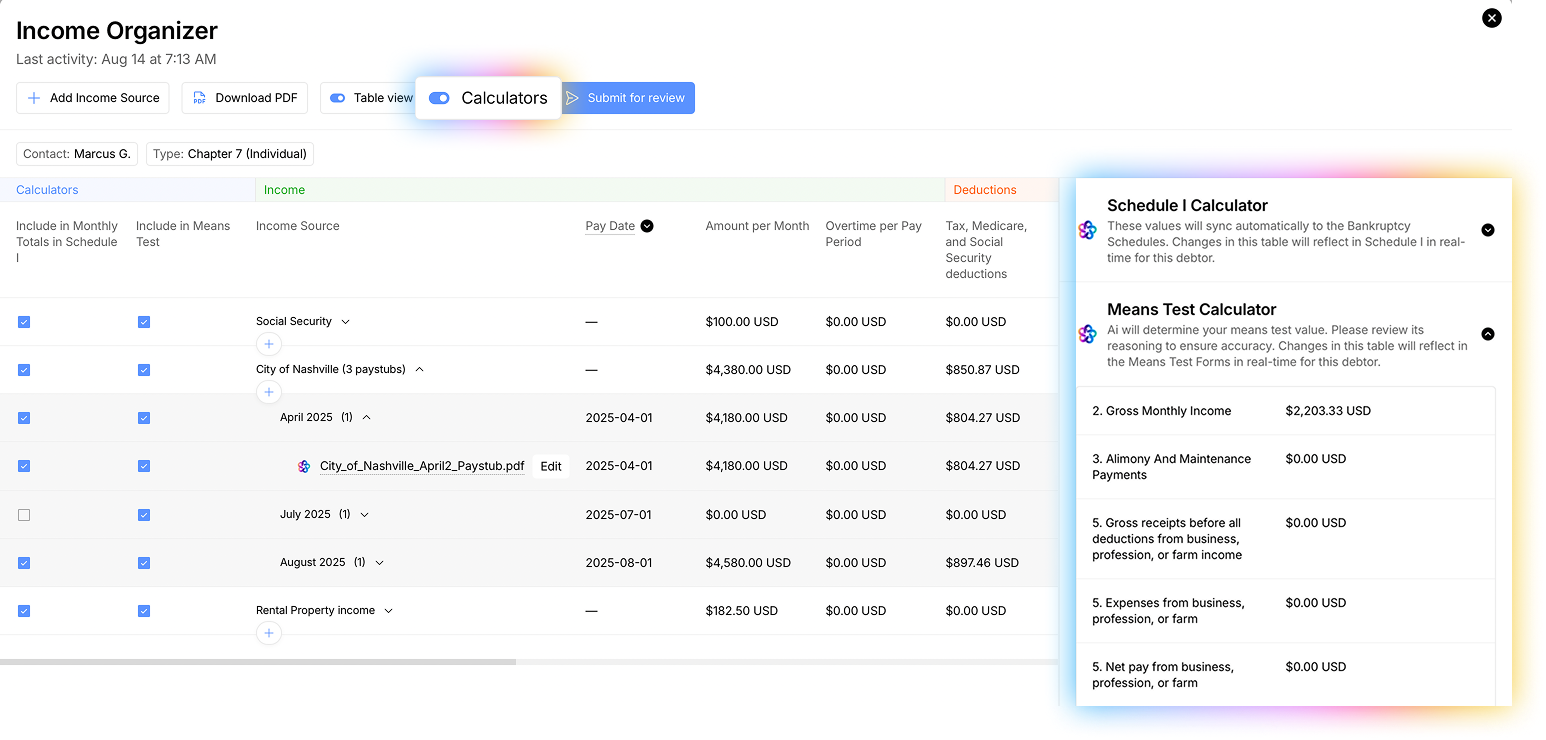
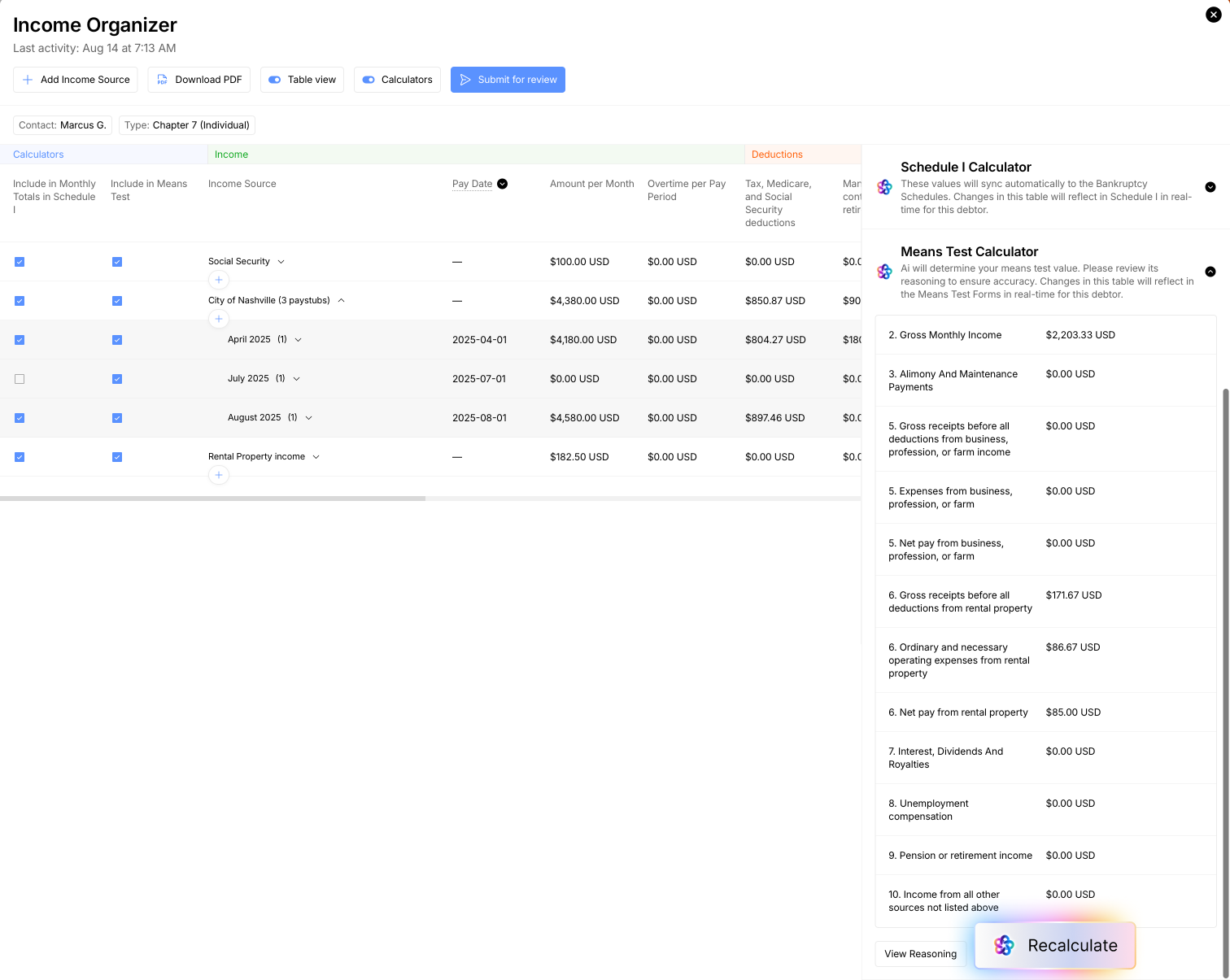
To view the calculators, click the 'Calculators' toggle at the top of the pay table. Doing so will reveal the calculators view on the right hand side.
The Schedule I calculator reflects line-by-line values matching Schedule I.
It will take all monthly values for employment and non-employment income and enter them into their applicable rows. Each row lines up 1:1 with those in Schedule I.
As you update the Pay Table, Glade AI automatically updates the Schedule I calculator in real time.
These values flow directly into Schedule I of the petition during the Schedules Builder process.
If you want to omit certain income from the Schedule I calculator, de-select the checkbox next to that pay item in the 'Include in monthly totals' column.
YTD Single Paystub Calculation Mode
The YTD (Year-To-Date) Single Paystub feature allows you to calculate monthly income from just one recent paystub, eliminating the need to collect multiple months of paystubs. This significantly speeds up income data collection and is especially useful for clients who recently started a new job or when gathering multiple paystubs would be difficult.
How YTD Calculation Works:
Most paystubs show both "Current" and "YTD" columns displaying cumulative earnings and deductions for the year. Glade's YTD feature works by:
Extracting YTD values - Glade automatically identifies and extracts Year-To-Date amounts for gross pay, taxes, insurance, retirement contributions, union dues, and other deductions from a single paystub.
Calculating average monthly income - The system divides each YTD total by the number of elapsed months in the year to determine the average monthly amount.
Auto-calculating months - Elapsed months are calculated automatically based on the paystub date (e.g., a May paystub = 5 months).
Manual month override - You can manually adjust the number of months if the client started their job mid-year. For example, if a client started in March and you have a May paystub, set the months to 3 instead of 5 to get an accurate average.
What Gets Extracted:
The system automatically extracts up to 12 YTD fields from paystubs:
Gross pay
Taxes
Insurance premiums
Retirement contributions (voluntary and mandatory)
Loan repayments
Union dues
Business expenses
Domestic support obligations
Other deductions
Net pay
If a field isn't present on the paystub, it will be marked as unavailable and won't affect the calculation.
Switching Between Calculation Modes:
You can toggle between two calculation modes for each income source:
All Paystubs mode - Traditional method using multiple paystubs from different months. Use this when the client's income varies significantly month-to-month, when the paystub doesn't show YTD totals, or when you prefer to see actual monthly amounts rather than averages.
YTD Single mode - Calculate from a single paystub using YTD values. Use this when you only have access to one recent paystub, when the client recently started their job, or when you want faster data collection without sacrificing accuracy.
The selected calculation mode is saved per income source, so you can use different modes for different income sources within the same case.
When to Use YTD Mode:
You only have access to one recent paystub
The client recently started their job (use manual month override to reflect actual employment period)
You want faster data collection without sacrificing accuracy
The client has consistent income and the paystub shows YTD totals
Means Test Calculator
Below Schedule I is the Means Test calculator.
To use it:
Click 'Calculate'
Run it again any time changes are made
Glade AI will analyze the last 6 months of included income. In the Pay Table, each row includes a checkbox:
"Include in Means Test data" – deselect any income you want excluded.
After processing, the Means Test Calculator will display values, and you can review the AI's logic or re-run the calculation if needed.