
Connecting to Glade via MCP
Connect your AI assistant to Glade to query your workspace data — clients, cases, tasks, invoices, payments, documents, filing, and messaging — directly in natural language, and take actions on your behalf.
MCP (Model Context Protocol) is an open standard, which means Glade works with any MCP-compatible AI client — not just Claude and ChatGPT. The Glade MCP server is live at https://mcp.prod.glade.ai/mcp.
✨ Already in Glade 2.0: G, Glade's AI assistant, is built into the Glade 2.0 dashboard and runs on this same MCP server — no external AI client needed. Click the chat icon in the lower left or press G on your keyboard. See Chat With Glade Support (2.0). This article is for connecting an external AI client to the same data.
📣 This is an early release. Things may be rough around the edges and capabilities are still expanding. We'd love your feedback — please share what's working, what's missing, and what you'd like to see next.
Supported Clients
Client | Type | Notes |
|---|---|---|
Claude Code | CLI | See setup below |
Claude Desktop | Desktop app | See setup below |
Claude Web (claude.ai) | Web | See setup below |
ChatGPT | Web | Requires a paid plan (Plus or higher); see setup below |
Gemini CLI | CLI | Add Glade as an MCP tool source |
Cursor | Code editor | Add via MCP settings in Cursor |
Windsurf | Code editor | Add via MCP settings in Windsurf |
Any MCP-compatible client | — | Point to |
Before You Start
You'll need a Glade account with creator access. When you connect, you'll be prompted to sign in via OAuth — your data is scoped to the workspaces you belong to.
Claude Code (CLI)
Option A — CLI (recommended):
claude mcp add glade --transport http https://mcp.prod.glade.ai/mcp
Option B — Manual config: Add to .mcp.json in your project root:
{
  "mcpServers": {
    "glade": {
      "type": "http",
      "url": "https://mcp.prod.glade.ai/mcp"
    }
  }
}
Type /mcp in Claude Code, navigate to glade, and select Connect.
Claude Desktop
Method 1 — UI (Pro / Max / Team / Enterprise)
Go to Settings → Connectors.
Click Add custom connector (custom connectors only available to admin)
Enter a name (e.g. Glade) and the URL:
https://mcp.prod.glade.ai/mcpClick Connect and sign in.
Method 2 — Config file (all plans)
{
  "mcpServers": {
    "glade": {
      "command": "npx",
      "args": ["mcp-remote", "https://mcp.prod.glade.ai/mcp"]
    }
  }
}
Restart Claude Desktop after saving. Requires Node.js.
Claude Web (claude.ai)
Click your profile icon → Settings → Connectors.
Click Add custom connector.
Enter a name and the URL:
https://mcp.prod.glade.ai/mcpClick Add, then Connect and sign in.
ChatGPT
Requires a paid ChatGPT plan (Plus, Pro, Business, Enterprise, or Edu) with custom connector access.
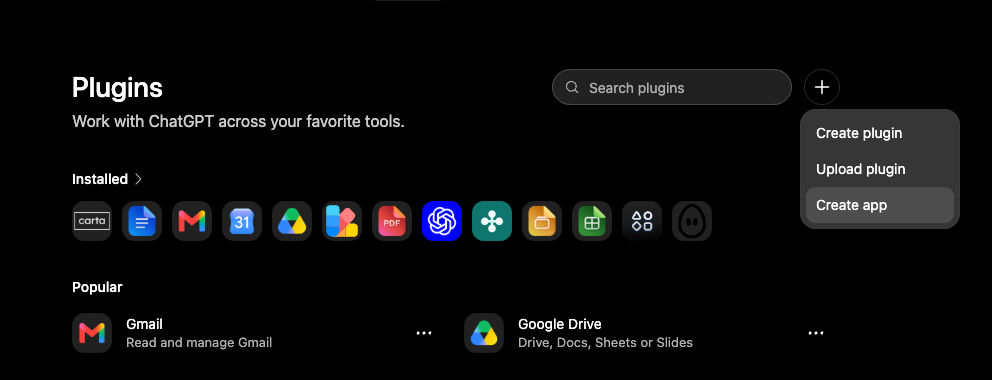
Open the Plugins page ("Work with ChatGPT across your favorite tools"), click the + button in the top right, and choose Create plugin.
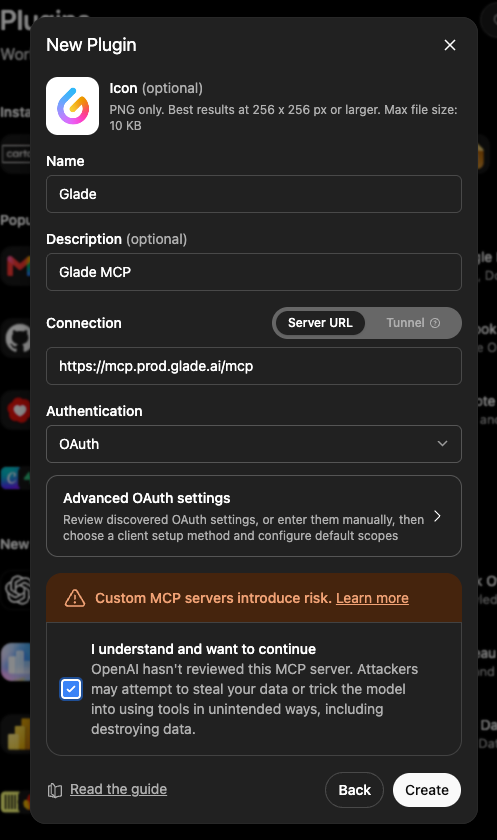
In the New Plugin form, enter a Name (e.g. Glade) and a Description (e.g. Glade MCP), set Connection to Server URL and enter
https://mcp.prod.glade.ai/mcp, then choose OAuth under Authentication. Check I understand and want to continue and click Create.On the Add Glade to ChatGPT card, click Sign in with Glade.
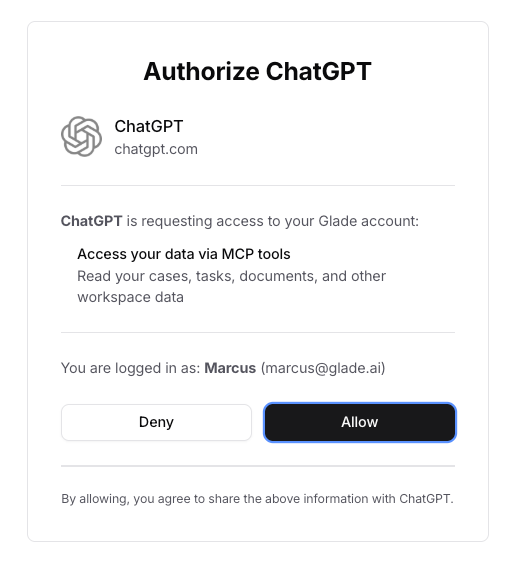
On the Glade authorization screen, confirm you're signed in as the right account and click Allow.

Available Tools
Ask your AI assistant about anything in your workspace in plain language. It picks the right tools for you, so you never have to name them. The tables below list every tool the Glade MCP server provides. Read tools only look at your data. Write tools make changes on your behalf, and most AI clients ask you to approve each one before it runs.
Cases & Workflows
Tool | Access | What it does |
|---|---|---|
List User Workflows (Cases) | Read | List cases with filters and pagination |
Get User Workflow (Case) | Read | Full case details: status, steps, people, and linked workflows |
List User Workflow Notes | Read | Read the internal notes on a case |
Create User Workflow Note | Write | Add an internal note to a case |
Trigger Workflow Step | Write | Re-run a stuck step, such as a contract or signing task that never fired |
Resend Client Portal Invite | Write | Resend a client's portal invite for a case |
List Compiled Documents for a Workflow | Read | List the generated PDFs on a case, such as the petition and schedules |
Download Compiled Workflow Document | Read | Get a download link for a generated case PDF |
List Case Entities | Read | List creditors, assets, income records, and aliases on a case |
Get Case Entity | Read | Full detail for one entity, including where each value came from |
Get Case Data Schema | Read | List the case data fields available to templates and autofill |
List Workflow Templates | Read | List your firm's workflow templates |
Get Workflow Template | Read | Steps and settings for one workflow template |
Clients & Contacts
Tool | Access | What it does |
|---|---|---|
List Customers | Read | List clients with filters and pagination |
Get Customer | Read | Full profile for a specific client |
Update Contact Details | Write | Correct a client's or contact's name, email, or phone |
List Organizations | Read | List client organizations (groups of clients who work together) |
Get Organization | Read | Details for one client organization |
List Organization Members | Read | List the people in a client organization |
Get Organization Member | Read | Details for one organization member |
Firm & Team
Tool | Access | What it does |
|---|---|---|
Get Current User | Read | Who you are, and which firms and workspaces you can access |
List Creators | Read | List the firms you belong to |
Get Creator | Read | Your firm's details and settings |
List Team Members | Read | List your firm's team members and their roles |
Get Team Member | Read | Details for one team member |
Invite Team Member | Write | Invite someone to join your firm |
Update Team Member Role | Write | Change an existing team member's role |
List Agencies | Read | List the agencies you belong to |
Get Agency | Read | Details for one agency |
List Agency Members | Read | List the people who work for an agency |
Get Agency Member | Read | Details for one agency member |
Tasks
Tool | Access | What it does |
|---|---|---|
List Tasks | Read | List tasks with filters for status, assignee, due date, and case |
Get Task | Read | Full details for a specific task |
Create Task | Write | Create a task, optionally tied to a client or case |
Update Task | Write | Change a task's status, priority, due date, title, or assignees |
List Task Efficiencies | Read | Time-to-completion records for individual workflow tasks |
Get Task Efficiency | Read | Timing and reopen details for one task record |
List Task Efficiency Aggregates | Read | Volume, completion rates, and completion times by workflow and task type |
List Task Efficiency Reports | Read | List AI-generated reports on task performance trends |
Get Task Efficiency Report | Read | Read the full text of one task efficiency report |
Messaging
Tool | Access | What it does |
|---|---|---|
List Conversations | Read | List client chat threads, filtered by client or status |
Get Conversation | Read | Details for one client chat thread |
List Conversation Messages | Read | Read the messages in a client chat thread |
Send Conversation Message | Write | Reply in a client chat thread as you |
Get Attachment Download URL | Read | Get a download link for a file shared in a client chat |
Escalate Glade Conversation to Human Support | Write | Hand the current conversation to a person on the Glade support team |
List User Workflow Messages | Read | Read the message thread on a case |
Send User Workflow Message | Write | Post a message in the message thread on a case |
Get Workflow Message Attachment Download URL | Read | Get a download link for a file shared in a case thread |
Invoices & Payments
Tool | Access | What it does |
|---|---|---|
List Invoices | Read | List invoices with filters for status, client, and case |
Get Invoice | Read | Full details for a specific invoice, including line items |
Void Invoice | Write | Void an invoice |
Remove Invoice Processing Fees | Write | Stop passing card and ACH processing fees to the client on an invoice |
List Payments | Read | List payments with filters for client, date, and status |
Get Payment | Read | Full details for a specific payment |
Refund Payment | Write | Refund all or part of a payment |
List Payment Plans | Read | List payment plans and their balances |
Get Payment Plan | Read | Full schedule and status for one payment plan |
List Services | Read | List your firm's services and pricing |
Update Service Details | Write | Edit a service's title, description, and other details |
Bookings
Tool | Access | What it does |
|---|---|---|
List Bookings | Read | List appointments and consultations |
Get Booking | Read | Full details for a specific appointment |
Get Availability | Read | Show open booking times for a service over a month |
Create Booking | Write | Book an appointment and notify the client |
Reschedule Booking | Write | Move an appointment and notify the client |
Cancel Booking | Write | Cancel an appointment and notify the client |
Documents
Tool | Access | What it does |
|---|---|---|
List Document Requests | Read | List document requests and the files clients have uploaded |
Get Document Request | Read | Full details for one document request, including uploaded files |
Re-run Document Extraction | Write | Re-read an uploaded document and refresh the data pulled from it |
Questionnaires & Forms
Tool | Access | What it does |
|---|---|---|
List Questionnaires | Read | List questionnaires assigned to clients |
Get Questionnaire | Read | Read a questionnaire's questions and answers |
Update Questionnaire Responses | Write | Set or correct answers on a questionnaire in progress |
List Questionnaire Snapshots | Read | List saved point-in-time copies of a questionnaire |
Get Questionnaire Snapshot | Read | Read the answers captured in one snapshot |
List Questionnaire Field Changes | Read | Show the change history for one answer |
Get Questionnaire Field Debug Info | Read | Show where an answer came from and who last changed it |
List Form Requests | Read | List intake form requests, optionally for one case |
Get Form Request | Read | Read a form request's questions and answers |
Get Form Request Diagnostics | Read | Show what's still unanswered on a form request, and why |
Update Form Request Responses | Write | Set or correct answers on a form request in progress |
Questionnaire Templates
Tool | Access | What it does |
|---|---|---|
List Questionnaire Templates | Read | List your firm's questionnaire and form templates |
Get Questionnaire Template | Read | A template's sections and settings |
List Questionnaire Template Fields | Read | List the fields in a template |
Get Questionnaire Template Field | Read | Full settings for one template field |
Check a Template Expression | Read | Test a condition, autofill, or validation rule without saving it |
List PDF Templates | Read | List the PDFs a template can fill in |
List Questionnaire Template Agents | Read | List a template's AI agents |
Create a Questionnaire Template | Write | Start a new questionnaire or form template |
Save a Template Section | Write | Add or edit a section on a draft template |
Delete a Template Section | Write | Remove a section from a draft template |
Reorder Template Sections | Write | Change the order of sections on a draft template |
Create a Template Field | Write | Add a field to a draft template |
Update a Template Field | Write | Edit a field on a draft template |
Delete a Template Field | Write | Remove a field from a draft template |
Reorder Template Fields | Write | Change the order of fields on a draft template |
Set a Field's PDF Fills | Write | Choose which PDF fields a template field fills in |
Save a Template AI Agent | Write | Add or edit an AI agent on a draft template |
Publish a Questionnaire Template | Write | Make the draft the live version for new questionnaires |
E-Filing & Court
Tool | Access | What it does |
|---|---|---|
Get eFiling Packet | Read | Everything that makes up a case's filing packet, and what's missing |
Get eFiling District for a Case | Read | The district a case files into, and that court's filing requirements |
Get Pre-Filing Review for a Case | Read | Results of the latest pre-filing review, including blocking issues |
Get Court Docket | Read | A case's full PACER docket and parties of record |
List Court Notices | Read | List PACER notices, orders, and motions received for your cases |
Get Court Notice | Read | Full details for one court notice |
Download Court Notice Attachment | Read | Get a download link for a court notice document |
List Court Calendars | Read | List upcoming and past hearings, filtered by case or date |
Get Court Calendar | Read | Full details for one hearing |
Custom Reports
Tool | Access | What it does |
|---|---|---|
List Custom Reports | Read | List your firm's saved dashboard reports |
Get Custom Report | Read | A saved report's filters and columns |
Create Custom Report | Write | Save a new report on the dashboard |
Update Custom Report | Write | Change a saved report's filters, columns, or name |
Duplicate Custom Report | Write | Copy a saved report |
Delete Custom Report | Write | Delete a saved report |
Help & Documentation
Tool | Access | What it does |
|---|---|---|
Search Help Center | Read | Search Glade's help center articles |
Get Help Center Article | Read | Read one help center article in full |
List Documentation | Read | List Glade's product documentation by area |
Get Documentation | Read | Read one product documentation page |
Search Documentation | Read | Search Glade's product documentation by keyword |
Firms (Glade staff only)
These tools appear only for Glade staff. Firms never see them in their tool list.
Tool | Access | What it does |
|---|---|---|
List All Firms | Read | List every firm on the Glade platform |
Get Firm Detail | Read | A firm's account details, lifecycle state, and assigned CSM |
Update Firm Fields | Write | Change a firm's lifecycle state, CSM, segment, filing states, and key dates |
Get Firm Integration Statuses | Read | Show whether a firm's PACER, credit reporting, payments, and calendar are connected |
Get Firm Account-Setup Progress | Read | Show a firm's onboarding checklist and progress |
Complete a Firm Onboarding Step | Write | Mark an onboarding step as done on a firm's behalf |
Skip a Firm Onboarding Step | Write | Mark an onboarding step as skipped on a firm's behalf |
List Firm Change History | Read | Show the history of staff changes to a firm |
List Firm Notes | Read | Read internal staff notes on a firm |
Add a Firm Note | Write | Add an internal staff note to a firm |
Edit a Firm Note | Write | Edit an internal staff note |
Delete a Firm Note | Write | Delete an internal staff note |
List Firm Risks | Read | List the risks and blockers logged against a firm |
Log a Firm Risk | Write | Log a new risk or blocker against a firm |
Edit a Firm Risk | Write | Change a risk's severity, owner, details, or dates |
Resolve a Firm Risk | Write | Close a risk once it is fixed |
Delete a Firm Risk | Write | Delete a risk logged by mistake |
List CSM Candidates | Read | List Glade staff who can be assigned as a firm's CSM |
Government Forms (Glade staff only)
Tool | Access | What it does |
|---|---|---|
List Government Forms | Read | List the official forms Glade generates, such as Form 113 and 122A-1 |
List Government Form Versions | Read | List every version of a form and which one is live |
Get Government Form Files | Read | Read the template files for one form version |
Compile-check a Government Form | Read | Check a form version for errors without publishing |
Preview a Government Form as PDF | Read | Render a form version with sample data as a PDF |
Save Government Form Files | Write | Edit the template files on a draft form version |
Publish a Government Form | Write | Make the draft the version used for filed documents |
Example prompts — Attorneys
List all ongoing cases grouped by assignee and status as a table
Which clients have unpaid invoices? Show as a table with client name, amount, and days overdue
What tasks are overdue across all my active workflows? Group by workflow
Give me a full overview of [client name] — their cases, invoices, and recent payments
Summarize the latest messages on [client name]'s case and what they're waiting on
Is [client name]'s e-filing packet ready? What's blocking pre-filing review?
What hearings are on my court calendar next week? Group by attorney
Add a task to follow up with [client name] about their missing paystubs, due Friday
Reschedule [client name]'s consultation to next Tuesday afternoon
Build a saved report of all cases with an outstanding balance, sorted by amount owed
Refund [client name]'s last payment and void the duplicate invoice
Example prompts — Glade Admins
For [Law Firm Name], list all ongoing cases grouped by assignee and status
For [Law Firm Name], which clients have unpaid invoices?
Compare workflow completion rates across [Firm A] and [Firm B]
Show [Law Firm Name]'s onboarding progress and any open firm-health risks
Log a new risk for [Law Firm Name] about slow PACER setup
Known Limitations
Full document text may be incomplete — document summaries and metadata are reliable, but long document bodies can be truncated.
Some data isn't exposed yet — e-signature envelopes and credit report contents aren't available through MCP.
No memory across conversations — each conversation starts fresh.
Scoped to your workspaces — you'll only ever see data for firms and cases you're a member of. Use
persons_meto check what you have access to.
Troubleshooting
Issue | Fix |
|---|---|
OAuth flow doesn't open | Check that |
Unauthorized errors on tool calls | Token may have expired. Disconnect and reconnect to re-authenticate. |
No data returned for a tool | Confirm you're a member of the workspace you're querying. Use |
Write actions aren't showing up | Disconnect and reconnect so your client refreshes its tool list. If they're still missing, ask Glade support from inside Glade 2.0 (press G). |
Claude Desktop config not working | Ensure Node.js is installed. Run |
ChatGPT: can't add a custom plugin | Custom MCP connectors require a paid plan (Plus, Pro, Business, Enterprise, or Edu). Open the Plugins page and use + → Create plugin. |