
Send a Document for Signature from a Workflow
Any PDF already sitting on a case — a generated form, a schedule, a case document — can be sent for signature without leaving Glade. You no longer download the file and re-upload it into a separate signature request.
Walkthrough
Send a document for signature
Open the case and go to Documents.
Click the document you want signed. It opens in a preview on the right.
In the preview header, click the ⋮ (three dots) menu and choose Send for signature.
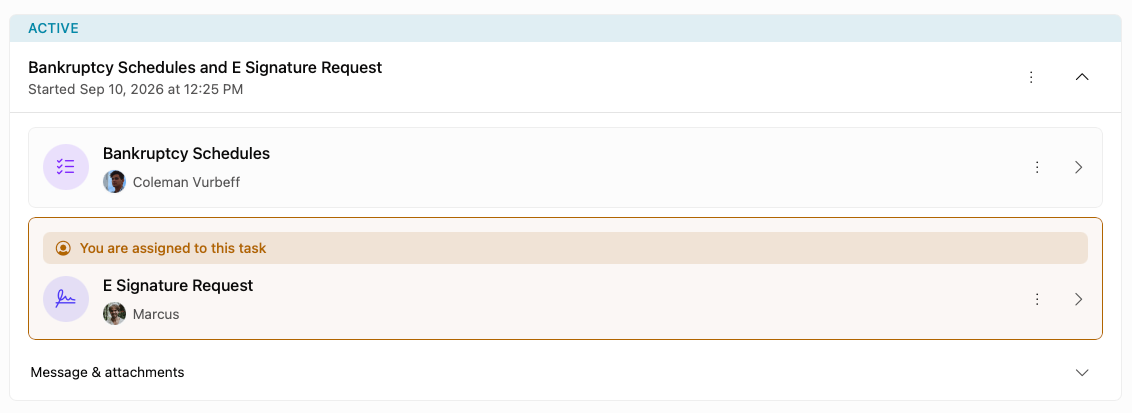
Choose the workflow step the signature request should live on, then click Next.
Choose who needs to sign, then click Continue to signature fields.
Place the signature, initial, and date boxes on the document, assign each to a signer, and send the packet.
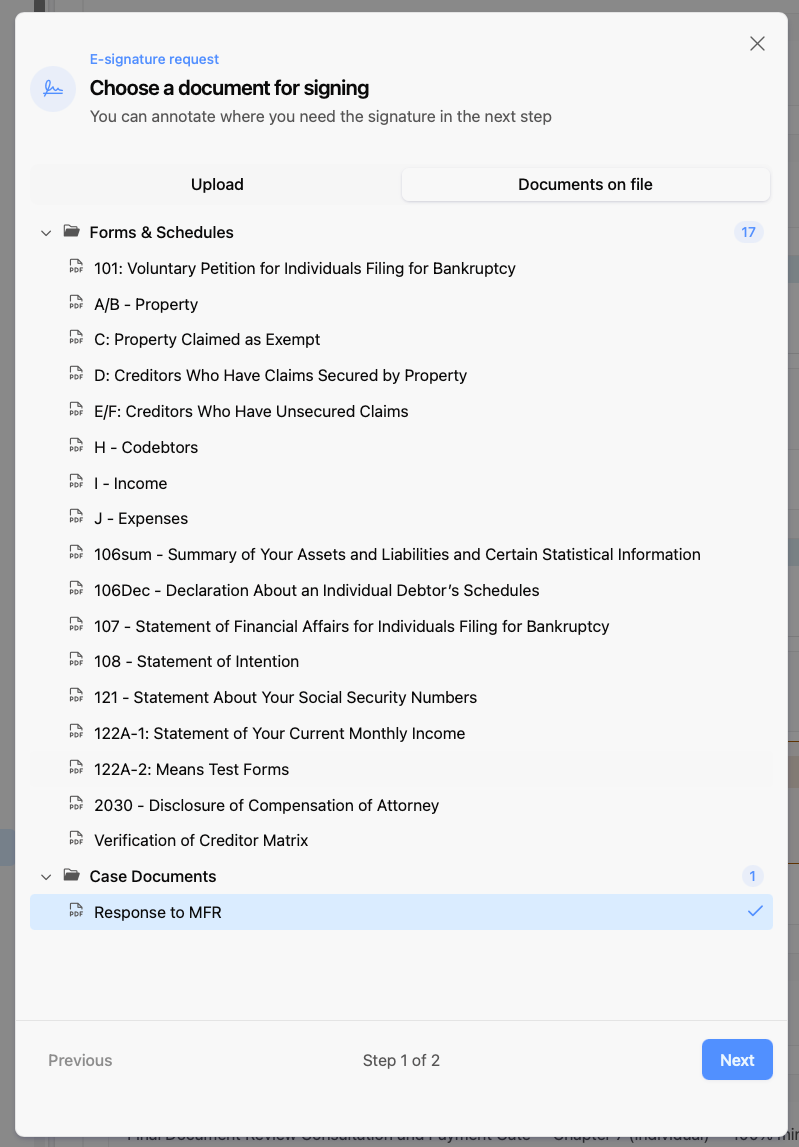
The document is added to the packet exactly as it appears in Glade, so what your client signs is what you were looking at.
Pick the order your signers sign in
Signers are asked to sign in the order you select them. The first person you click signs first; the next person is asked only after the one before them has finished.
This matters when one signature depends on another — for example, when your client should sign before the attorney. Click them in the order you want them to sign, not the order they appear on screen.
To change the order, deselect a signer and select them again; that moves them to the end of the sequence.
Choosing the workflow step
The signature request is attached to a step of the case, so it shows up on the case timeline with everything else that happened at that point.
You can choose the step the case is on right now, or any step after it. Steps that are already finished are not offered — a signature request filed against completed work would be easy to miss.
Each option is named by its position in the case and by what is already on that step, for example Step 4 · Chapter 7 - Client Document Checklist +2. The step the case is currently on is tagged Current and is selected for you.
When "Send for signature" is not in the menu
The option only appears when all of the following are true:
The document is a PDF. Other file types cannot be signed.
The document is not locked. Encrypted files cannot be sent.
The case has a step that can hold the request. Some steps are internal checkpoints the case passes through without posting anything, and a signature request cannot be attached to those.
If every step of the case is already complete, the option is withheld. Move the case forward to its next step and it becomes available again.
After you send
The signature request appears on the workflow step you chose, and you can open it at any time to see who has signed and who is still outstanding. Signed copies and the signing certificate are stored back on the case when everyone has finished.
Related
Merging Wet-Signed or Digital Signature Pages into the Petition — when your client signs on paper instead.
Auto-Generate Signatures on Bankruptcy Petitions — filling signature and date fields across the petition automatically.
Add an Agreement or Document to a Case Already in Progress — sending something from your firm's library into a running case.