
Importing Creditors and Handling Duplicates
When a credit report is imported into Glade, the same debt can appear more than once — for example once per bureau (Equifax, Experian, TransUnion), or as overlapping entries from the questionnaire and the report. Duplicate creditors clutter the Master Creditor List, inflate schedule totals, and can appear on the creditor matrix / petition if they are not marked as duplicates.
This guide covers the full creditor-list workflow in petition prep (Client Questionnaire and Bankruptcy Schedules Builder): importing creditors from the credit report into lists, running the de-duplicator, manually marking or clearing duplicates, and what to verify before filing.
⚠️ Firm-facing only. These steps are for legal ops and attorneys working the case — not client portal users.
Recommended order
Creditors usually flow into the Client Questionnaire and Schedules automatically when you kick those steps off in this order:
Credit Report
Client Questionnaire (submit and complete)
Schedules
When done in order, the data flows through each step automatically. That remains best practice. Use the list-level import below when you need to work out of order, or when you want to re-import creditors from the credit report into a list without overwriting the rest of the questionnaire.
Import creditors into a list
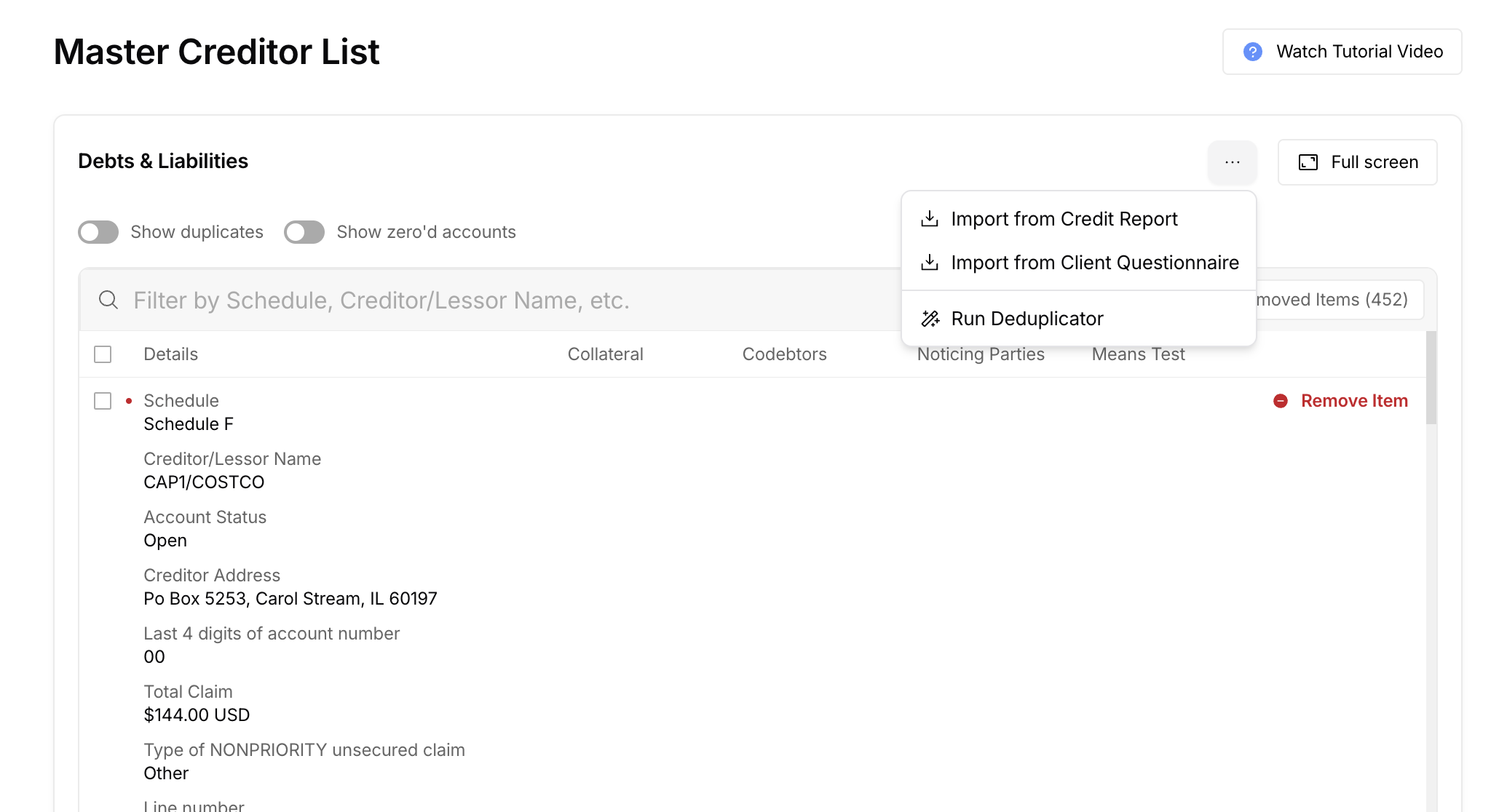
In the Client Questionnaire or the Schedules Builder, open the debt list (Debts & Liabilities in the Client Questionnaire, or the Master Creditor List in Schedules).
Click the three-dot menu (⋯) at the top of the list.
Choose Import from Credit Report.
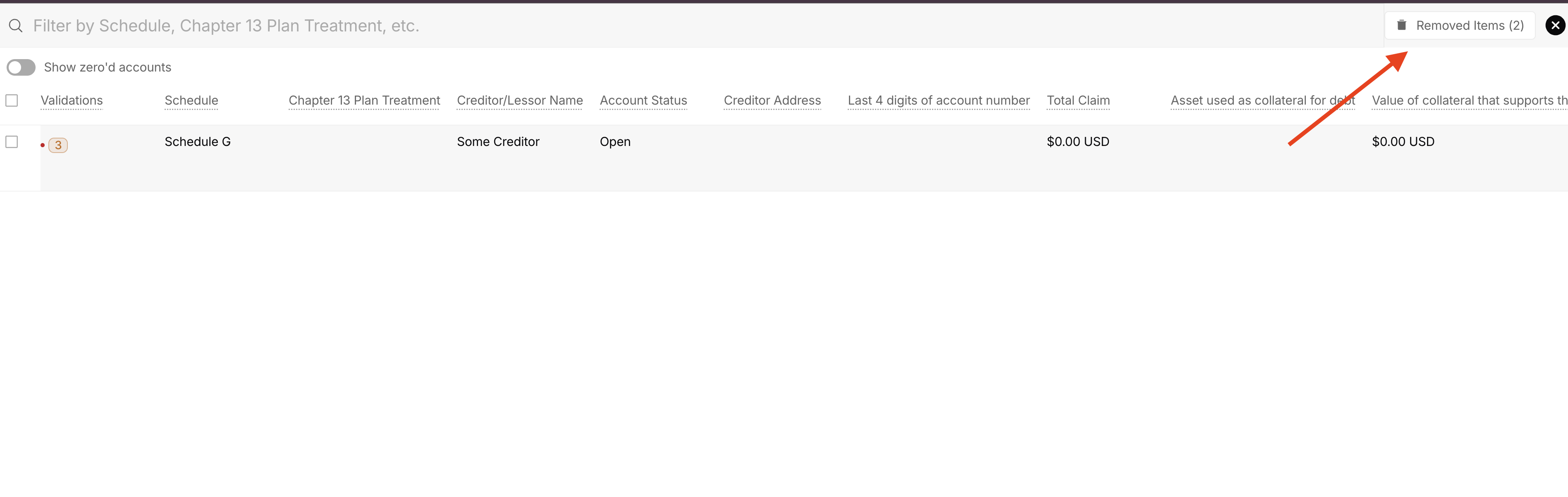
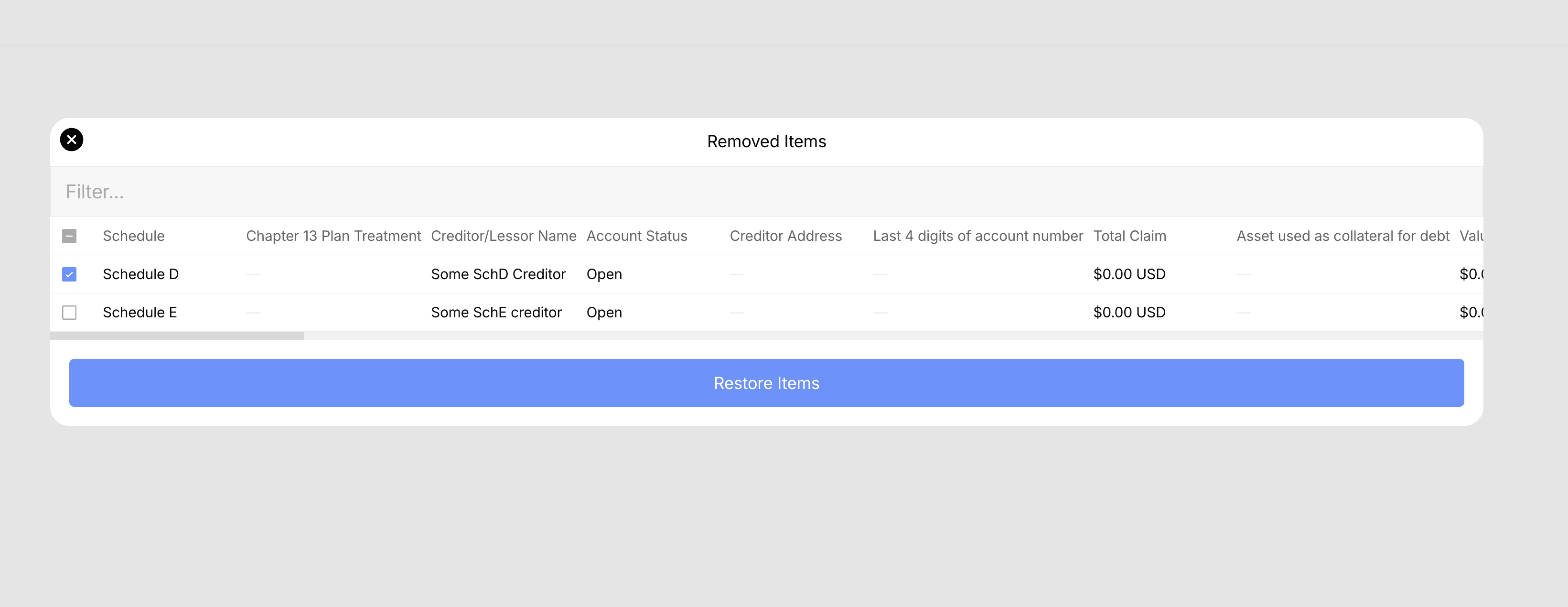
This imports all creditors from the credit report into that list and overwrites whatever was previously in the list. Restore prior rows from Removed Items (top right of the list): select the items and choose Restore Items.
💡 The three-dot menu at the top of the entire questionnaire can also import data, but that option overwrites data throughout the questionnaire. List-level import targets only the creditor list.
Where to work on duplicates
Review and resolve duplicates in one place whenever possible:
Master Creditor List in the Bankruptcy Schedules Builder — the source of truth for Schedules D, E/F, and G.
Creditors in the Side Panel — the same list earlier in the workflow, before schedules are opened.
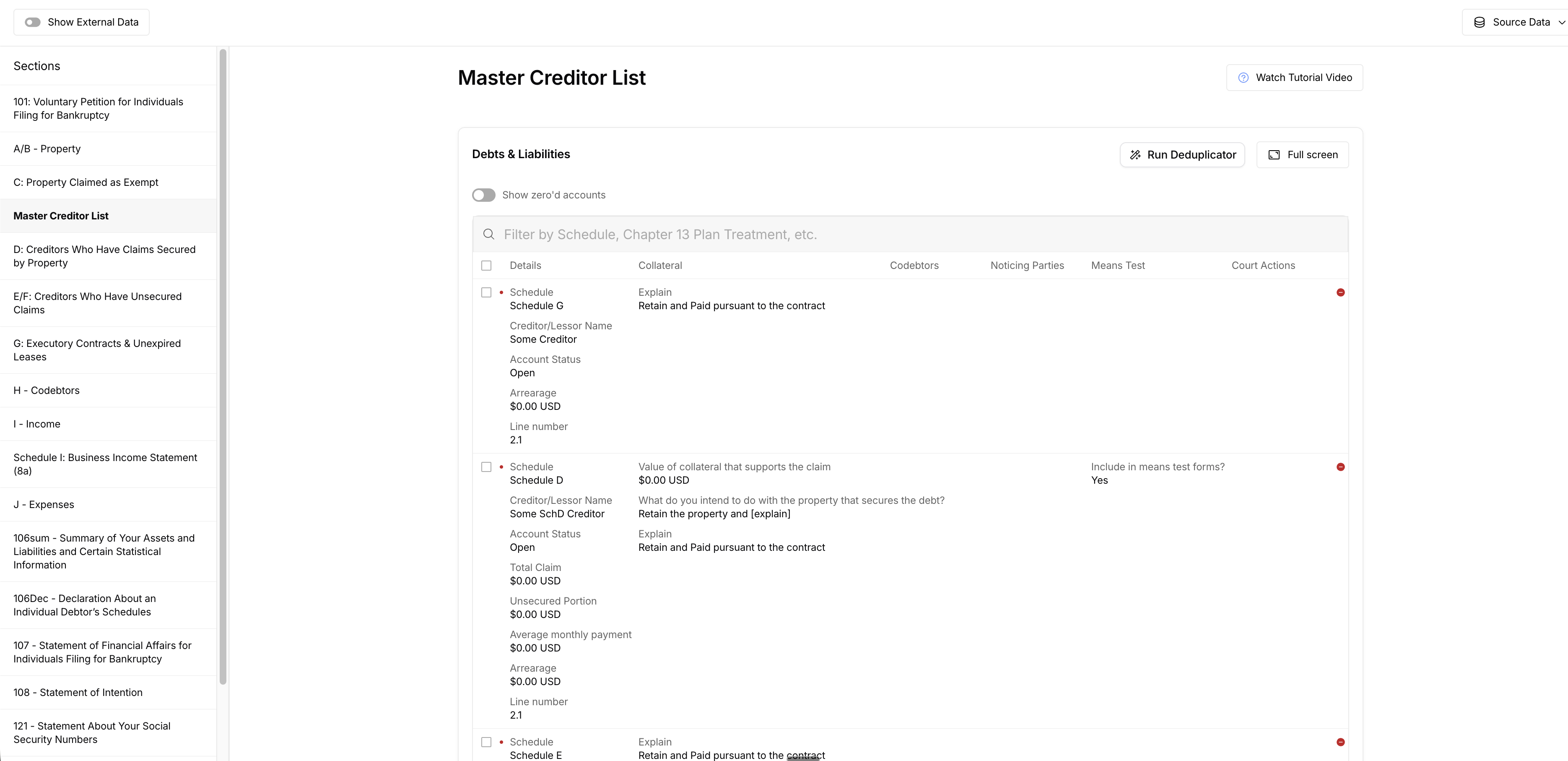
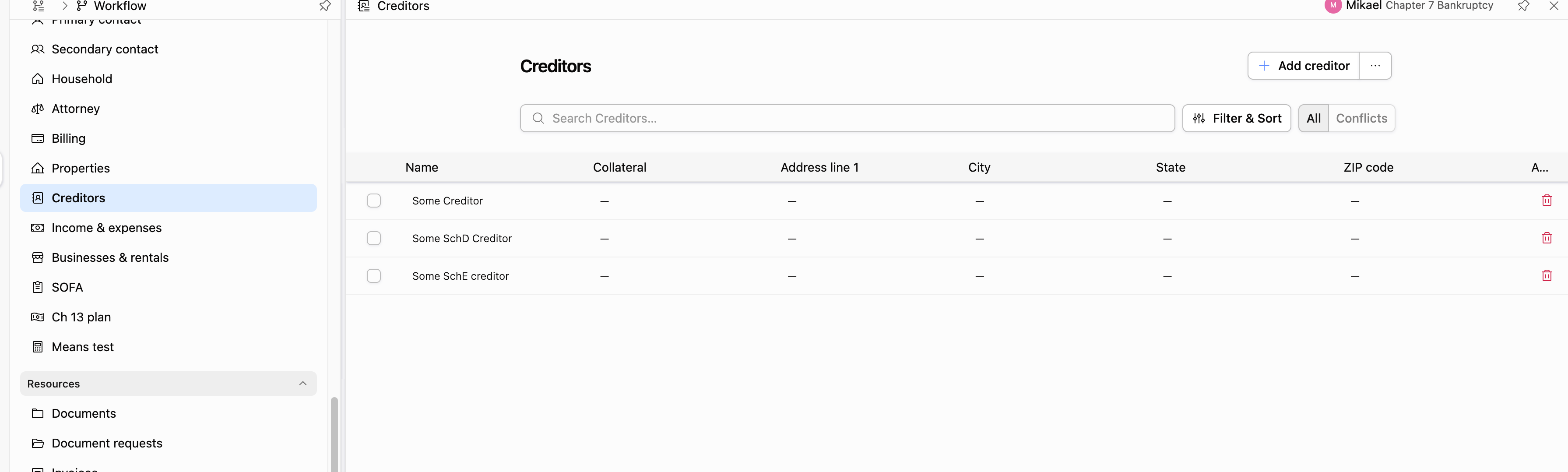
If the Master Creditor List is correct and deduplicated, Schedules D, E/F, and G will follow. Duplicates marked on the list are omitted from PDF fill so they do not appear as separate claims on the petition.
Related: Bankruptcy Schedules Builder Overview · Bankruptcy Case Preparation & Review — Best Practices
How duplicates get flagged
Glade uses several layers:
After credit-report import — Glade can automatically mark likely duplicate rows on the creditor list (AI / import-time matching).
Run de-duplicator (manual) — From the creditor list, open the list’s three-dot menu and run the de-duplicator any time. It scans the list, identifies likely duplicates, marks them as duplicates, and omits those rows from the active creditor list used for schedules and PDFs.
Manual mark as duplicate — Open a creditor row and mark it as a duplicate of another row when the automated tools miss a match (or get it wrong).
Pre-filing advisory check — Before filing, Glade can run an advisory duplicate-creditor review over the already-deduped list to surface pairs the deterministic merge did not catch. High-confidence blocking for this check is not the default yet; treat findings as guidance to go back and fix the Master Creditor List.
Creditor matrix compile — When the petition / creditor matrix is generated, Glade also merges near-identical matrix rows (for example the same name and address with a 5-digit ZIP vs ZIP+4). That does not replace cleaning the Master Creditor List.
💡 The de-duplicator is a strong first pass, not a final attorney review. Always scan the full Master Creditor List after it runs — especially names, balances, and mailing addresses.
Run the de-duplicator
Open the case and go to the Client Questionnaire (Debts & Liabilities) or the Schedules Builder (Master Creditor List).
Click the three-dot menu (⋯) at the top of the creditor list.
Choose the option to run the de-duplicator.
Wait for the scan to finish. Likely duplicates are marked and omitted from the active list.
Review the remaining creditors end to end. Confirm each unique debt appears once, with the best available balance and mailing address.
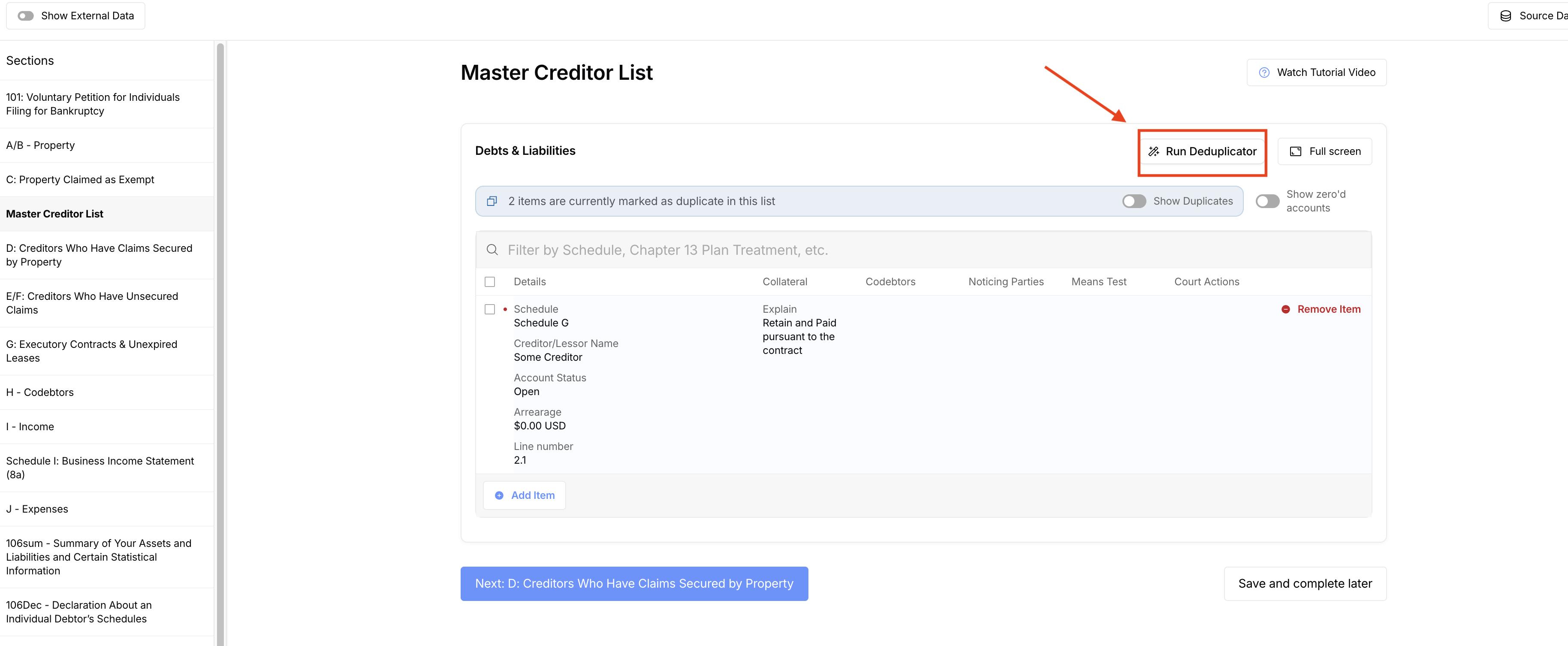
Recommended timing: run the de-duplicator after creditors are imported from the credit report (and again if you re-import or add many manual creditors).
⚠️ Re-importing from the credit report can overwrite the list. Prefer list-level import only when you need a targeted refresh, then run the de-duplicator and review again.
Manually mark or edit a duplicate
Use this when two rows are clearly the same debt but were not linked automatically, or when an automatic mark is wrong.
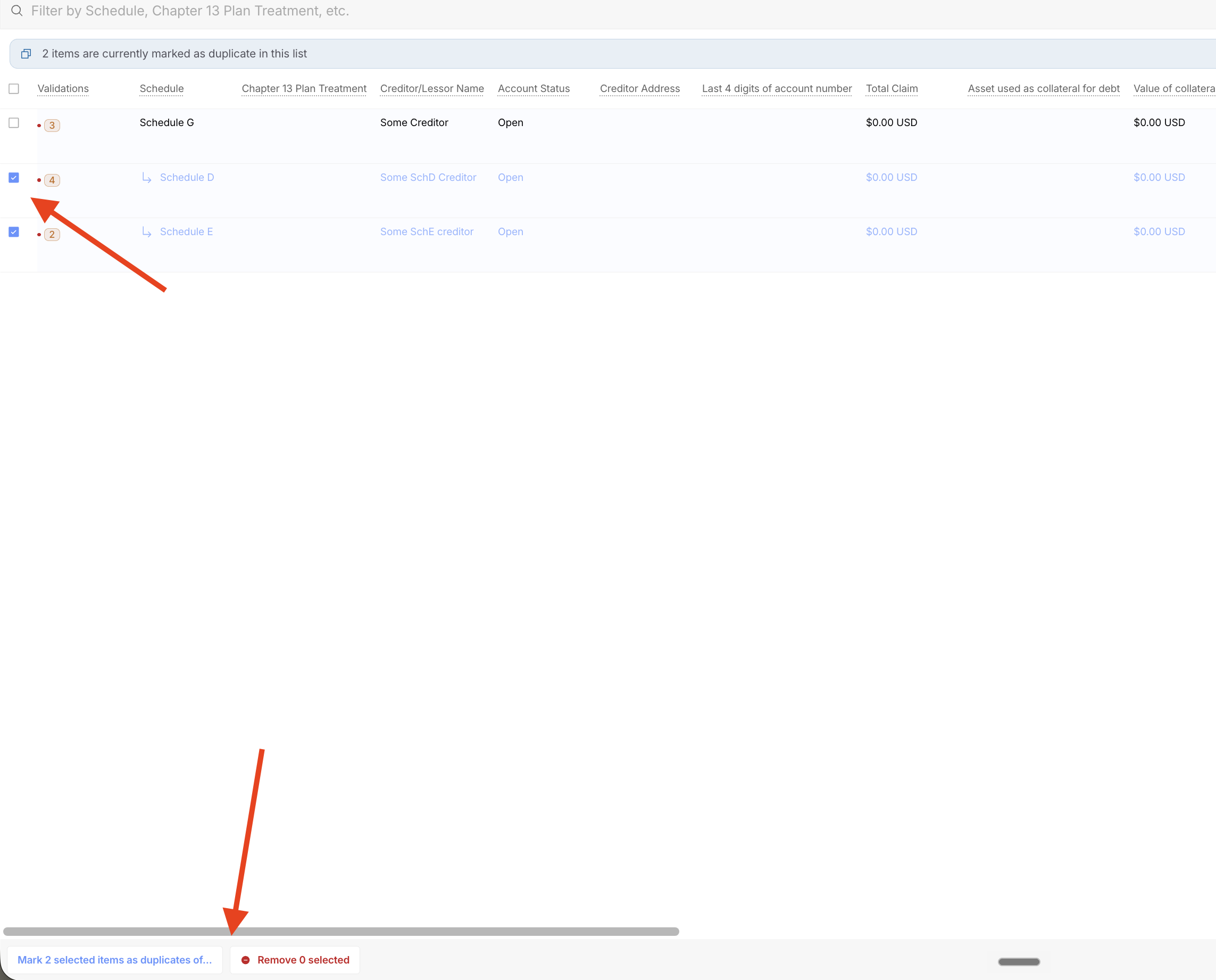
Open the creditor row you want to treat as a duplicate.
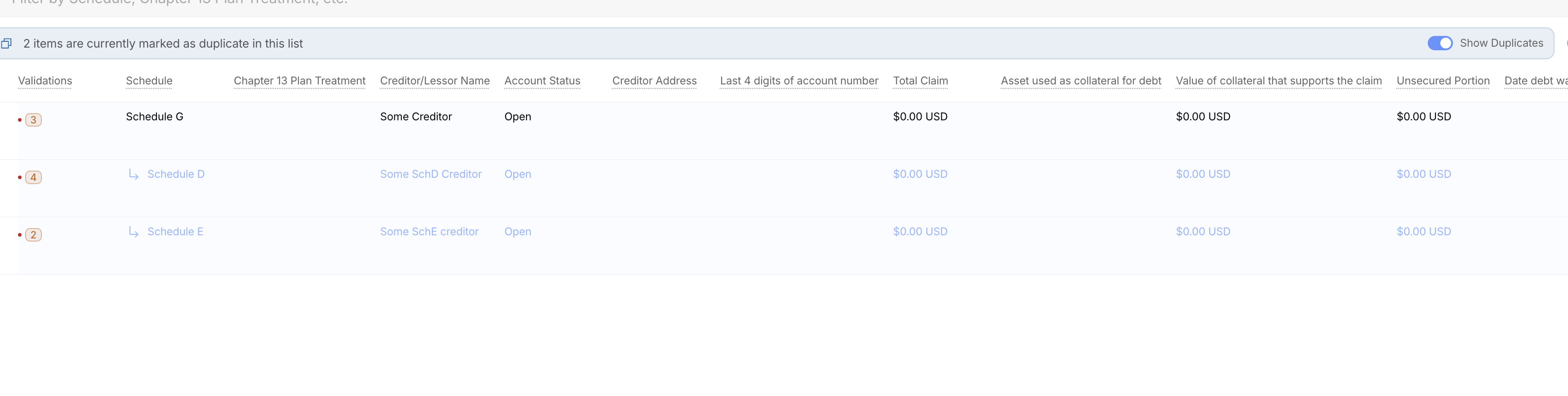
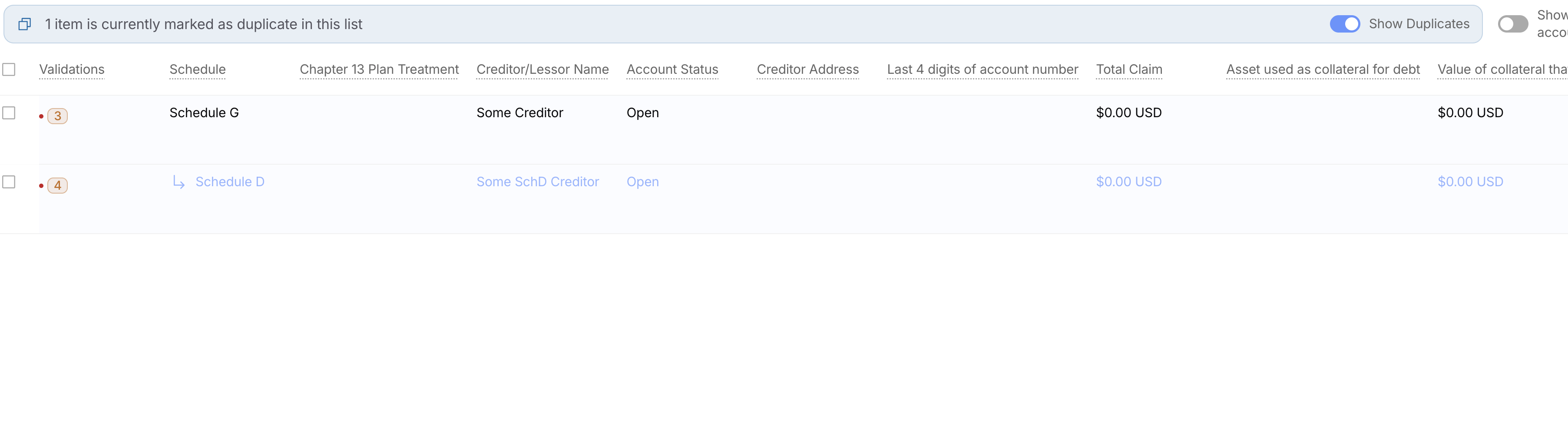
In the row editor, use the control that marks the row as a duplicate of another list item (and select the primary / keep row). The duplicate items will appear in a light blue test with an arrow under the main creditor.
Save the row. The duplicate should display with the list’s duplicate styling and be omitted from PDF fill.
If a row was marked incorrectly, clear the duplicate association so it returns to the active list.
When choosing which row to keep:
Prefer the entry with a usable mailing address (needed for the creditor matrix / notices).
Confirm the amount owed matches what the client and credit report support — especially when one row is $0 or missing an account number.
Prefer the richer account / ZIP details when two matrix-style rows only differ by formatting.
Review removed or omitted rows
Use Removed Items (top of the list) if a creditor disappeared after import or de-duplication and you need to restore it.
Select the items to bring back and choose Restore Items.
After restoring, re-check whether the row should stay active or be marked as a duplicate of a better primary entry.
Pre-filing and Check petition
Before you finalize the petition:
In the Schedules Builder, run Check petition and clear field-level findings.
Confirm the Master Creditor List has no unresolved duplicates you still intend to file as separate claims.
If filing review surfaces an advisory duplicate-creditor finding, open the Master Creditor List, resolve or manually mark the pair, then regenerate the petition / packet as needed.
Note: Pre-Filing Duplicate Checks covers duplicate case filings on the PACER submit screen — that is a different feature from duplicate creditors on the schedules.
Quick checklist
☐ Credit report pulled before questionnaire / schedules work when possible
☐ Creditors present on Master Creditor List (or Debts & Liabilities) — via recommended order or list-level import
☐ De-duplicator run after import (and after large manual adds)
☐ Full list reviewed for name, balance, and mailing address
☐ Remaining true duplicates manually marked; incorrect marks cleared
☐ Needed rows restored from Removed Items if over-merged or overwritten by re-import
☐ Schedule D secured creditors still have collateral assigned
☐ Check petition / filing review advisory duplicate findings addressed
☐ Petition / creditor matrix regenerated after final list edits
FAQ
Q: When should I use list-level import instead of the questionnaire import?
A: Use list-level import when you only need to refresh the creditor list (or you are working out of the recommended Credit Report → Questionnaire → Schedules order). Questionnaire-level import can overwrite data throughout the questionnaire; list-level import targets only that list.
Q: Why do I see the same bank three times?
A: Tri-bureau credit reports often list the same tradeline once per bureau. Import + de-duplication is meant to collapse those into one claim; review the list to confirm.
Q: Do duplicate rows print on the petition?
A: Rows marked as duplicates are omitted from PDF fill. Unmarked duplicates can still appear as separate claims — clean the Master Creditor List before generating the final petition.
Q: The de-duplicator merged the wrong amount or dropped a manual creditor.
A: Check Removed Items and restore what you need, then keep the row with the correct balance and address. If amounts look wrong after a merge, fix them on the kept row before filing.
Q: Is the pre-filing duplicate-creditor check the same as “Pre-Filing Duplicate Checks”?
A: No. Pre-Filing Duplicate Checks warn about an already-filed case. The duplicate-creditor work is about repeated creditors on the schedules / matrix.