
Merging Wet-Signed or Digital Signature Pages into the Petition
Glade generates a Signature Pages.pdf every time you generate a petition, and lets you splice the client's wet-signed pages back into the petition PDF — page by page, in the right place — without regenerating the document or asking the client to sign again.
Tutorial:
Overview
For firms that collect wet signatures, three things used to be manual and painful:
Getting the signature pages out. Pulling signature pages out of the petition to send to the client was a manual extract-and-upload job.
Re-signing after any edit. Change one number on a schedule and the whole signed page was stale — even though the signature itself was still valid.
Getting the signed pages back in. In districts like the Central District of California, signed pages must live inside the filed petition PDF, not as a separate ECF event. That meant hand-swapping pages before filing.
Glade now handles all three. Signature pages are generated automatically, signature-block-only mode keeps signatures valid through unrelated edits, and Merge Signature Pages puts the executed pages back into the petition for you.
When you merge, you can upload individual files (one signed page at a time) or a Combined PDF (one multi-page PDF of the whole signed packet). Both modes use the same footer matching and the same safety rules.
The merge flow lives in Glade 2.0.
How It Works
1. Export the signature pages
Every time you generate the petition, Glade also produces Signature Pages.pdf in the Forms & Schedules folder of Case Documents, right alongside Petition (Draft).pdf. Nothing to click — it's created on every generation run.
It contains only the signature pages, in the same order they appear in the petition. Download it and send it to your client, or attach it to the checklist item they're already working from.
Two formats, set once per firm. Under Settings → Petition settings → Signature pages mode:
Mode | What it generates | When to use it |
|---|---|---|
Full page | Each document's complete signature page | You want the client to see the full page they're signing |
Signature block only | Isolated signature blocks, on their own page | You want edits outside the signature area to not invalidate a signature the client already gave |
Signature block only is required for merging.
2. Collect the signed pages
Add a document checklist named Signature Pages to the case (the name has to match). Signed pages uploaded there — by the client in their portal, or by your team — become available to merge.
Glade accepts PDF, PNG, and JPEG, so a phone photo of a signed page works. A single multi-page PDF containing several signed pages works too — and that's exactly what Combined PDF mergee is for.
3. Merge them into the petition
Open the petition PDF preview on the case (for example from Review Petition) and click Merge Signature Pages.
Choose an upload mode when you upload signature pages:
Individual files — map one signed file to each form (the original flow). Click Upload on a form to see files in the Signature Pages checklist, pick the page, and preview before confirming. Use Skip for forms you're not merging this round.
Combined PDF — upload one multi-page PDF/scan of the whole signed packet. Glade extracts matching signature pages and replaces them in the petition where it can confidently match.
Click Merge. Glade works through the mapped or matched forms and reports a result per form.
Check the results. Each row shows outcomes such as Merged / replaced, Needs review, Not merged, or Failed.
The merged petition replaces the petition document in place — the row keeps its name, so your filing packet picks up the signed version automatically.
Combined PDF flow
Use Combined PDF when your firm prints and wet-signs the packet, then scans everything back as one PDF (instead of splitting that scan into one file per page).
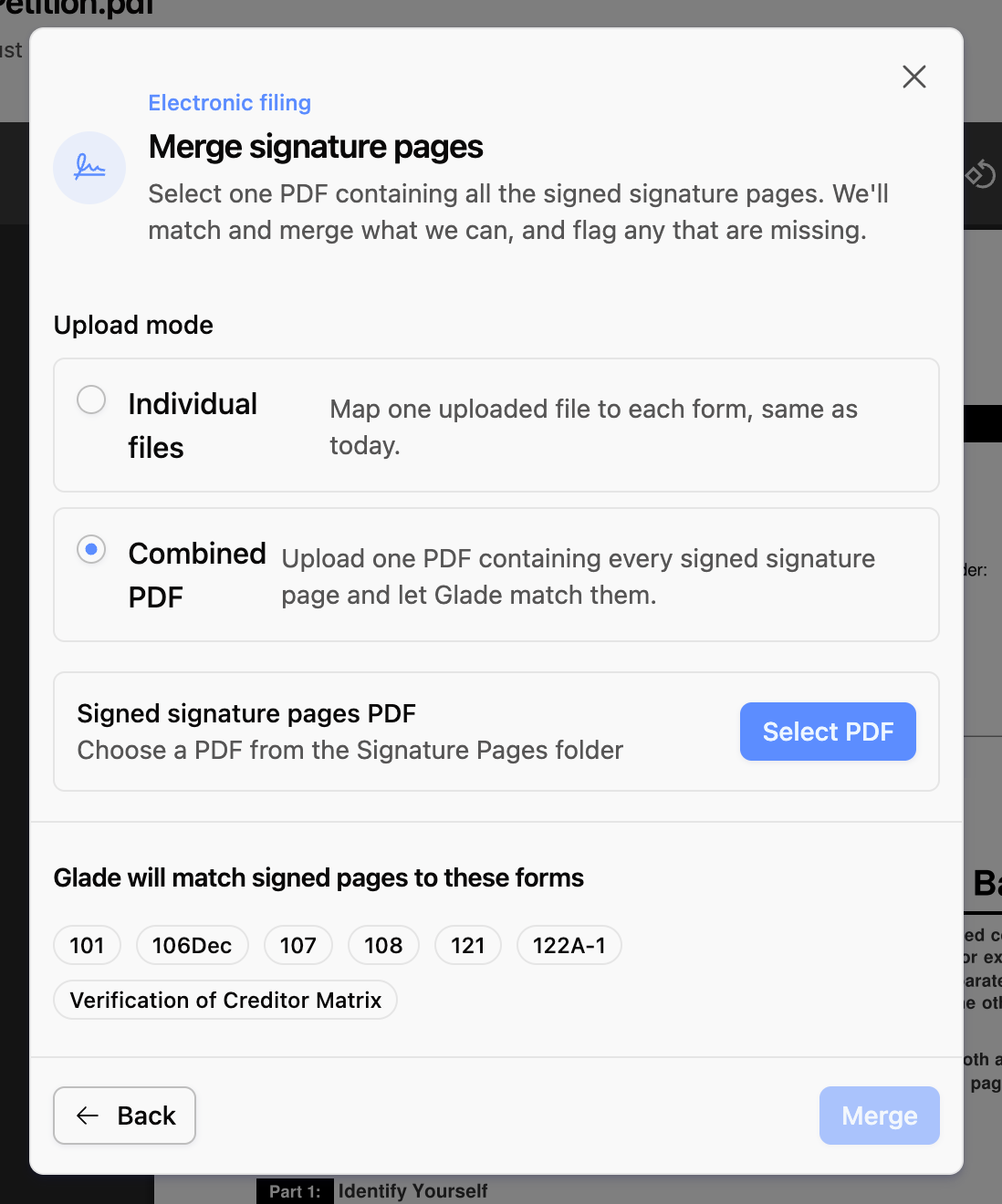
Open Review Petition (or the petition PDF preview) and click Merge Signature Pages.
Choose Upload Signature Pages / upload mode Combined PDF.
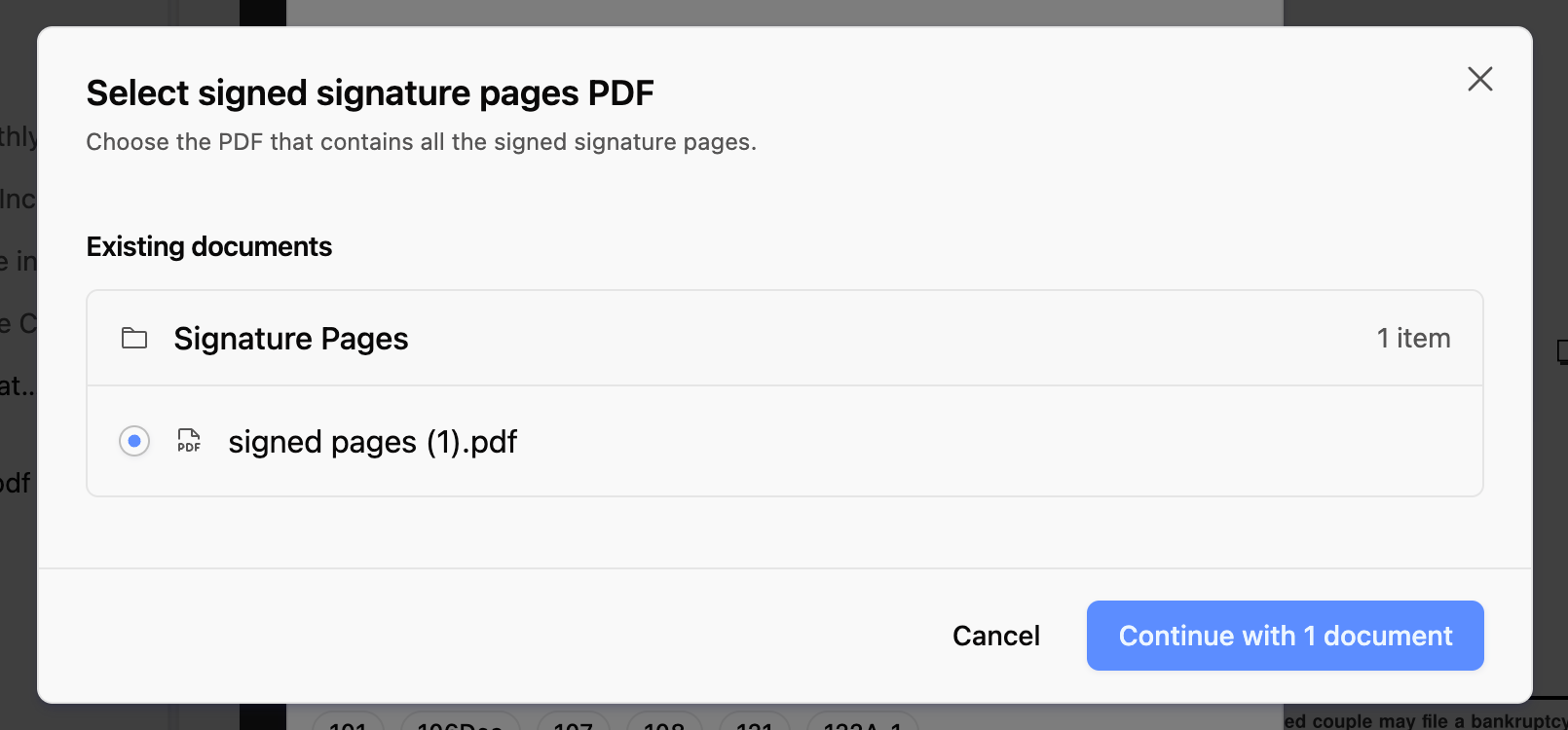
Select scan — pick the multi-page PDF that contains the signed pages.
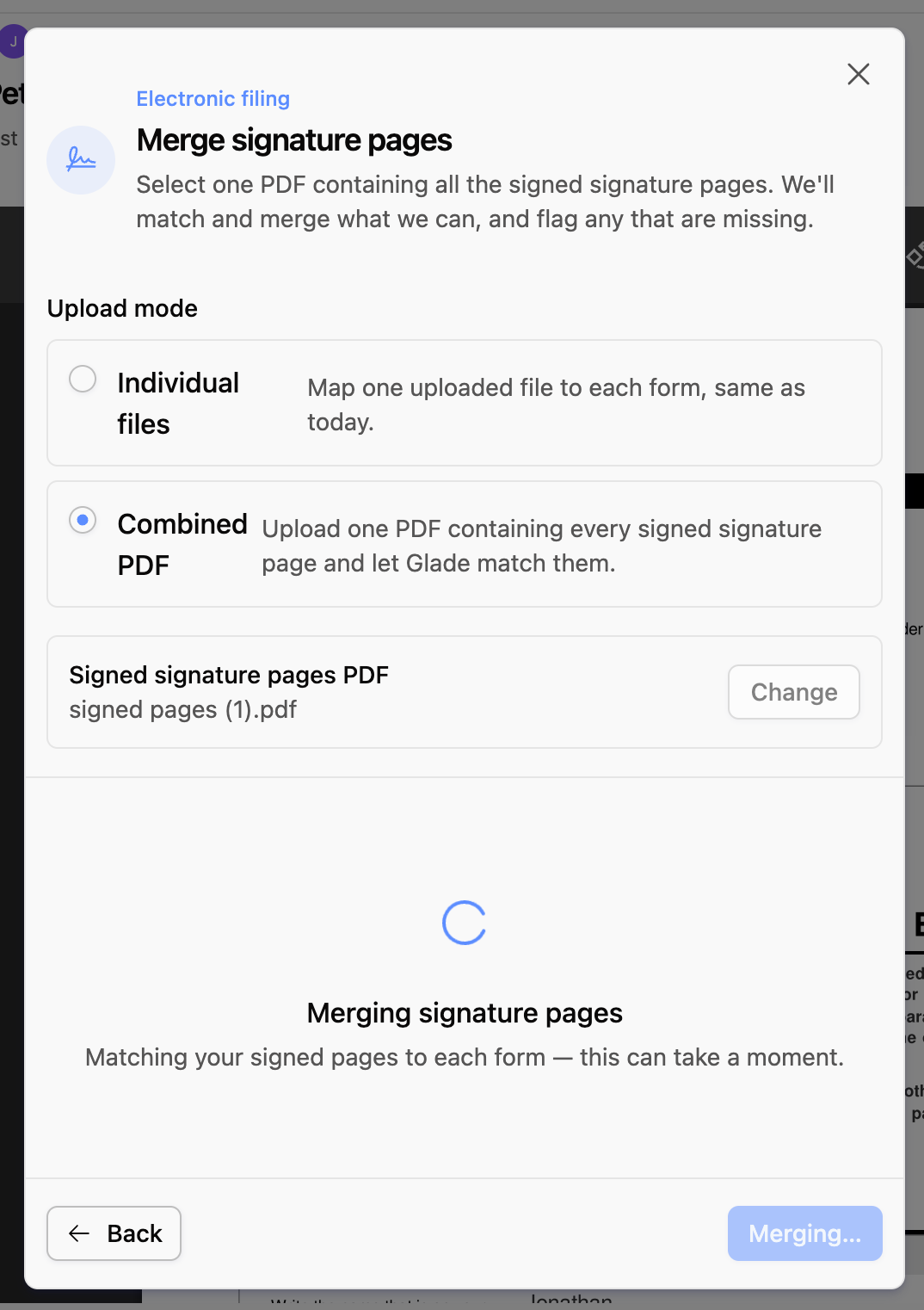
Click Merge.
Review results: pages Glade can match are replaced; anything ambiguous comes back as Needs review and is left untouched./
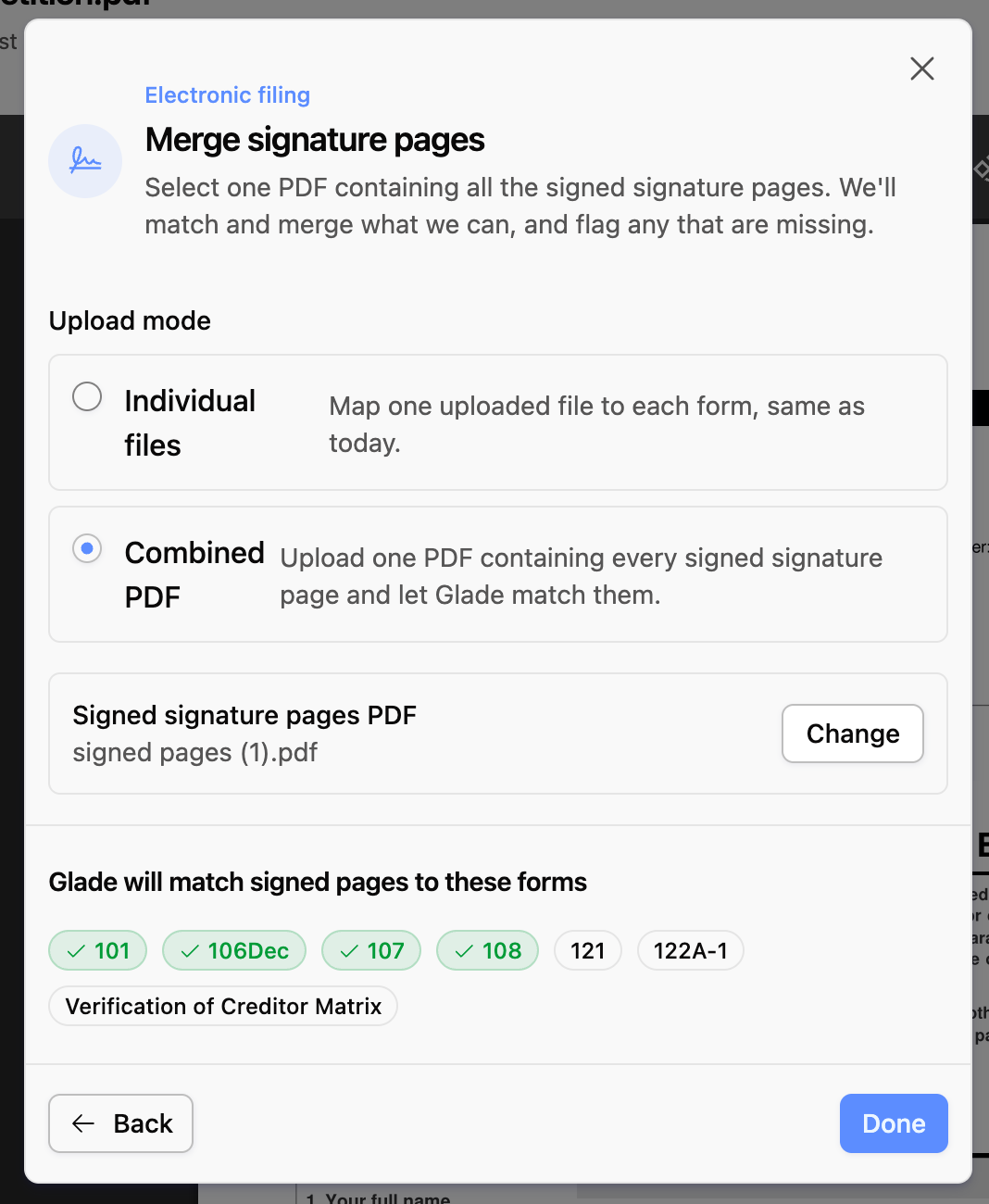
If expected signature pages are missing from the scan (or can't be matched), Glade alerts you with a toast so you can fix the gaps before you file. You can recover without abandoning the flow: re-upload a clearer scan, switch to Individual files for the remaining pages, or finish the missing pages and merge again.
How Glade Knows Where the Page Goes
Glade reads the footer on the signed page — the Official Form 106Dec / page 1 of 1 line every official form carries — and matches it to the page with the same footer in the petition. It reads the PDF text layer first and falls back to OCR when the text layer doesn't carry the footer, or when the upload is a photo.
If the match isn't unambiguous, Glade replaces nothing. A footer it can't read, or a page that could plausibly belong in more than one place, comes back Needs review and the petition is left untouched. A wrong-page splice into a document you're about to file is the one outcome this feature must never produce.
Key Details
Both settings must be on. Signature-page merging may still require Signature block only mode plus merging enabled for your firm. Contact Glade support if you don't see Merge Signature Pages.
The checklist name matters. The checklist must be named Signature Pages for its uploads to appear as merge candidates.
Individual files vs Combined PDF. Individual files maps one file per form. Combined PDF takes one multi-page PDF and matches pages automatically. Same footer matching and same safety rules either way.
Merge after your last regeneration. Regenerating the petition produces a fresh, unsigned petition. If you regenerate after merging, you'll need to merge again.
Photos are fitted to the page. PNG and JPEG uploads are placed on a page sized to match the form, centered, and rotated if the photo is sideways.
Every merge is recorded. Glade logs which page was replaced in which form, so a case's signature history is auditable.
FAQ
Q: Do I have to generate signature pages manually?
A: No. Signature Pages.pdf is created automatically every time you generate the petition, in Forms & Schedules.
Q: What's the difference between Individual files and Combined PDF?
A: Individual files lets you pick one signed file per form. Combined PDF lets you upload one multi-page PDF of the whole signed packet; Glade matches and replaces pages it can confidently identify. If pages are missing or unmatched, you'll get a toast and can re-upload, switch modes, or finish the missing pages.
Q: A client already signed, and now we need to fix a number on a schedule. Do they have to sign again?
A: Not if you're using Signature block only mode. Because the signature page holds only the signature block, edits elsewhere in the form don't change the page the client signed, so the existing signature stays good.
Q: Can the client just take a photo of the signed page?
A: Yes. PNG and JPEG uploads are accepted and converted to a properly sized page. A clear, straight-on photo where the form footer is legible merges most reliably, because that footer is what Glade matches on.
Q: One of my forms came back "Needs review." What happened?
A: Glade couldn't confidently place that page — usually because the footer wasn't readable, or the footer didn't clearly match exactly one page in the petition. Nothing was changed. Re-scan or re-photograph the page so the footer is legible, confirm you picked the right file for that form (or re-upload the Combined PDF), and try again.
Q: Can I merge signed pages for several forms at once?
A: Yes. With Individual files, map a file to each form and click Merge once. With Combined PDF, one multi-page PDF can cover multiple forms in a single merge.
Q: What if I regenerate the petition after merging?
A: The newly generated petition is unsigned — regeneration builds from the current case data, not from the merged file. Merge signed pages after your final regeneration, or merge again afterward.
Q: Why don't I see the Merge Signature Pages button?
A: The feature may still be enabled per firm and requires Signature block only mode. If you're on Glade 2.0 with wet-signature workflows and don't see it, contact Glade support.
Q: Does the merged petition get filed with the court?
A: Yes. The merge updates the petition document your filing packet uses, which is exactly what districts that require signed pages inside the filed petition — such as the Central District of California — need.