
Add an Agreement or Document to a Case Already in Progress
Cases change after they start. A Chapter 7 turns into a Chapter 7 with mortgage modification, a client comes back needing a second agreement, or you realize partway through that you need one more questionnaire. You can now send any template from your firm's library into a case that is already running — without starting the case over.
Overview
Every case in Glade follows a workflow made up of steps. Until now, the things you could send a client were fixed the moment the workflow was generated. If you needed to send something that was not already built into the workflow, there was no way to do it yourself — you had to ask Glade support to add it for you.
Now, any completed step in a case timeline has a menu that opens your firm's full template library. From there you can send:
Agreements & terms — any signable agreement in your firm's library, including second retainers, amended fee agreements, and post-petition agreements
Document requests — any document checklist your firm has built
Questionnaires — any questionnaire your firm can send to clients
Income organizers — paystub and income collection organizers
Other — Credit Report, Credit Counseling, and E-Signature Request
Anything you send this way behaves exactly as it would have if it had been part of the workflow from the beginning.
How It Works
Sending something to a case in progress
Open the case and go to its timeline.
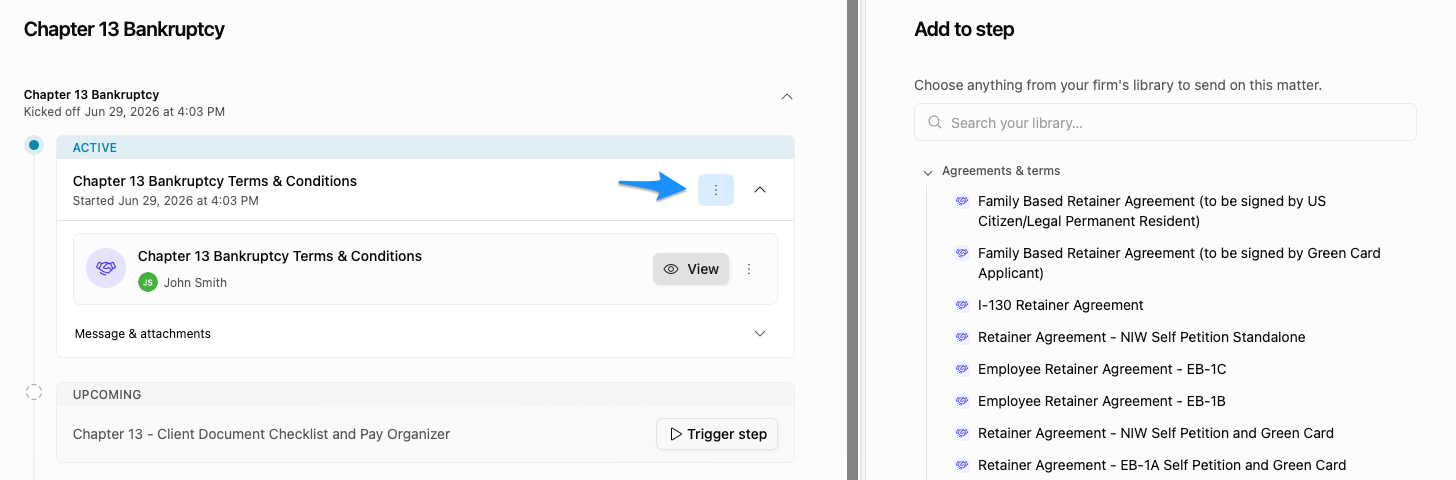
Find a completed step. Completed steps show a checkmark. Hover over the step header and you will see a ⋮ button on the right, labeled Add to this step.
Click the ⋮ button. A panel opens beside the timeline titled Add to step, listing your firm's library grouped by kind. The timeline stays visible next to it, so you keep your place in the case.
Find what you want to send. Scroll the groups, or type in Search your library… at the top. Search looks across your whole library, not just what is on screen.
Select it. Glade asks you to confirm — "[Name] will be added to this step and sent to the client. You can skip it later if it's not needed."
Click Add. You will see a confirmation message, and the item appears on the step in the timeline behind the panel.
Send more if you need to. The panel stays open, so you can send several documents in one pass without reopening it.
What happens after you send an agreement
An agreement sent this way goes through exactly the same process as one sent at the start of a case:
Details from the case — names, dates, fees, and other variables in your template — are filled in automatically
Signers are worked out the same way, including joint cases and agreements that need an attorney's signature
The agreement is routed for electronic signature
The client receives a task asking them to review and agree to the terms
Once signed, the completed agreement appears in the case's documents
Key Details
Only completed steps have the menu. The ⋮ button appears on steps that have finished. Pick the most recently completed step if you are not sure where to attach something.
Template names are shown in full. Names wrap onto multiple lines rather than being cut off, so two similarly named agreements — for example, a standard retainer and a retainer with mortgage modification — are easy to tell apart.
Search covers your entire library. If more templates match your search than fit on screen, the panel tells you how many more there are so you can keep typing to narrow it down.
Your firm's named entries come first. If your firm has specific items already configured for this workflow, they appear at the top with the labels your firm gave them. Each template appears only once, even if it is also in the library list below.
Spanish and other language versions work the same way. They are ordinary templates in your library and appear in the same list — nothing special is needed to send them.
Document requests show their size. Each one lists how many documents it asks the client for.
You can skip it later. If you send something and it turns out not to be needed, your team can mark it as skipped from the case view.
Placeholder rows are gone. Previously the menu showed greyed-out entries for items your firm had not set up yet. Those no longer appear — the list now shows only what you can actually send.
Available in Glade 2.0. This is part of the new Glade experience.
Before You Send
Glade does not yet warn you ahead of time if a template has information it cannot fill in, or a signer that has not been assigned on this case. Because the client is contacted as soon as you send, it is worth a quick check first:
Confirm the case has the information the template relies on — for example, the fee amount, chapter, or district
Confirm the people who need to sign are on the case, including a spouse on a joint case and an attorney if the agreement requires a co-signature
A pre-send check is planned for a future release.
FAQ
Q: Do I need to start the case over to send a new agreement?
A: No. That is exactly what this removes. The case keeps its history, its completed tasks, and everything the client has already uploaded or signed.
Q: Which step should I attach it to?
A: Any completed step works. The step is just where the item is attached in the case history; it does not change how the client receives it. Most firms use the most recently completed step.
Q: The template I want is not in the list. Where is it?
A: Try searching for it by name — search runs against your whole library, not just the visible rows. If it still does not appear, the template may not be published yet, or it may be a case document rather than a client-facing template. Reach out to Glade support and we can check.
Q: Will the client know this was added later?
A: It arrives as a normal task in their client portal, the same as anything else in their case. There is no separate "added later" indicator.
Q: Can I send several things at once?
A: Yes. The panel stays open after each one, so you can send an agreement, a questionnaire, and a document request without closing and reopening it.
Q: What if I send the wrong thing?
A: Your team can mark it as skipped from the case view so the client is no longer expected to complete it.
Q: Does this work for Spanish-language agreements?
A: Yes. A Spanish version of an agreement is an ordinary template in your library and appears in the same list as everything else.