
Creating Reports from Your Dashboard
Reports let you build your own filtered lists of your firm's work — cases filed in June, deficiency notices from the court, workflows missing an attorney — and save them so you (and your team) can pull them up anytime.
See it in action:
Overview
Your firm runs off its work lists, but the questions you need to answer change day to day. Reports let you answer those questions yourself, without asking someone to build a view for you.
A Report is a saved, filtered list. You choose what the report is about, narrow it down with filters, pick the columns you want to see, and save it with a name. The next time you open it, it runs fresh against your live data.
You'll find Reports in your dashboard. From there you can create a new report, open an existing one, or duplicate one to use as a starting point.
What you can report on
Every report starts by choosing a surface — the type of thing the report lists. Each surface comes with its own columns and filters that make sense for it.
Workflows — the default surface. Each row is a workflow (a matter in progress). This is where you answer most operational questions: what's been filed, what's in a given status, what's assigned to whom, what's labeled how, and what's missing an owner.
Court Notices — each row is a notice received from the court (for example, a Deficiency or an Objection to Claim), along with the workflow it belongs to. Choose this surface when the notice itself is what you're tracking, rather than the case.
More surfaces are on the way. Choosing the surface first means each report shows the columns and filters native to what you're actually looking at.
How to create a report
Start a new report from the Reports area of your dashboard.
Choose a surface — Workflows or Court Notices — depending on what you want each row to represent.
Add filters to narrow the list to exactly the records you care about (see below).
Choose your columns so the information you need is visible at a glance. Assignees like attorney and paralegal show as full names, not just initials.
Name your report and add an optional description so you and your team know what it's for. You can edit the title and description any time.
Save it. Your report now lives in your dashboard and re-runs against live data whenever you open it.
Filtering your report
Filters are how you turn a full list into the answer to a specific question. Common filters include:
Filed date — filter workflows by when the case was actually filed with the court. This is set automatically when the case is filed, so it's reliable. You get full date operators: is, is before, is after, is on or before, is on or after, is between, is empty, and is not empty. Handy presets like last month, last year, and this year are one click.
Court notice type — filter to workflows that received a specific kind of notice, such as Deficiency or Objection to Claim. On the Court Notices surface, you can filter the notices themselves by type and date. Click any notice to open it and see the details.
Assignments — filter by attorney or paralegal, including an Unassigned option. This is how you find active workflows that haven't been filed yet and are missing an owner.
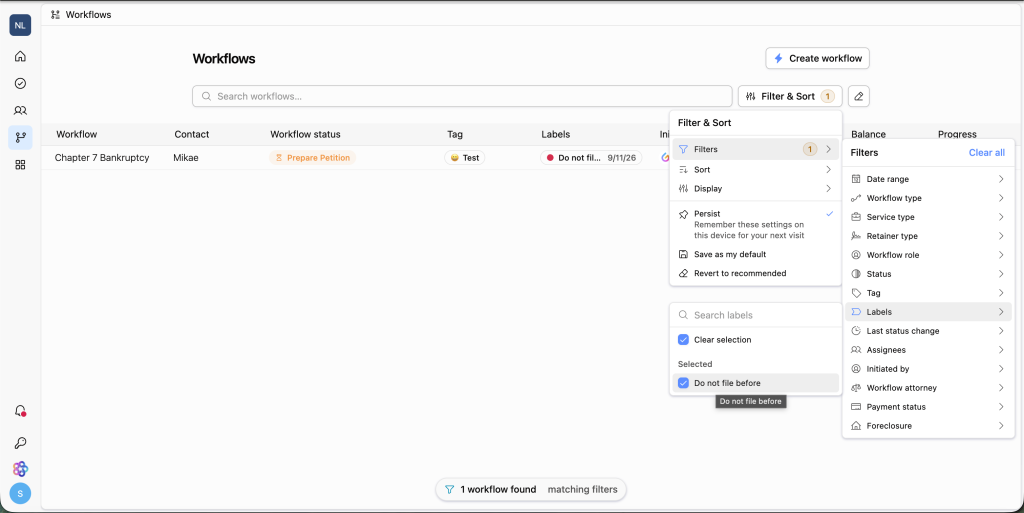
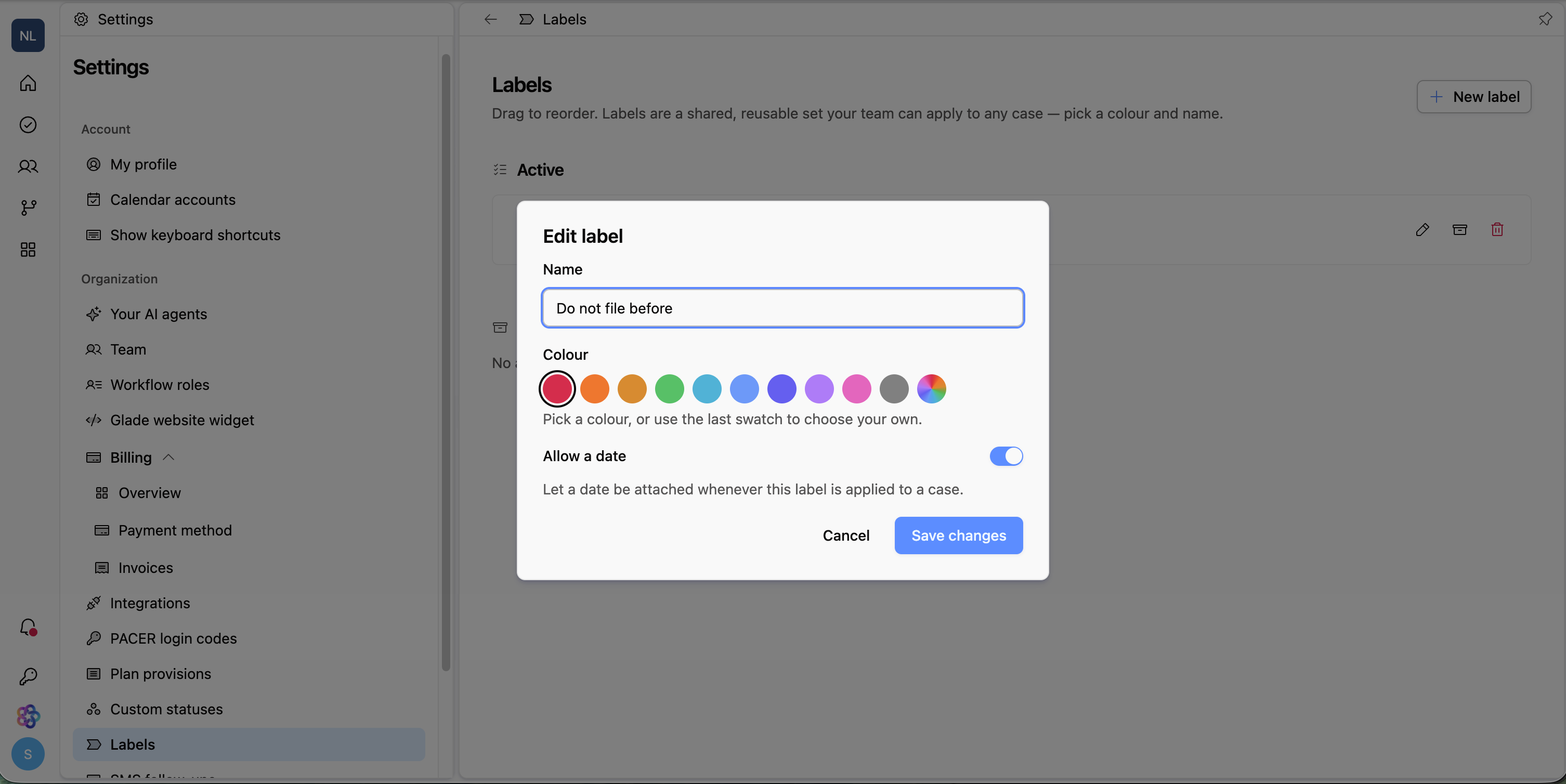
Labels — on the Workflows surface, filter by firm-saved workflow labels to find matters with a given label (for example, Rush or Waiting on client). You can also show a Labels column and sort by it. [This is found under "settings" on the bottom left side of the screen.]
Workflow type — filter or add a column for the workflow template (for example, Chapter 7 vs. Chapter 13).
Status, and other workflow fields, to slice the list further.
Columns and CSV export
Pick the columns that matter for the question you're answering — dates, assignees (attorney, paralegal, documents person), status, workflow type, Labels, and more.
When you export a report to CSV, every column you've selected comes through in the download, so what you see is what you get.
Saving, duplicating, and ownership
Save a report to reuse it. It re-runs on live data each time it's opened.
Duplicate an existing report to use it as a starting point — handy when you want a variation without rebuilding from scratch.
Ownership is tracked: each report shows who created it, and you can filter the list down to just your own reports.
Example reports you can build
Cases filed in June — Workflows, filtered by Filed date is between June 1 and June 30.
June filings with a deficiency notice — Workflows filed in June that received a Deficiency or Objection to Claim court notice.
Unowned active cases — active workflows, not yet filed, missing an attorney or paralegal.
Rush-labeled active matters — Workflows filtered by Labels (for example, Rush), optionally with the Labels column visible.
All deficiency notices this month — Court Notices surface, filtered by type and received date.
Filings this year by chapter — Workflows filtered by Filed date (this year) with Workflow Type as a column.
FAQ
Q: What's the difference between a workflow and a case?
A: A workflow is the work in progress for a matter — the steps, assignments, and status that move it forward. Reports are built around workflows, which is why you'll see "workflow" language throughout.
Q: Is the Filed date reliable if no one updated the status?
A: Yes. The Filed date is captured automatically when the case is actually filed with the court, so it doesn't depend on someone manually moving a status.
Q: Can I filter workflows by label?
A: Yes. On the Workflows surface, use the Labels filter (and optionally add the Labels column). Labels are firm-saved markers you apply on workflows.
Q: Can other people on my team see my reports?
A: Reports show who created them, and you can filter to just your own. Reports live in your firm's dashboard so your team can work from shared lists.
Q: Can I get my report data out of Glade?
A: Yes — export any report to CSV. Every column you've selected is included in the download.
Q: What surfaces can I report on today?
A: Workflows and Court Notices. Additional surfaces are planned, and each new one brings its own native columns and filters.