
How to Import Document Data into Bankruptcy Schedules
Glade still extracts data from uploaded documents automatically, and bankruptcy schedules stay in sync with case data / autofill. Manual Import from actions for the credit report, case data, and client questionnaire were retired — they fought sync and confused firms. You can still Import data from pay organizer (Income Organizer) when Schedule I or the Means Test needs a refresh.
Overview
When credit reports, questionnaires, and paystubs are completed in the normal workflow order, data flows into schedules through case-data sync and field autofill. You generally do not need a bulk "Import from…" click anymore for the credit report, case data, or client questionnaire.
Those overflow Import from options were removed because they overwrote answers, drifted out of sync with case data, and were easy to misuse. For reconciling differences between a questionnaire and case data, use Compare case data instead (see Lock a questionnaire to stop it syncing with case data).
Still available: Import data from pay organizer / Income Organizer, when income didn't land on Schedule I or Form 122A-1 the way you expect.
Before you start
Confirm the usual sources are complete on the case:
Credit Report — pulled and approved
Bankruptcy Client Questionnaire — submitted
Income Organizer / Pay Organizer — paystubs uploaded and processed
Incomplete sources won't have data ready for sync or for pay-organizer import.
Open the Schedules Questionnaire
Go to the client's workflow in your Glade dashboard.
Open the Bankruptcy Schedules Questionnaire task.
Import income from the Pay Organizer
Use this when Schedule I or Form 122A-1 isn't populating correctly — for example, the Income Organizer was finished after the schedules were already open.
In the Schedules Questionnaire, click the ⋯ (more) menu in the upper right.
Select Import data from pay organizer.
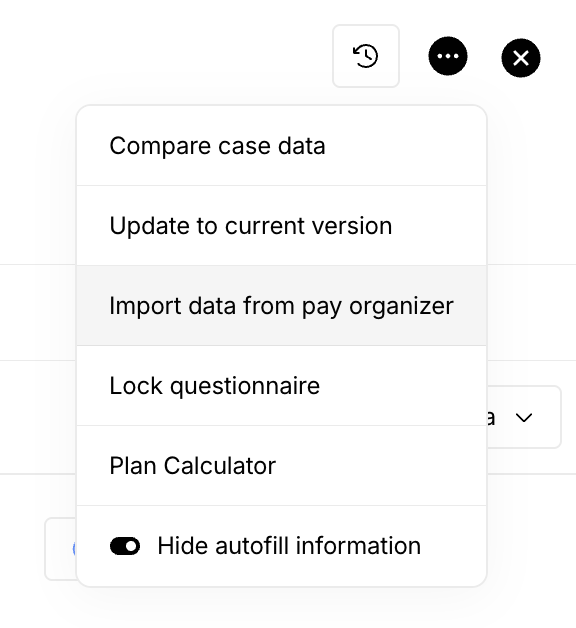
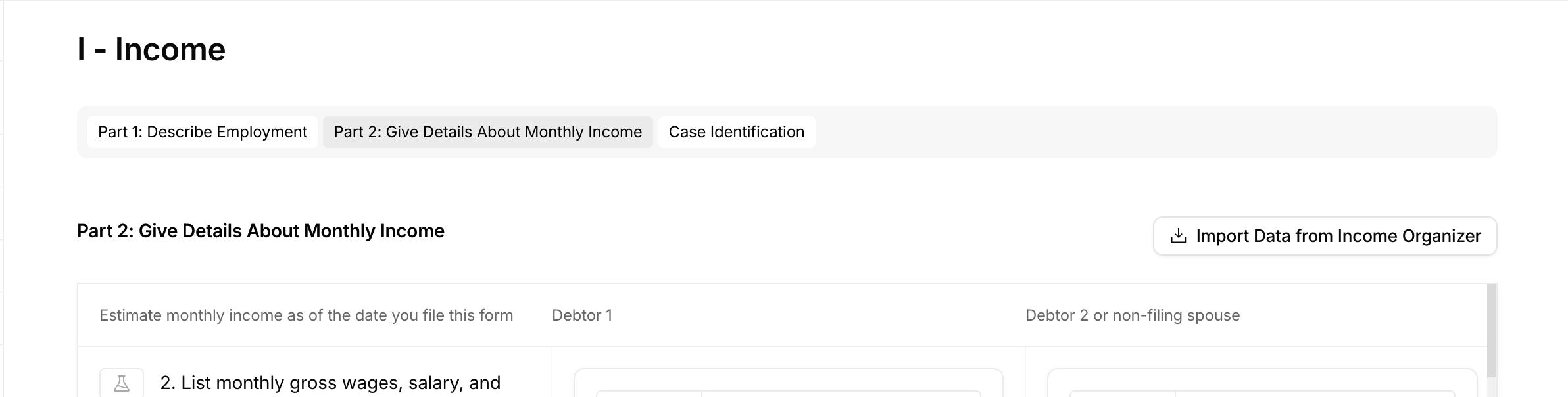
You may also see an in-form Import Data from Income Organizer control on income sections — same idea: it refreshes income for Schedule I and the Means Test from the pay organizer.
This is the manual import path that remains. Credit report, case data, and client questionnaire no longer appear as Import-from options.
Reconcile with Compare case data
If schedules look empty, out of sync, or different from case data — and you're looking for the old "Import from credit report / case data / client questionnaire" behavior — open the questionnaire ⋯ menu and choose Compare case data.
Compare runs a full bidirectional review so you can choose Use questionnaire or Use case data per difference. Details (including lock / unlock and Get back in sync) are in Lock a questionnaire to stop it syncing with case data.
Verify populated fields
After sync / pay-organizer import / Compare, spot-check:
Schedule A/B — assets
Schedule I — income from pay organizer / paystubs
Schedule J — expenses
Form 122A-1 — means test income (6-month calculation)
Schedule E/F — creditors (via case data / credit report sync — not a manual Import from CR)
Master Creditor List
On the Master Creditor List (and other creditor lists):
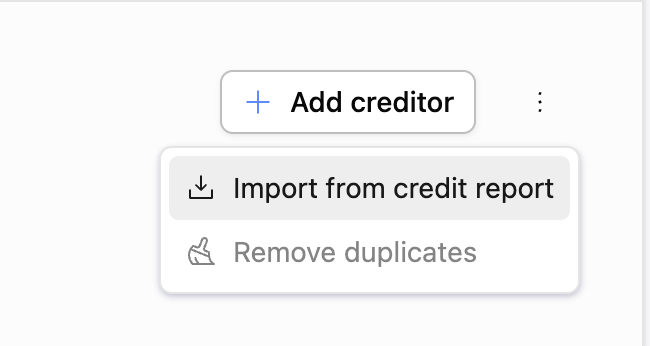
Run Deduplicator is still available to find and omit likely duplicate creditors.
Import from Credit Report and Import from Client Questionnaire on those lists have been removed. Creditors should already be on case data from the credit report / questionnaire flow; use Compare case data if you need to reconcile.
Use Full Screen and filters (Schedule, Creditor/Lessor Name, etc.) as before.
📹 Watch Tutorial Video — Master Creditor List (Deduplicator / list navigation still apply; ignore any older beats that show Import from Credit Report.)
Tutorial videos by form
These Looms still help with form walkthroughs. They are not a substitute for the retired Import-from clicks.
Form 101: Voluntary Petition for Individuals Filing for Bankruptcy
Covers Case Identification, Parts 1–7. The Watch Tutorial Video button is available in the top right of each form section.
📹 Watch Tutorial Video — Form 101
Schedule A/B: Property (Real & Personal)
Covers Parts 1–8 including real estate, vehicles, personal & household items, financial assets, business-related property, farm/commercial fishing property, and totals.
📹 Watch Tutorial Video — Schedule A/B
Schedule C: Property Claimed as Exempt
Covers exemption set selection and case identification.
📹 Watch Tutorial Video — Schedule C
Troubleshooting
Looking for Import from credit report / case data / client questionnaire? Those options were removed. Rely on case-data sync / autofill, and use Compare case data on the questionnaire overflow menu to reconcile. Pay organizer import remains for income.
Income missing on Schedule I or Means Test? Confirm the Income Organizer is complete, then use Import data from pay organizer (or Import Data from Income Organizer on the form).
Schedules open before the client finished? Let sync catch up, or use Compare case data / pay-organizer import as needed — not a full questionnaire Import from.
Only some fields populated? Use the field-level re-run autofill control on specific fields when available.
Page crashes? See Fixing page crashes.
Still having issues?
Contact Glade support via the Discussion panel in your workflow, or press G on your keyboard from the dashboard to open the support chat.