
Lock a questionnaire to stop it syncing with case data (Classic Glade)
Locking a questionnaire freezes its answers so case data can't overwrite them — and keeps them frozen even after you submit and reopen. Unlock it whenever you're ready to sync again. When answers and case data have drifted apart (even if the out-of-sync banner isn't showing), use Compare case data for a full bidirectional review.
Overview
By default, a questionnaire stays in sync with the case's shared data: changes to case data flow into the questionnaire, and answers you enter flow back out to case data. Sometimes you don't want that — you want to hold a questionnaire's answers exactly as they are, independent of what's happening in case data.
Locking a questionnaire turns that two-way sync off for that one questionnaire. While it's locked:
Case data changes will not overwrite the answers in the questionnaire.
Edits you make in the questionnaire will not write back to case data.
The lock sticks. Even if you submit the questionnaire and reopen it, it stays locked until you explicitly unlock it.
Separately, Compare case data lets you run a full bidirectional diff between the questionnaire and case data whenever you need to reconcile differences — including situations where schedules look empty or out of sync but the drift banner is hidden.
How it works
Lock a questionnaire
Open the questionnaire.
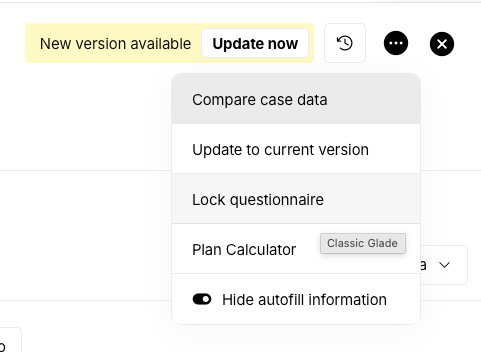
Click the ⋯ (more) menu in the top-right corner.
Select Lock questionnaire.
In the confirmation dialog, click Lock questionnaire to confirm (or Keep syncing to cancel).
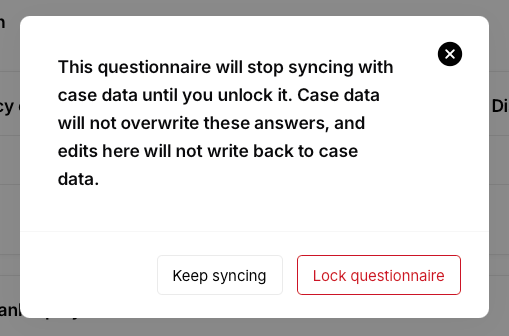
Once locked, the questionnaire holds its current answers and ignores case-data changes.
Unlock a questionnaire
Open the questionnaire.
Click the ⋯ (more) menu.
Select Unlock questionnaire.

Unlocking simply turns sync back on. It does not overwrite your current answers — nothing changes in the questionnaire at the moment you unlock. From then on, the questionnaire is back in sync with case data going forward.
Getting back in sync with existing case-data changes
If case data changed while the questionnaire was locked (or otherwise drifted out of sync), you'll see a banner at the top:
This questionnaire is out of sync with case data. Case data has changed since this questionnaire was last synced. Review the proposed changes and choose what to apply.
Click Get back in sync to review the proposed changes and choose what to apply. This is the only path that pulls case-data changes into the questionnaire and can overwrite answers — and you always review the changes before anything is applied.
Get back in sync is drift-scoped and one-way (case data → questionnaire). For a full bidirectional review — including omitted rows and credit-report-only entities — use Compare case data instead.
Compare case data
Compare case data is an overflow menu action that runs a full bidirectional diff between the questionnaire and case data. It surfaces differences that the drift banner may not show, including omitted rows and entities that exist only on the credit report / case-data side.
When to use Compare:
Schedules look empty or out of sync, but the out-of-sync banner is hidden.
After product upgrades that stamp lastSynced (so drift detection may not fire even though values still differ).
When you want to reconnect selectively — choose questionnaire vs. case data per difference, rather than applying a one-way bulk pull.
Open the questionnaire.
Click the ⋯ (more) menu in the top-right corner.
Select Compare case data.
In the comparison modal, review each difference. For each one, choose Use questionnaire or Use case data.
Apply your selections. The chosen values are written so the selected items match, and sync is re-enabled for those items.
This action is available in both Classic Glade and Glade 2.0.
Key details
The lock is per questionnaire. Locking one questionnaire doesn't affect any others on the case.
The lock survives submit and reopen. A locked questionnaire that you submit and reopen stays locked — it won't quietly turn sync back on.
Unlocking never overwrites answers. Turning sync back on from the menu only re-enables syncing going forward. To actually bring in case-data changes, use Get back in sync or Compare case data.
When you'll see "Unlock" vs. "Get back in sync." The Unlock questionnaire menu option appears when the questionnaire is locked and there are no pending case-data changes to review. When there are pending changes, use the Get back in sync banner instead.
Compare vs. Get back in sync. Get back in sync is one-way (case data → questionnaire) and scoped to detected drift. Compare case data is a full bidirectional diff you can open anytime from the ⋯ menu, including omitted rows and credit-report-only entities. After you apply Compare selections, selected items match and sync is re-enabled.
FAQ
Q: What's the difference between "Unlock questionnaire" and "Get back in sync"?
A: Unlock just turns sync back on for the future — it leaves your current answers untouched. Get back in sync reviews and applies existing case-data changes to the questionnaire, which can overwrite answers (you review first).
Q: When should I use Compare case data instead of Get back in sync?
A: Use Compare case data when you need a full bidirectional review (including omitted rows and credit-report-only entities), when schedules look wrong but the banner is hidden, after upgrades that stamp lastSynced, or when you want to choose Use questionnaire or Use case data per difference. Use Get back in sync when the banner appears and you want the drift-scoped, one-way pull from case data into the questionnaire.
Q: If I lock a questionnaire, will my answers ever change on their own?
A: No. While locked, nothing in case data can overwrite the questionnaire's answers.
Q: Do my edits in a locked questionnaire show up in case data?
A: No. While locked, edits stay in the questionnaire and don't write back to case data. When you unlock (and then sync), the questionnaire rejoins the normal two-way flow.
Q: I submitted a locked questionnaire and reopened it — is it still locked?
A: Yes. The lock persists across submit and reopen, so you won't be surprised by sync turning itself back on.
Q: Is Compare case data available in Glade 2.0 as well as Classic?
A: Yes. Both Classic Glade and Glade 2.0 include the Compare case data action in the questionnaire overflow menu.