
Skills: Save Your Firm's Playbooks and Reuse Them Anywhere
Skills let your firm capture a repeatable task once — in plain English — and reuse it whenever you need it, without pasting the same instructions into chat over and over. Think of a Skill as a saved playbook your whole team can run.
Overview
A Skill is a set of plain-language instructions you save to your firm's shared library. Once saved, anyone on your team can pull a Skill into a chat and have Glade's assistant follow those exact steps — a client-recap format, a district-specific filing checklist, an intake summary, whatever your firm does the same way every time.
Skills are firm-wide. They live under Settings → Skills and are shared across your team, so a procedure one person writes is available to everyone. There's no separate personal library.
Use Skills when your firm has a task you do the same way repeatedly and want consistent results no matter who runs it.
How It Works
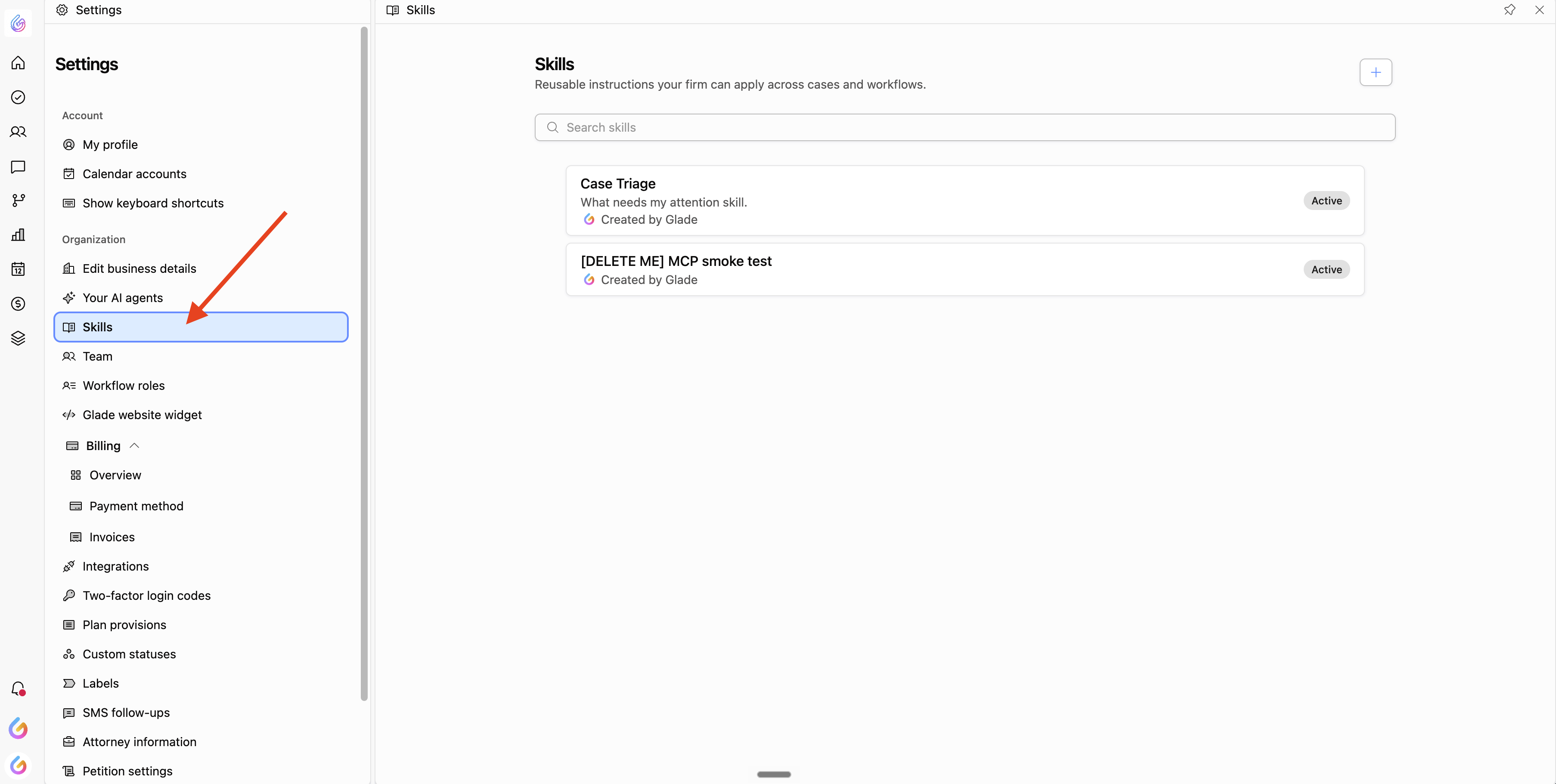
Open your Skills library: Go to Settings → Skills to see every Skill your firm has saved.
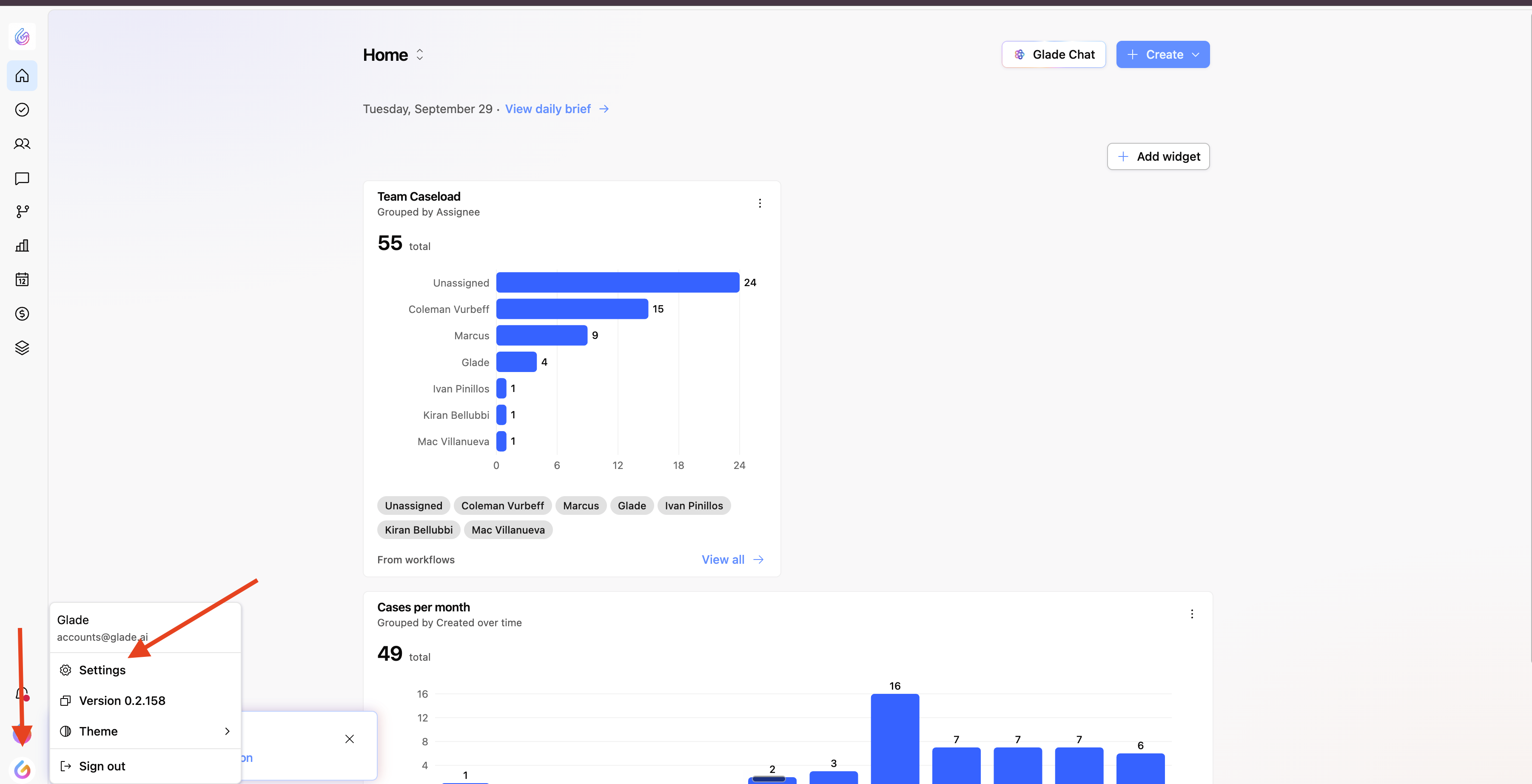
Open the account menu, then Settings.
In Settings, open Skills.
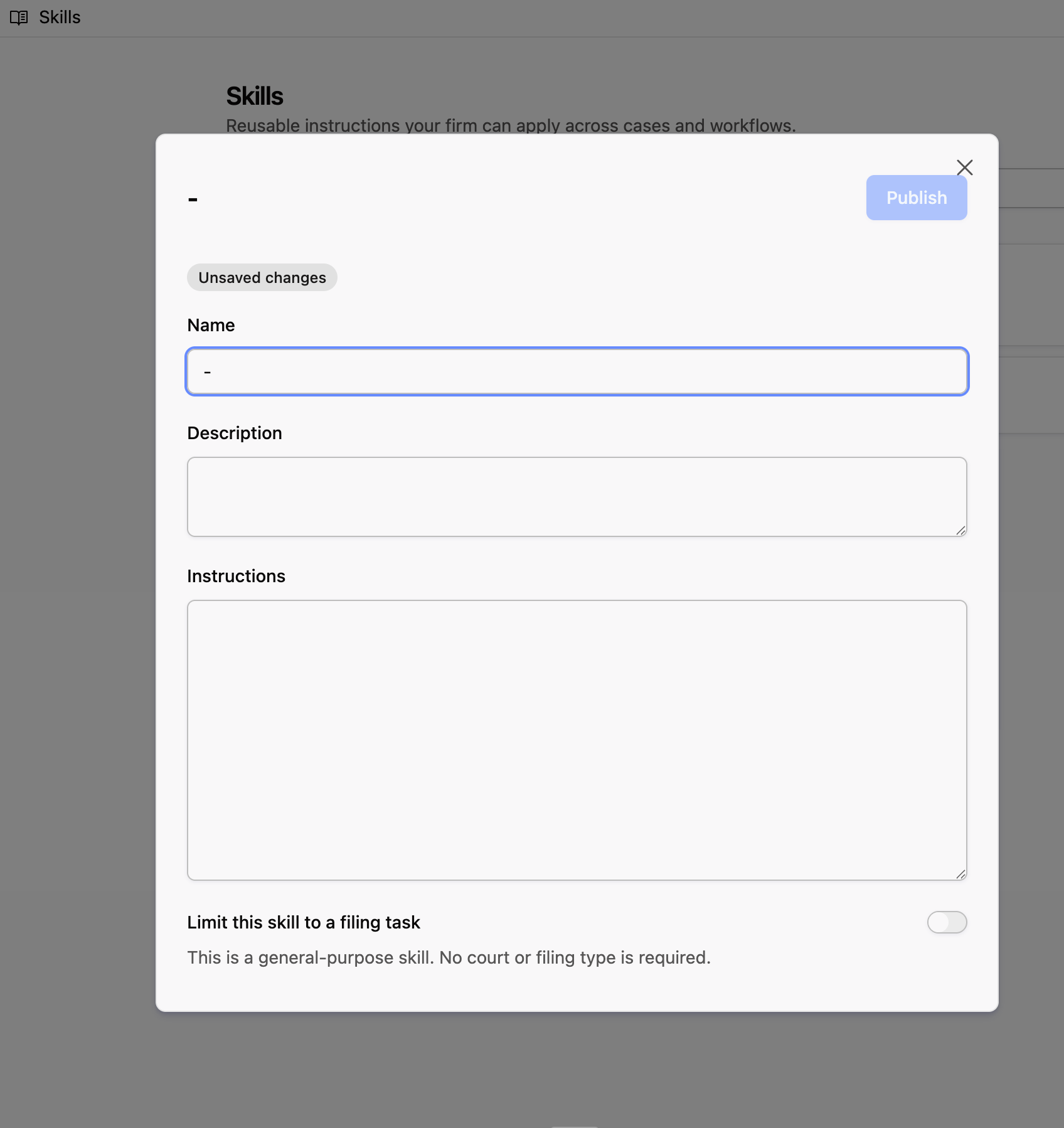
Create a Skill: Give it a name, a short description, and the instructions written in plain language — the way you'd explain the task to a new team member. Keep instructions as prose; formatted code blocks aren't supported.
New skill: name, description, instructions, and Publish.
(Optional) Set where it applies: A Skill is general-purpose by default. If it's specific to a kind of filing, you can tag it with the court, debtor type, and filing type so it's easy to find in the right context.
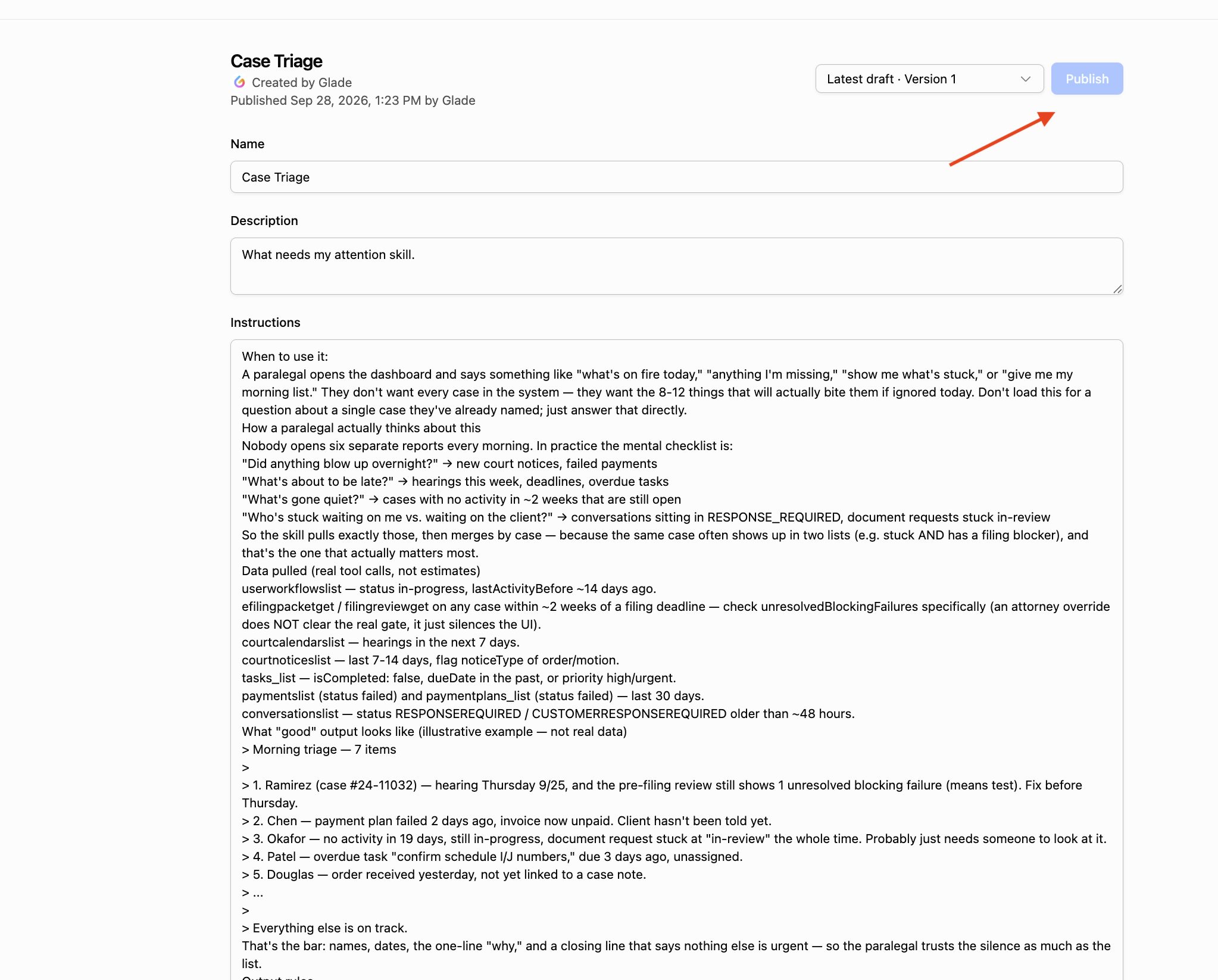
Activate the version you want to use: Saving a Skill creates a draft. A Skill only runs once an administrator activates it. This lets you review the wording before it goes live.
Open a skill, then Publish.
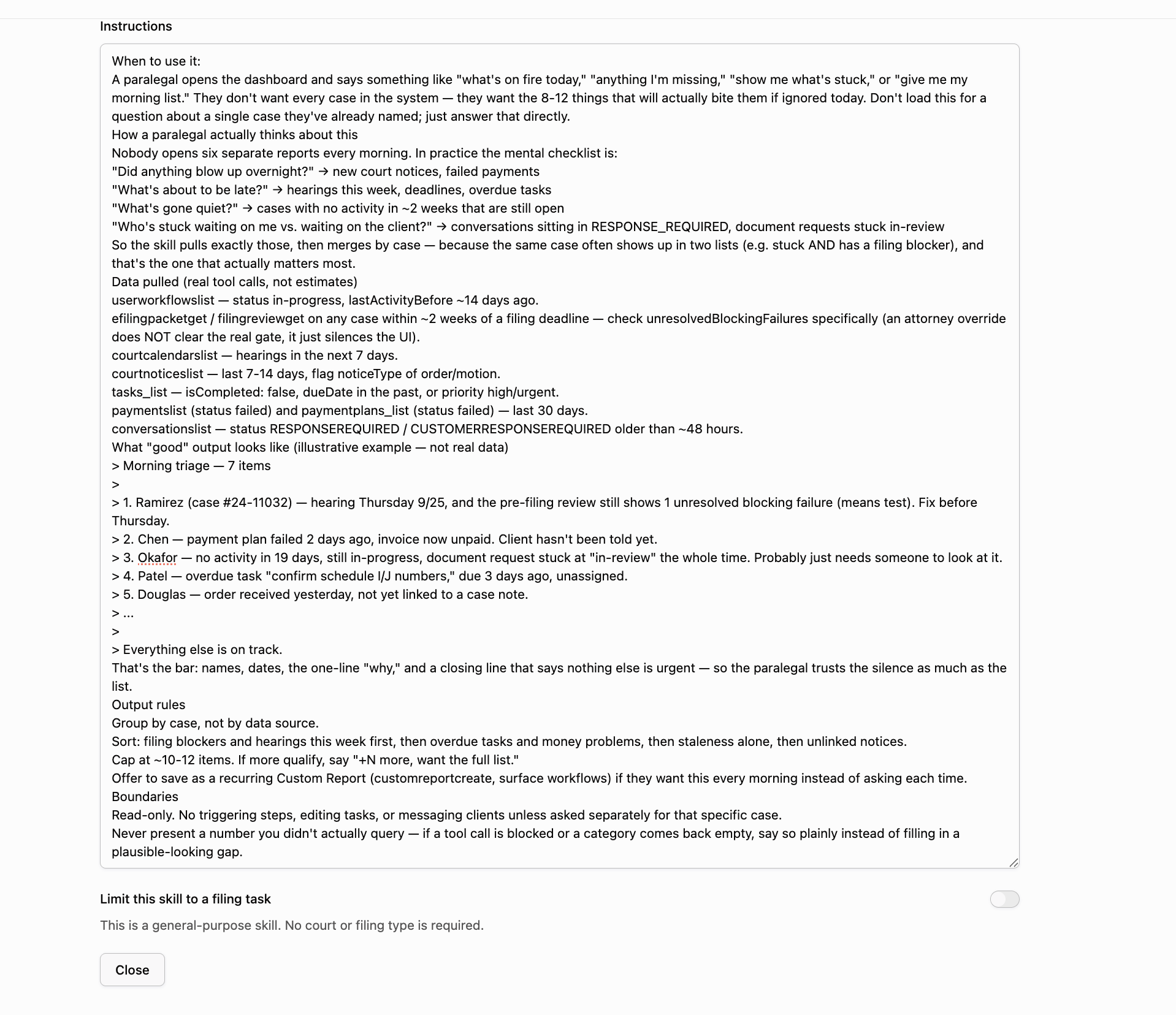
Skill instructions, with the option to limit the skill to a filing task.
Run a Skill from chat: In the chat composer, pick the Skill (or Skills) you want and send your message. Glade's assistant follows those instructions for that message. You can attach up to three Skills to a single message.
Edit anytime: Editing a Skill saves a new version. Your previous versions are kept, and you choose which one is active — so you can refine wording freely and roll back if a change didn't land well.
Key Details
Versions are permanent. Every edit creates a new, unchangeable version rather than overwriting the old one. You always know exactly which instructions produced a given result, and you can return to any earlier version by activating it.
Activation is deliberate. A newly created or edited Skill doesn't run until an administrator activates that version. This prevents an untested draft from being used by accident.
A Skill applies per message, not per conversation. When you attach a Skill in chat, it applies to that one message — it isn't “sticky” for the rest of the thread. Attach it again on the next message if you want it applied again.
Retire and restore. You can retire a Skill to take it out of use without deleting its history, and restore it later if you need it again.
Who can do what:
Administrators can create, edit, activate, retire, and restore Skills, and manage which version is active.
Team members can draft and edit Skills.
Finance-only members have read-only access.
Draft and edit Skills conversationally. Beyond the Settings screen, you can create and refine Skills through connected AI assistants (such as Claude or ChatGPT). New or edited Skills still need an administrator to activate them before they run.
FAQ
Q: What's a good example of a Skill?
A: Anything your firm does the same way each time — a 24-hour client-request recap, a district-specific pre-filing checklist, a standardized case summary, or an intake follow-up format. If you find yourself re-typing the same instructions, that's a candidate for a Skill.
Q: Do Skills change my data or file anything on their own?
A: No. Saving or activating a Skill just stores instructions. Attaching a Skill in chat tells the assistant how to respond to your message — it doesn't take actions like filing on its own.
Q: I edited a Skill but nothing changed when I ran it. Why?
A: Edits are saved as a new draft version. An administrator needs to activate the new version before it takes effect. Until then, the previously active version keeps running.
Q: Can I undo a change to a Skill?
A: Yes. Because every version is kept, an administrator can simply activate an earlier version to roll back.
Q: Are Skills private to me?
A: No — Skills are shared across your whole firm. Anyone on your team can find and run them.