
How to Manage Tasks in Glade 2.0
In Glade 2.0, the Tasks page is where you see the work waiting on you. That includes automatic tasks from workflow steps and manual tasks your team creates. Most changes are now made right on the task card or in the task's task summary. You can also dismiss many tasks at once in edit mode.
What's changed from Classic
No more three-dots menu. Task cards no longer have the three dots for dismissing. Use the Dismiss Task button in the task summary, or dismiss several tasks at once in edit mode.
Edit right on the card. Change status, due date, priority, assignees, and the note without opening the task.
Dismiss works like Classic's "Ignore." Dismissing removes the task from your list only. To finish a task for everyone, mark it Completed.
Where to find your tasks
Click Tasks in the left navigation.
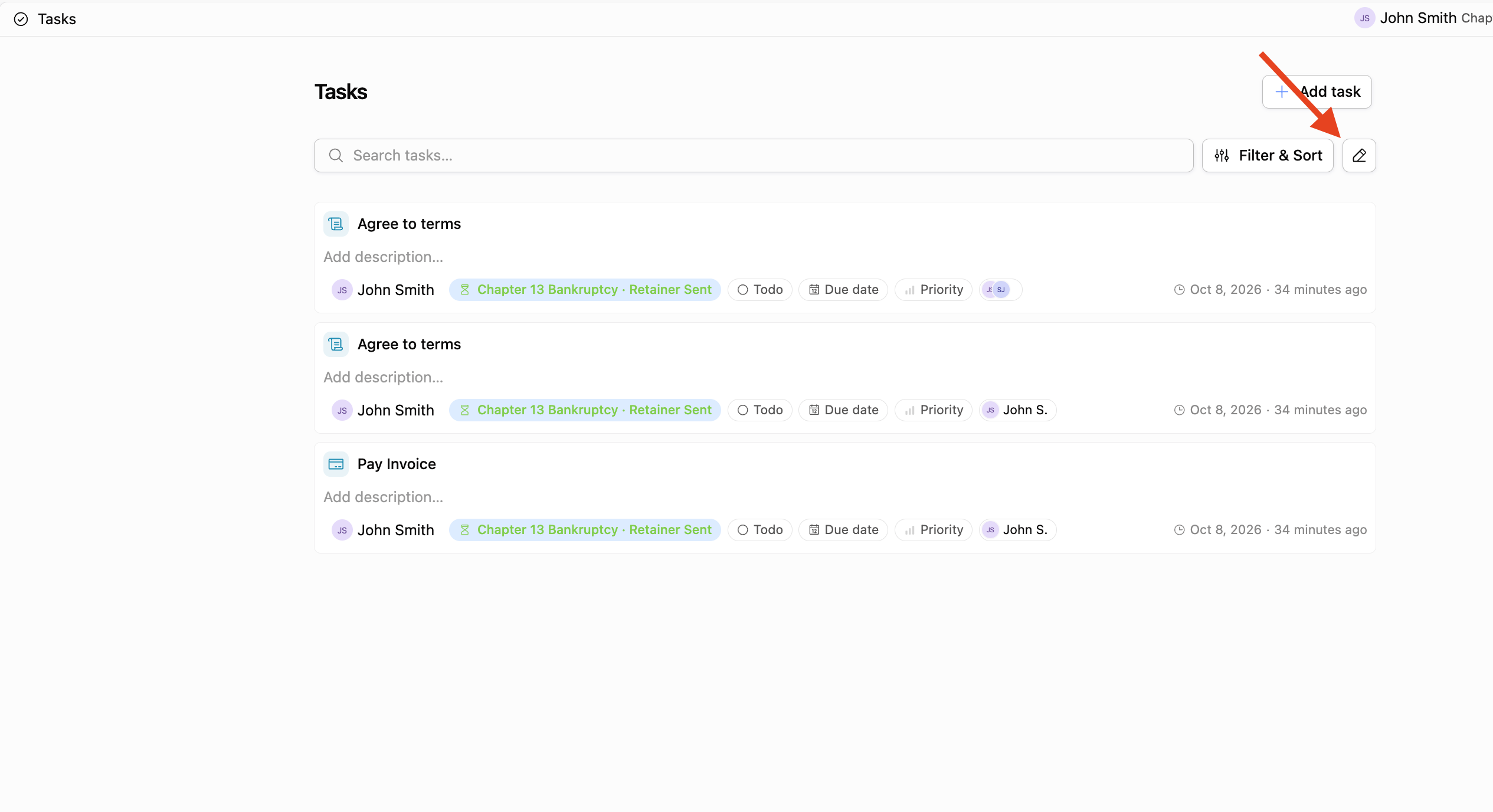
Your task list opens. At the top you'll see a search box, a task count, Filter & Sort, the pencil icon (edit mode), and Add task.
You'll also see tasks in the Tasks panel inside a workflow and on a client profile. If your firm's Home dashboard has a tasks widget, you can complete and dismiss tasks from there too.
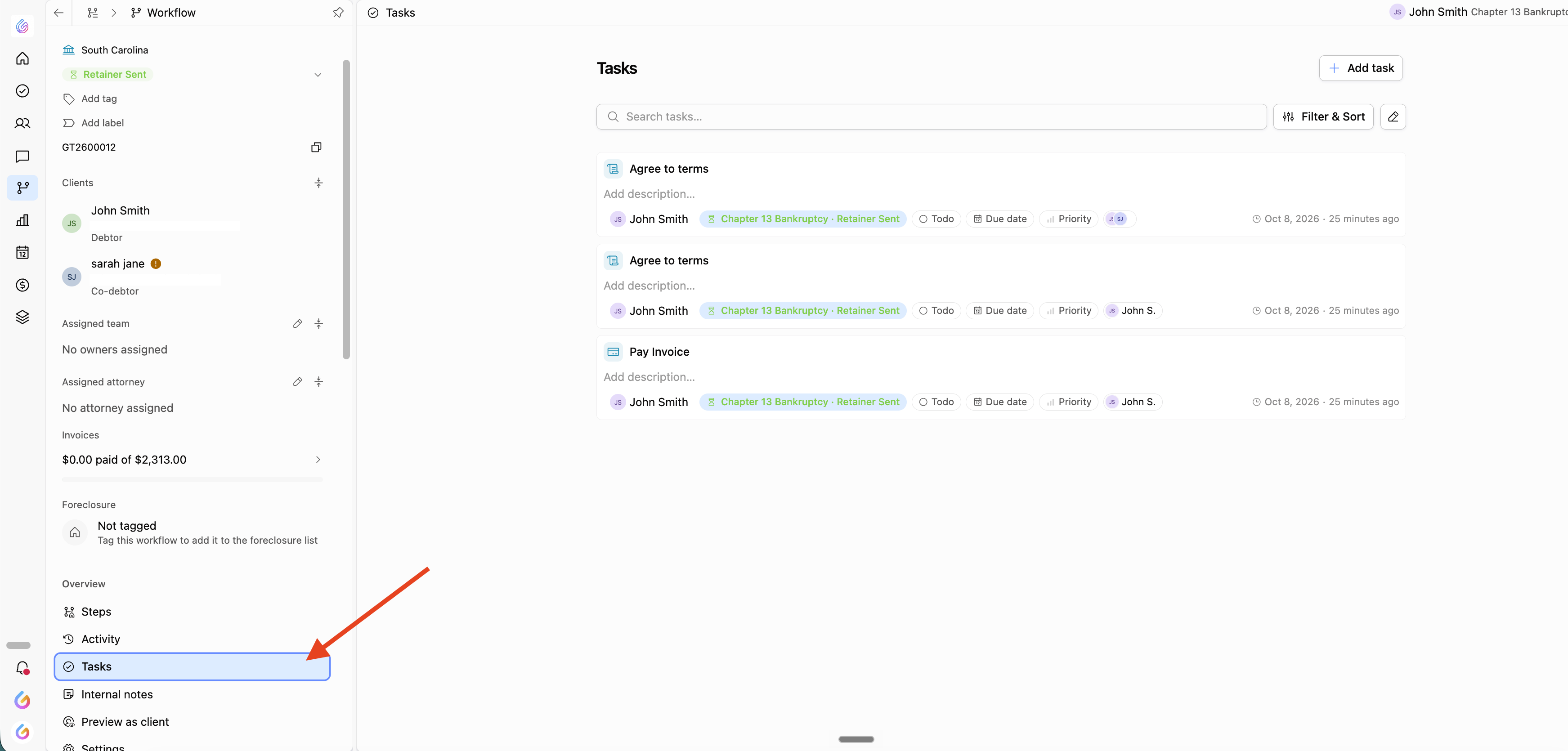
Reading a task card
Each card shows:
The task title: what needs to be done.
The note: extra context added by your team.
Status, due date, priority and assignees, each shown as a clickable chip.
Created: when the task was created. For manual tasks, the card also shows who created it. Automatic tasks, and tasks created before this was added, show only the time.
Editing a task from the card
Change status, due date or priority: click the chip and pick a new value.
Reassign: click the assignees chip and add or remove team members.
Add or edit the note: click the note (or the placeholder text if there's no note yet), type your change, and click away to save. To remove a note, clear the text. Clicking the note doesn't open the task, so you won't lose your place.
Opening a task (task summary)
Click the task to open the task summary.
From there, you can:
Set the task to To Do or Completed
Update the Priority
Set a Due Date
Add or edit notes in the Description field
To read or reply to the discussion, click Open Comment Thread.
To remove the task from your list, click Dismiss Task at the bottom of the task summary.
Completing vs. dismissing
Completed means the work is done. The task closes for everyone. For automatic tasks, completing it also moves the workflow forward. To reopen a task, set it back to To Do.
Dismiss removes the task from your list only. Anyone else assigned still sees it, and the workflow doesn't move. Use it for tasks that don't need action from you, like a client's "thank you" message or a task meant for a colleague.
To see tasks you've dismissed or completed, open Filter & Sort and turn on Show dismissed tasks or Show complete tasks.
Dismissing several tasks at once (edit mode)
On the Tasks page, click the pencil icon next to Filter & Sort.
Checkboxes appear next to each task. Check the tasks you want, or use the checkbox at the top to select every task loaded on screen.
Click Dismiss [number] selected.
Confirm when prompted.
Leaving edit mode clears your selection. As with single tasks, bulk dismissing removes the tasks from your list only.
Creating a task manually
Click Add task at the top of your task list. Enter a title, then set a priority (None, Low, Medium, High or Urgent), assignees, a due date and a linked workflow if you need them. For full steps, see Glade Tasks.
FAQ
Q: Where did the three dots on the task card go?
A: They were removed in Glade 2.0. Open the task and use Dismiss Task, or dismiss several at once in edit mode.
Q: I dismissed a task. Is it gone for my whole team?
A: No. Dismissing only removes it from your list. If the work is done, mark it Completed instead.
Q: Can I get a dismissed task back?
A: Yes. In Filter & Sort, turn on Show dismissed tasks.
Q: Who gets automatic tasks?
A: Automatic tasks go to people based on the workflow's owner, the step, and your firm's assignment settings. A step can be set to assign its task to whoever owns the workflow when the step starts. You can reassign any task from its assignees chip.
Q: My task list is empty. Is a filter hiding my work?
A: Not necessarily. The count can read "matching filters" even when no filter is on. Tasks appear when a step on one of your workflows needs you, or when someone assigns you a task. Check Filter & Sort to be sure.