
Workflow Statuses
Video tutorial: https://www.loom.com/share/8f439e522daa487f8a609bb398114cb2
Changing a Workflow’s status helps your team reflect reality (active, completed, processing etc) for your legal cases. Archiving is especially useful to pause activity and stop notifications when a matter is on hold or closed.
Who this is for: Legal team members managing client Workflows in Glade.
Before you start
Decide which status you want to apply depending on your case.
If you plan to Archive, be aware that client email/SMS follow‑ups stop once the Workflow is archived.
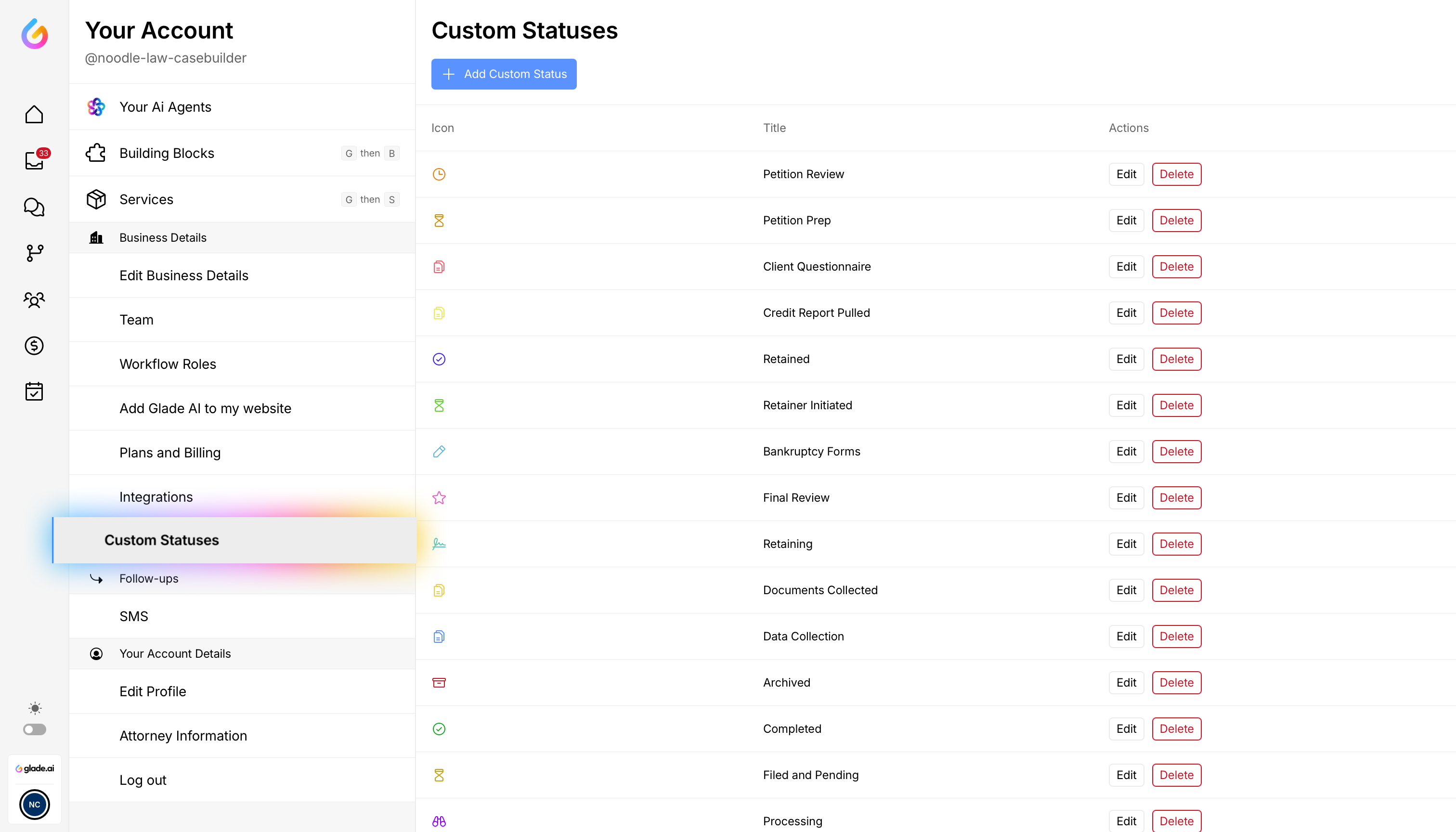
Glade already has default workflow statuses in workflows. But you can also customize these to your firm's specific needs.
Change status from the header
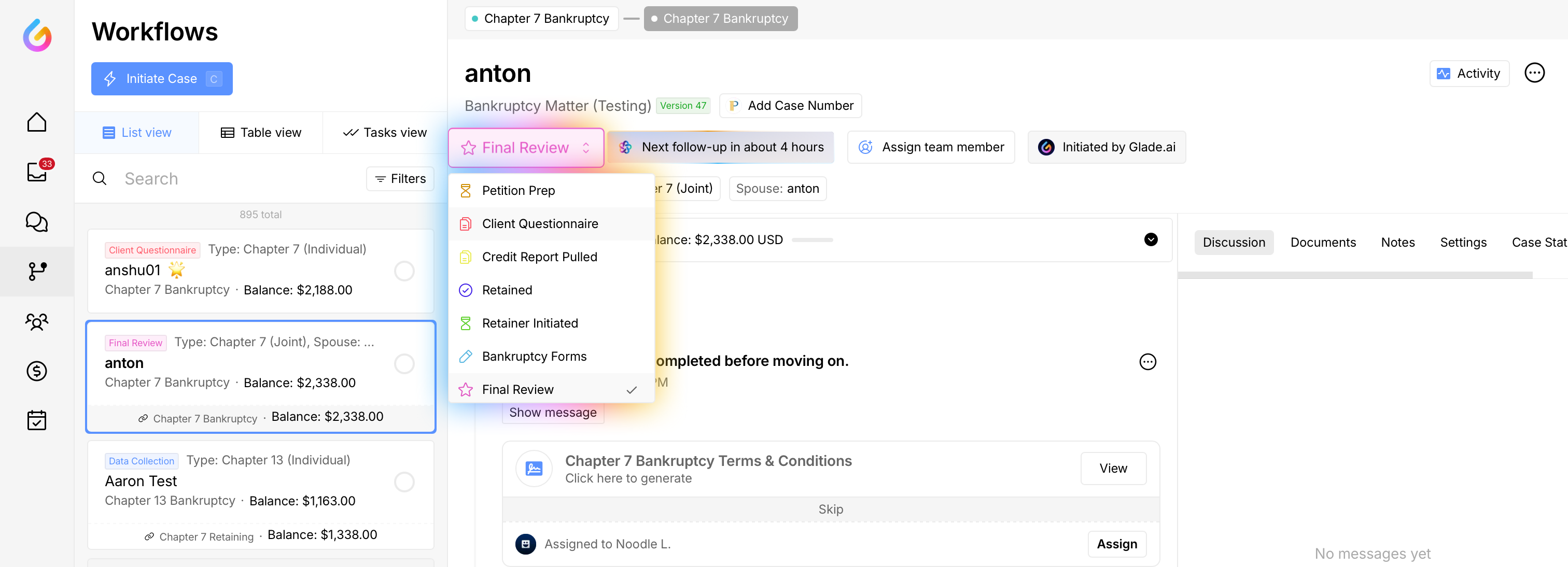
Open the client’s Workflow.
Click the Status area in the Workflow header.
Scroll through and choose the new Status which is most relevant for the case.
If you selected Archive, review the checklist/acknowledgements and click Continue.
Result: The Workflow updates to the selected status. If Archived, the client will no longer receive notifications via email or SMS.
Customize status from Accounts (firm-wide)
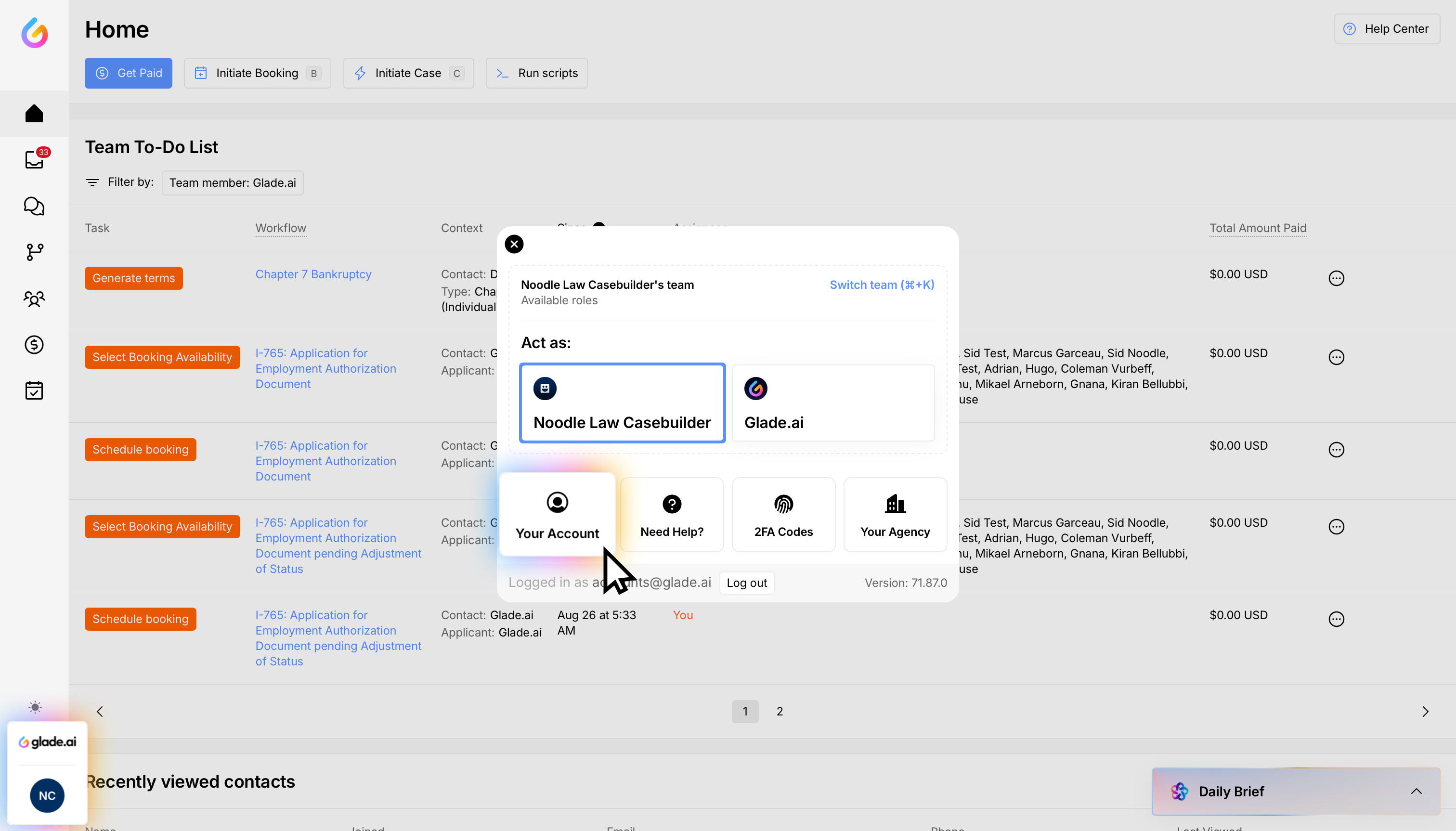
Go to accounts section from the bottom right corner.
Go to custom statuses and add, delete or edit the statuses you need in workflows. This will be reflected in all workflows.
Change critical statuses from the (⋯) menu
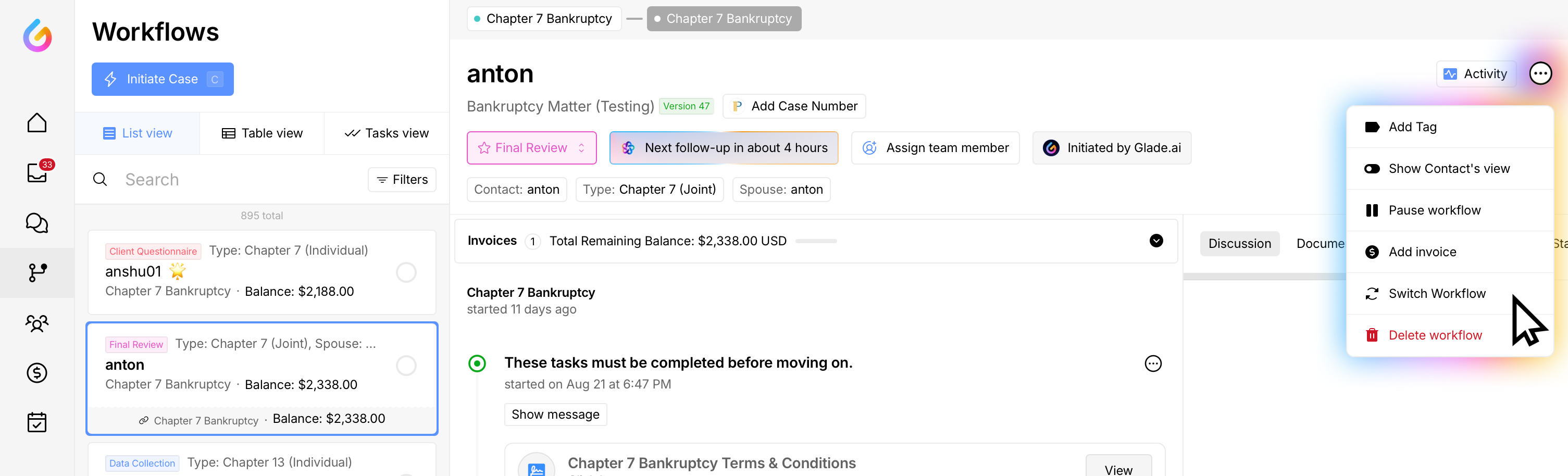
In the top‑right, click the three dots (⋯).
Here you have the option to delete, pause or switch the workflow depending on your case updates
Tips
Use Archive or Pause when the matter is on hold or closed and you want to stop follow‑ups.
Your firm can name and manage custom statuses, but Archive is the dedicated way to pause activity and stop follow‑ups.