
How to Archive and Unarchive A Workflow (Glade 2.0)
Archiving hides the workflow without deleting it. The key consequence is that archived workflows no longer run — only active workflows are evaluated when a trigger event fires, so an archived template won't start new cases or advance existing ones. It's a way to take a workflow out of circulation without losing its configuration.
This is fully reversible. Archiving is distinct from deleting precisely so nothing is lost — you can unarchive the template to bring it back into the active set, and it resumes running as before.
There are two ways to archive your workflow:
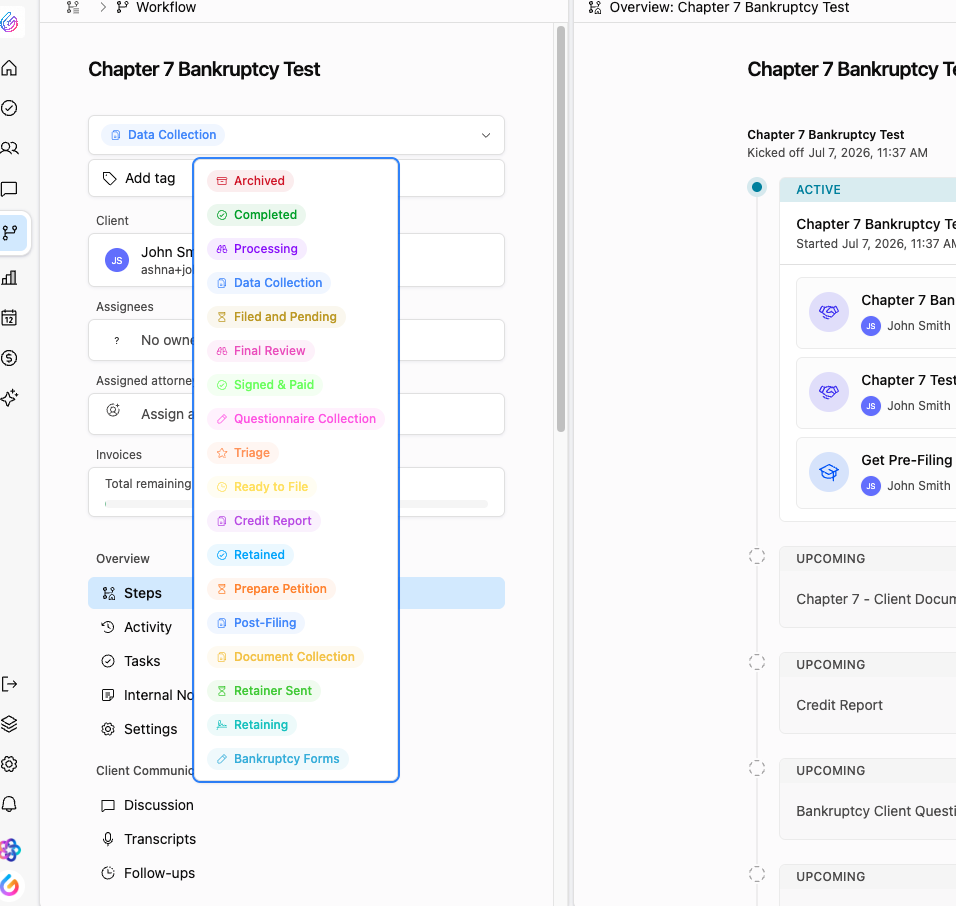
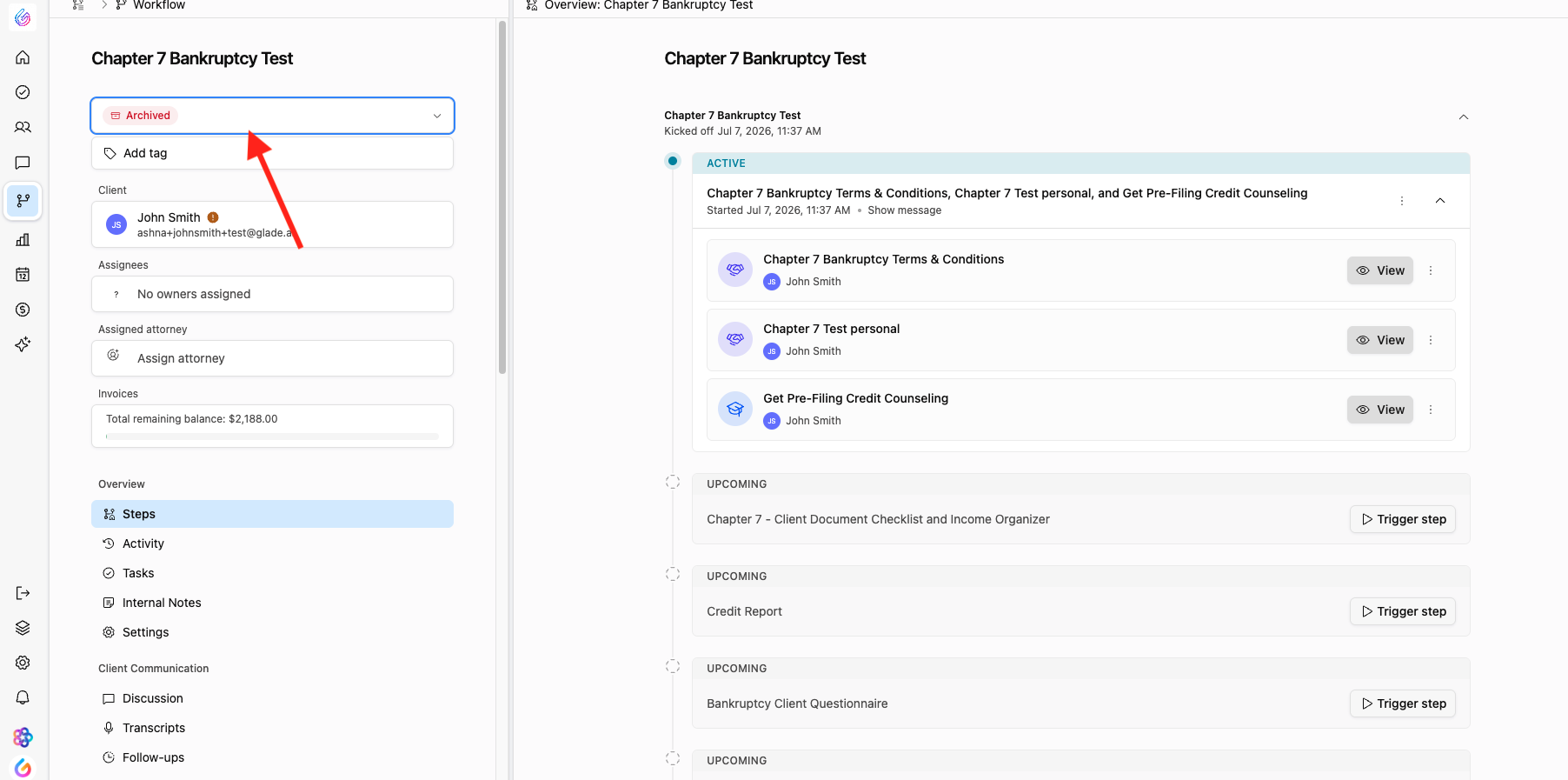
From the Workflow tag
Open the Workflow page
Select the Workflow you want to archive
Select the Tag
Select "Archive"
https://www.loom.com/share/d55b88e421f5471e98e0be88707e00a2
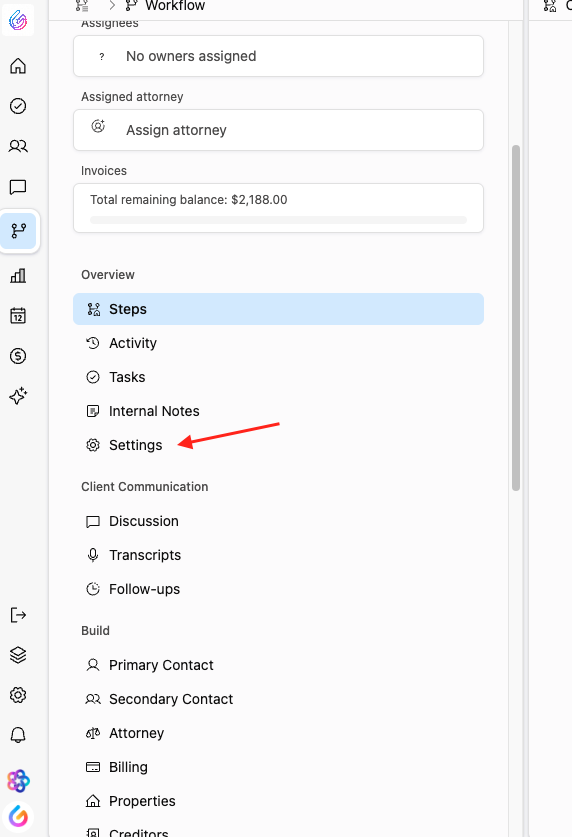
From inside the Workflow
Open the Workflow page
Open the workflow you want to archive.
In the left-hand navigation menu, click Settings.
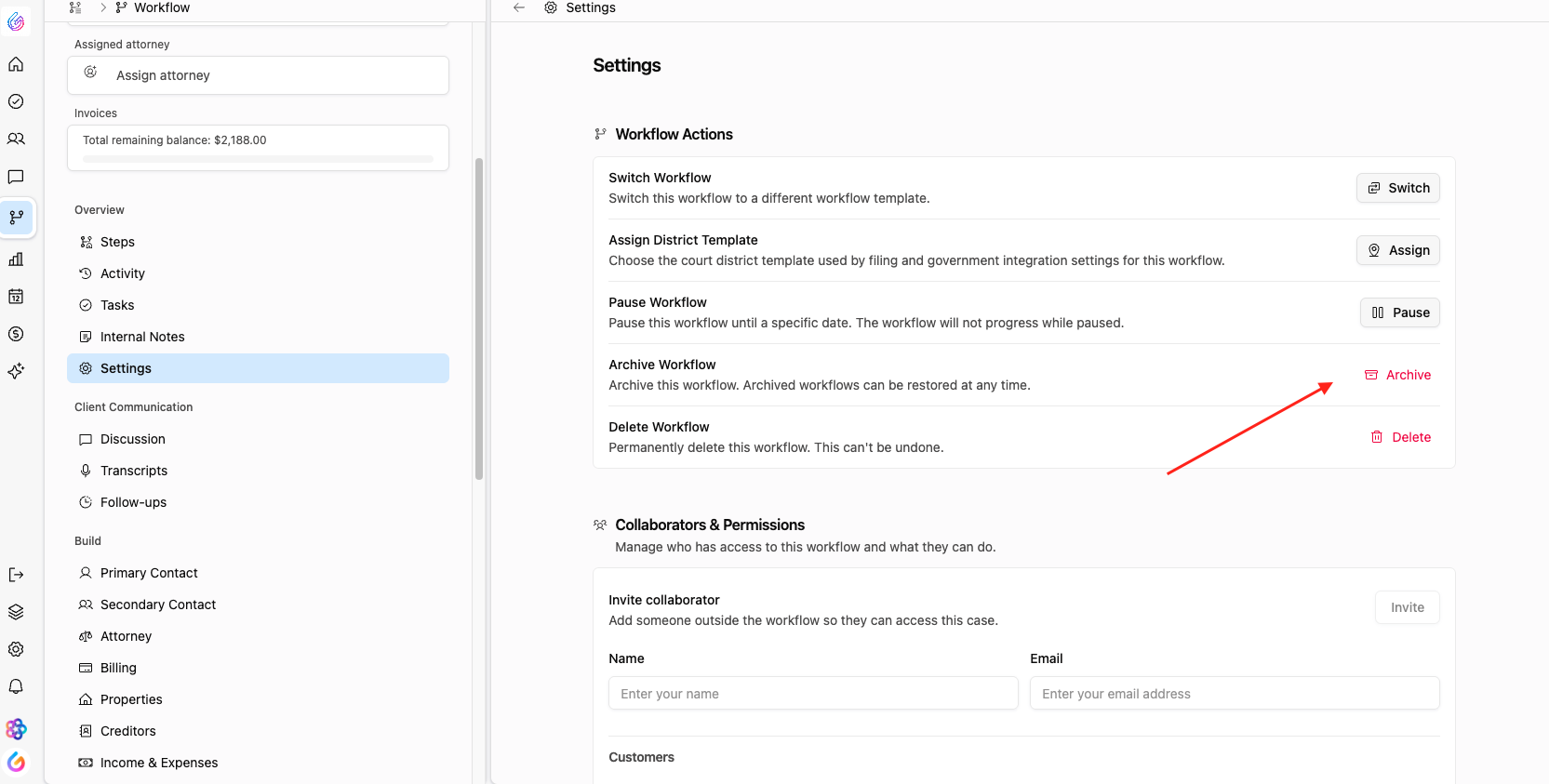
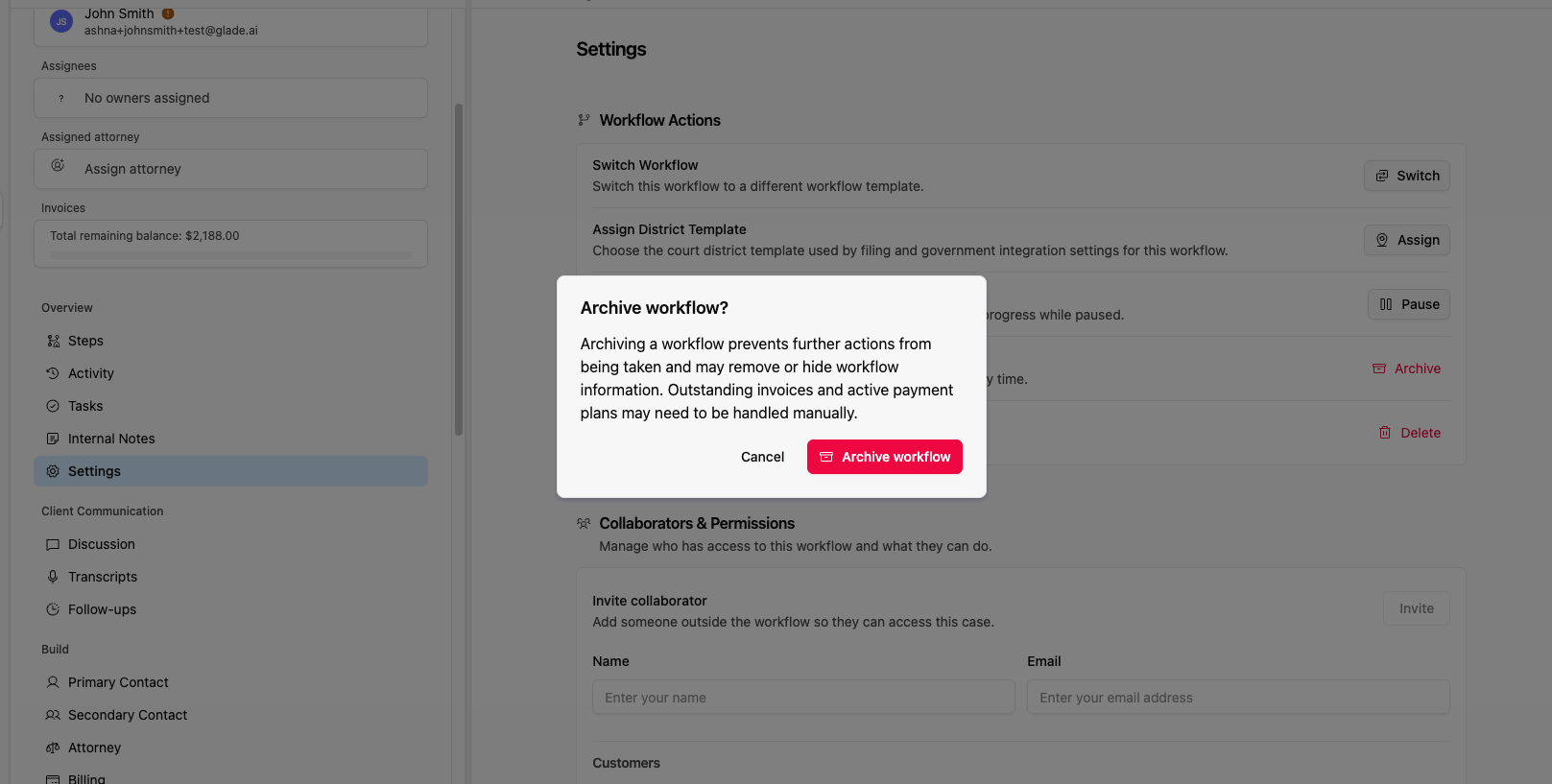
Select Archive Workflow.
Confirm the archive when prompted.
https://www.loom.com/share/25893e795b6740edba3314430300d872
Unarchiving a Workflow
There are two ways to Unarchive your workflow:
From the Workflow tag
Open the Workflow page
Select the Workflow you want to unarchive
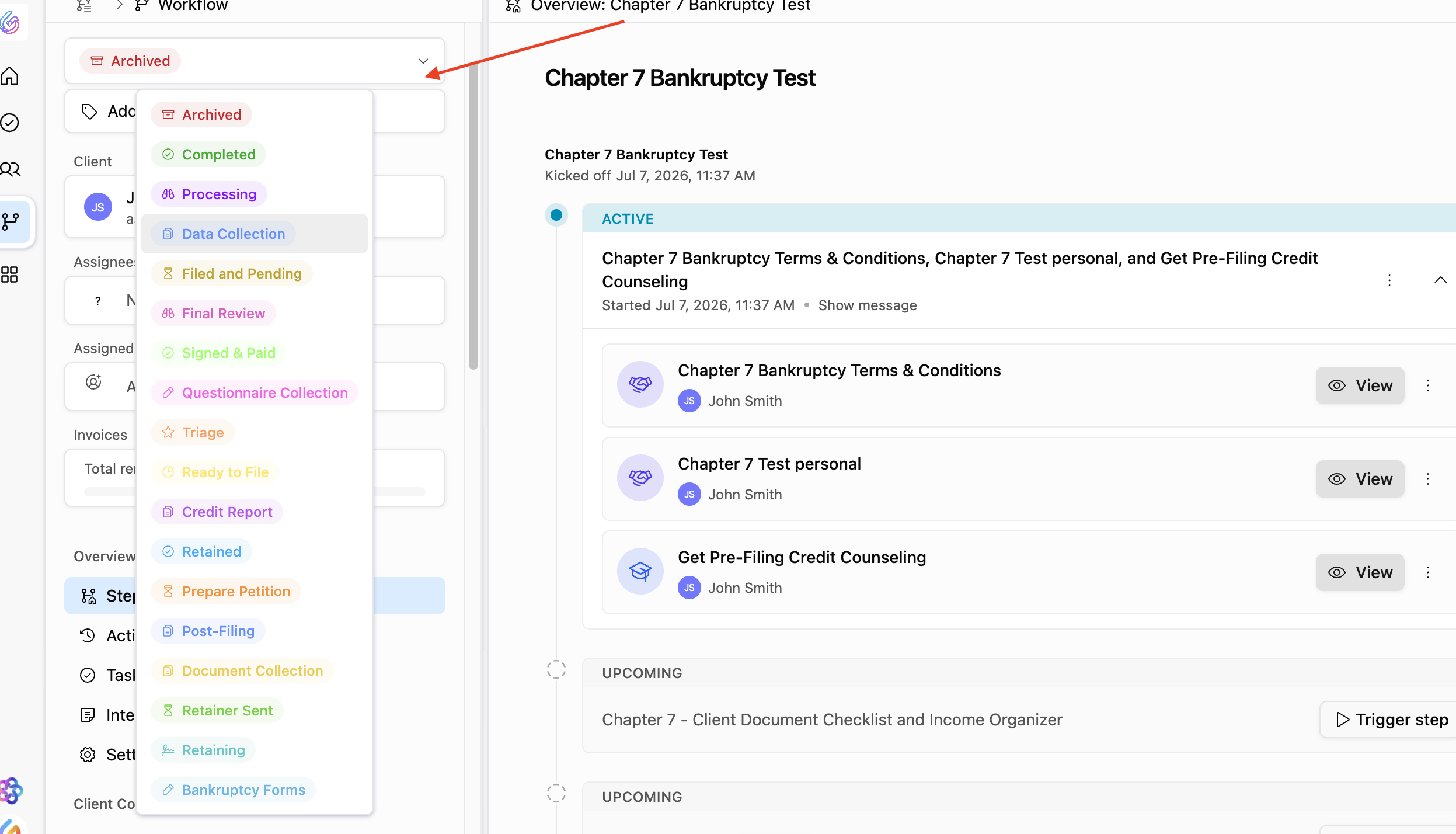
Select the Tag
Select which tag you would like to change the workflow to
It will automatically adjust the workflow to un-archived.
From inside the Workflow
Open the Workflow page
Open the workflow you want to unarchive.
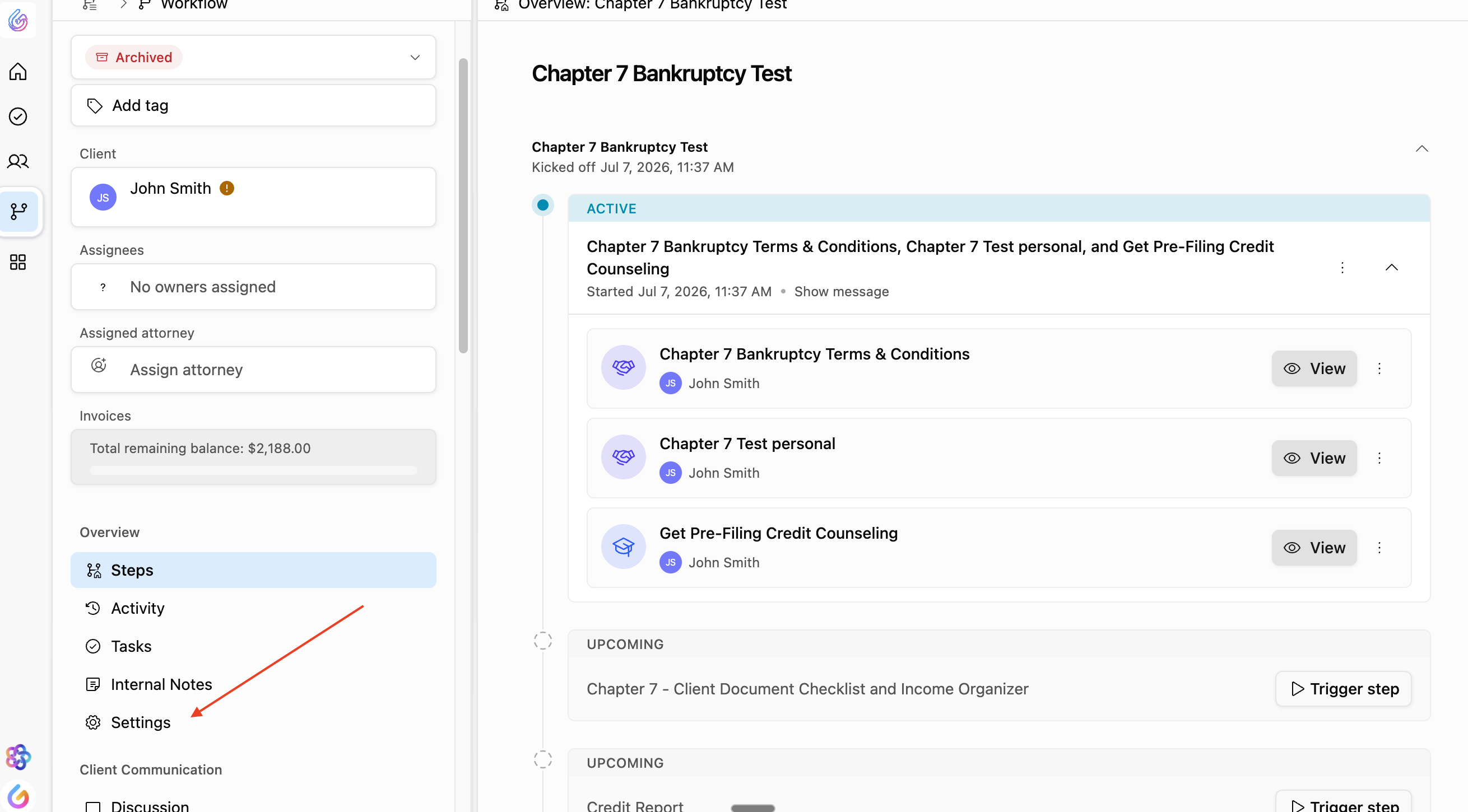
In the left-hand navigation menu, click Settings.
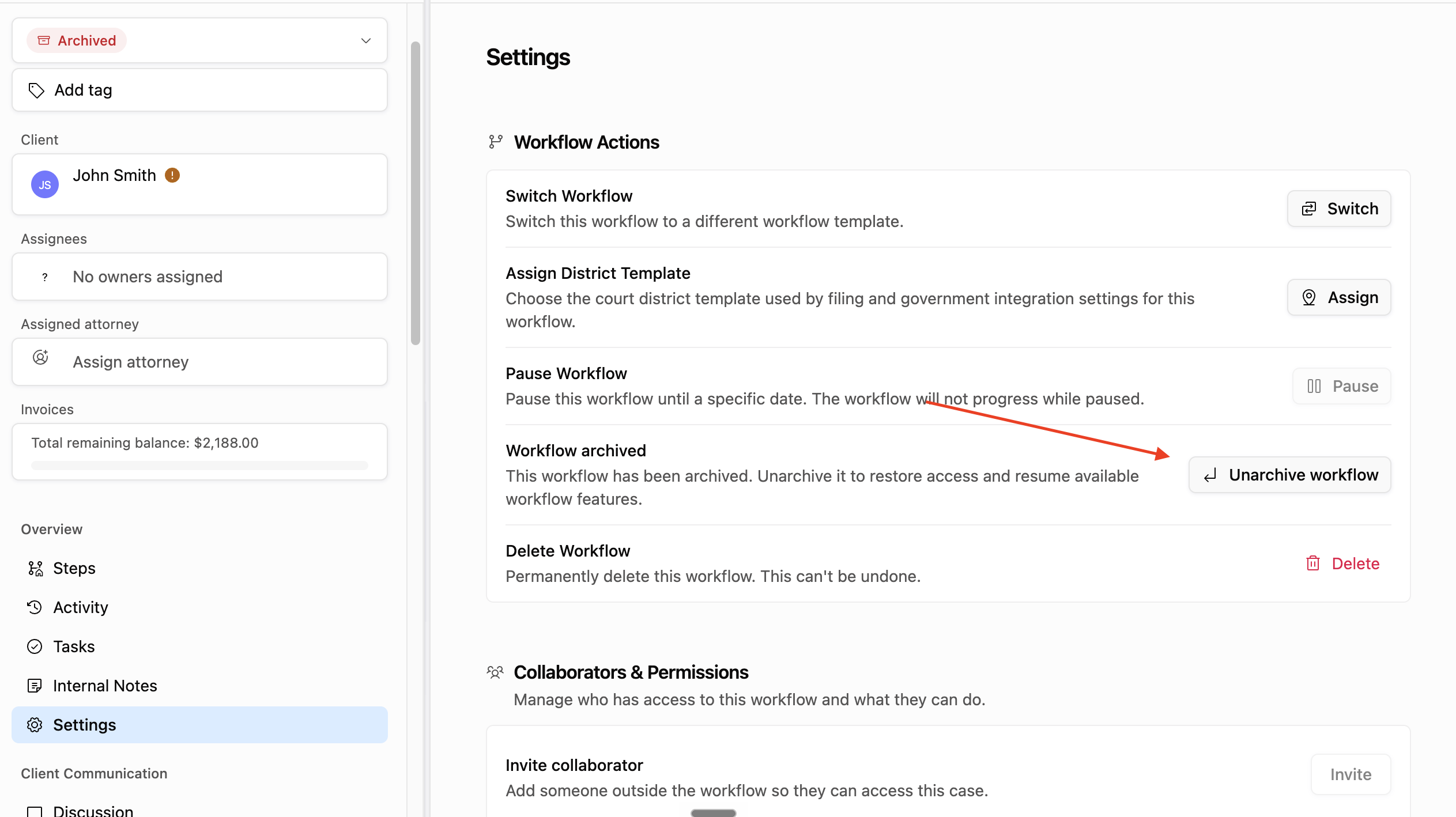
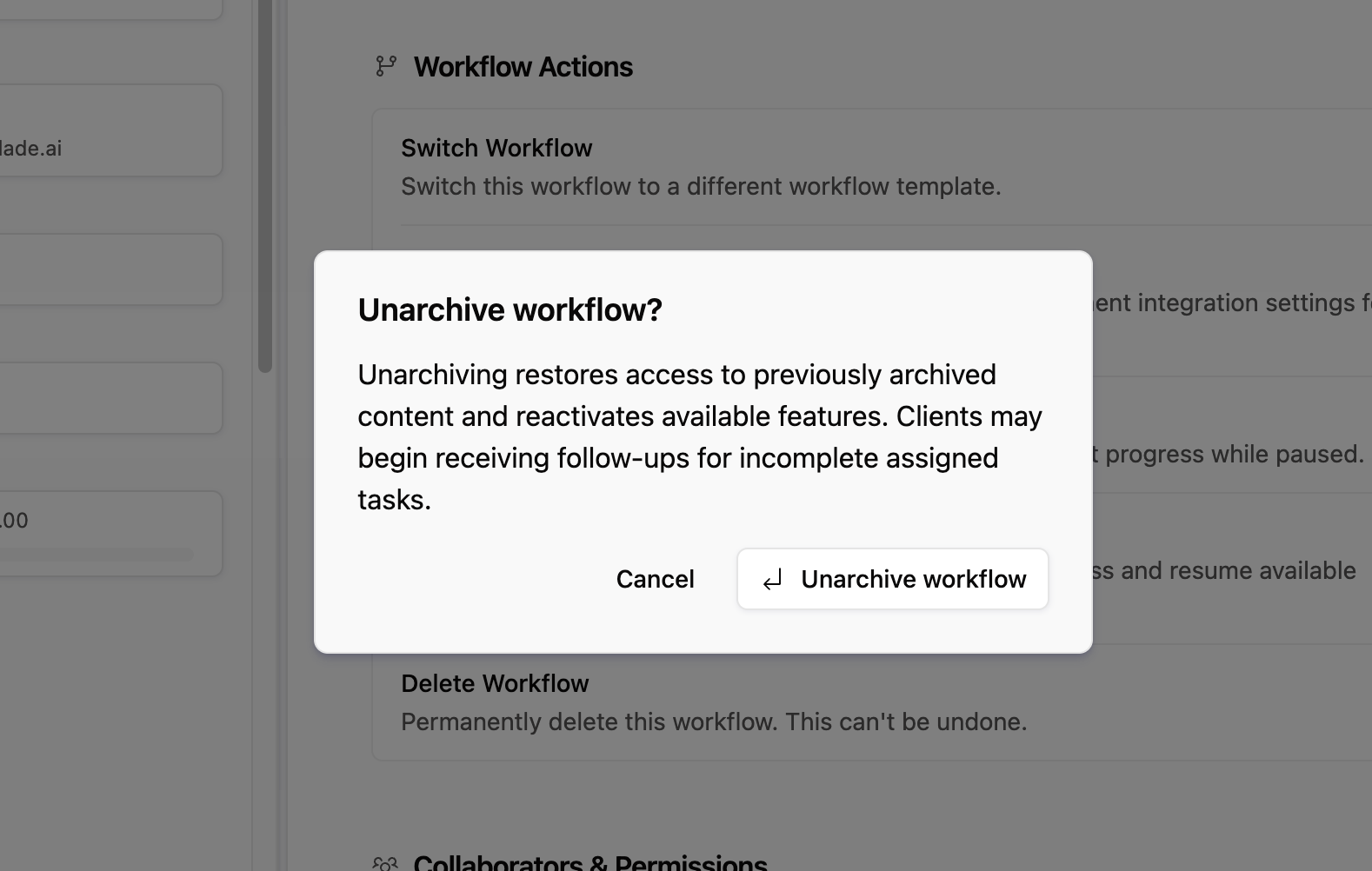
Select "Unarchive Workflows"
Confirm that you would like to unarchive the workflow
https://www.loom.com/share/93d6c5b86afb4bceac0ab1a50dfcf9f5