
Setting up a payment plan
Setting up a payment plan
A payment plan spreads an invoice balance across recurring installments. Once the plan is created, Glade charges the chosen payment method on schedule until the invoice is paid in full.
Overview
Use a payment plan when a client will pay an invoice over time instead of in one payment. You (or the client, if your firm allows it) choose the installment amount, how often payments run, when the first payment hits, and which payment method to charge.
Payment plans autopay — each installment is attempted automatically on the schedule you set until the remaining balance reaches zero.
Before you start
Payment plans / partial payments must be enabled on the invoice. If the invoice was created without payment plans turned on, enable them first (for an in-progress workflow, see Updating a Client's Invoice After a Workflow Has Started — the correction screen can turn payment plans on, but it does not set installment terms).
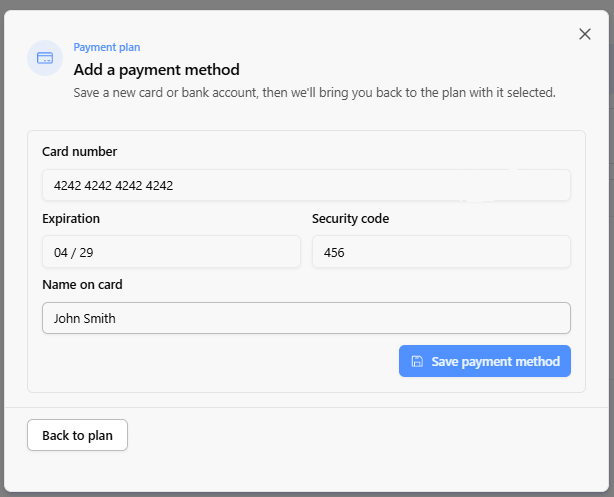
A payment method is required to create the plan (card or bank account on file for the client). Glade needs something to charge for autopay. If nothing is saved yet, the plan modal will walk you through adding one.
Optional firm limits: invoice templates can cap how long a client-built plan may run. See Setting a Maximum Payment Plan Duration. Staff with a finance role can usually create plans outside that client-facing cap when needed.
How to set up the plan
Open the client's invoice — from the workflow/invoice view on the case (or wherever that invoice is shown for the matter).
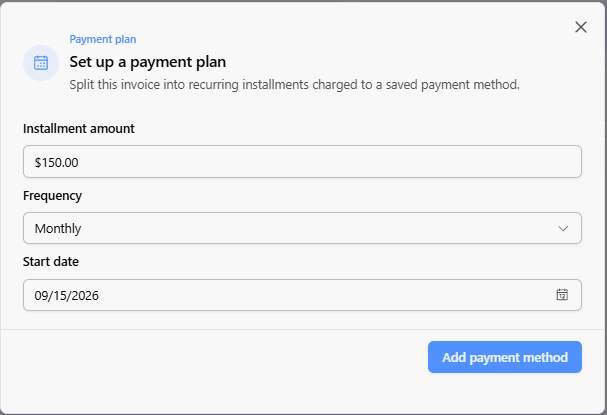
Open Set up a payment plan — this opens the payment plan modal. If you don't see an option to create a plan, confirm payment plans are enabled on that invoice first.
Enter the Installment amount — the amount to charge each cycle. Glade uses this (with the remaining balance and frequency) to figure out how many payments remain.
Choose the Frequency — how often installments run. Available options include:
Weekly
Biweekly
Monthly
Bimonthly
Set the Start date — when the first installment should be attempted.
Select (or add) a payment method — the card or bank account Glade will charge for each installment. If none is on file, choose Add payment method, save the card or bank account, then you'll return to the plan with it selected (Back to plan).
Confirm and create the plan — review the schedule, then save. The plan begins autopaying on that schedule until the invoice is paid in full.
What happens after you create it
Installments run automatically on the frequency and start date you chose.
Failed installments may retry, then affect plan health (Current / Retrying / Overdue / Blocked) — see Payment Plan Reports for monitoring.
The plan continues until the invoice balance is paid in full (or the plan is canceled).
Notes & tips
Enabling payment plans on an invoice and creating the installment schedule are two different steps. Turning the setting on does not by itself create installment amounts or dates.
If a client's own plan would exceed your template's maximum duration, they'll be asked to raise the installment amount (or adjust frequency). Finance staff can usually set a longer plan when the firm needs an exception.
To watch all plans firm-wide, use Transactions → Payment Plans (see Payment Plan Reports).
Clients can also set up or manage plans in their portal when your firm allows it — that flow is covered in a separate client-facing article.
FAQ
Q: Why can't I create a payment plan on this invoice?
A: Most often payment plans aren't enabled on the invoice yet, or there's no payment method on file. Enable plans on the invoice, add a payment method, then try again.
Q: Does the plan stop when the invoice is paid off?
A: Yes. Autopay continues until the invoice is paid in full.
Q: Where do I change an existing plan's terms?
A: Not from the invoice Make a Correction screen — that only toggles whether plans are allowed. Adjust an existing plan from the payment plan / invoice payment tools for that client.
Still need help?
Reach out to Glade support with the client name, invoice or workflow link, and what you're trying to set (amount, frequency, start date).