
Record a payment made outside of Glade or make a correction
Use this guide when a client paid by check, cash, or another method outside Glade and you need to log that payment on an invoice — or when you need to make a correction to an invoice.
See it in action:
Record a payment made outside Glade
Log an offline payment against an invoice so the invoice balance reflects what the client already paid.
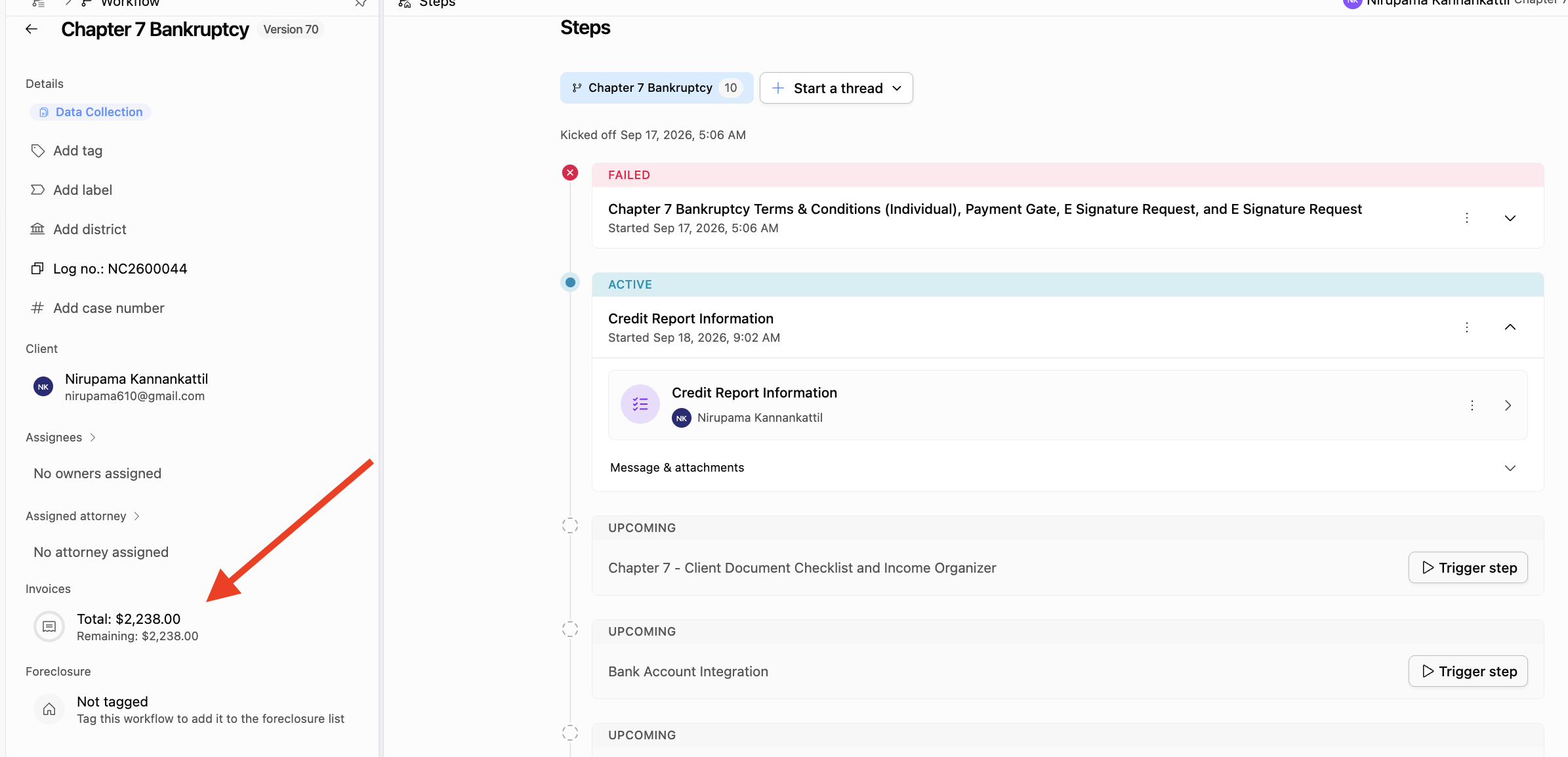
Open the workflow, then select Invoices in the left sidebar.
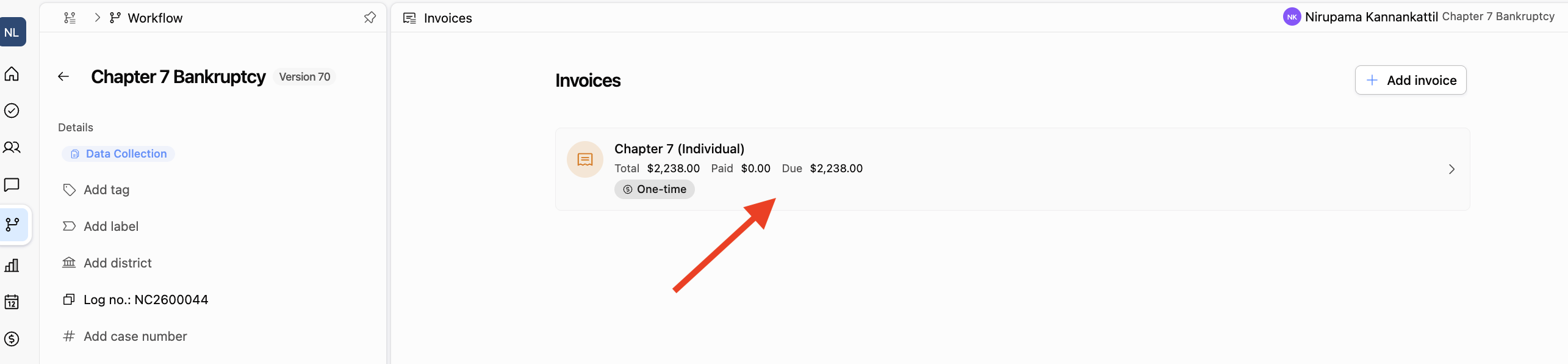
Select the invoice you want to apply the payment to.
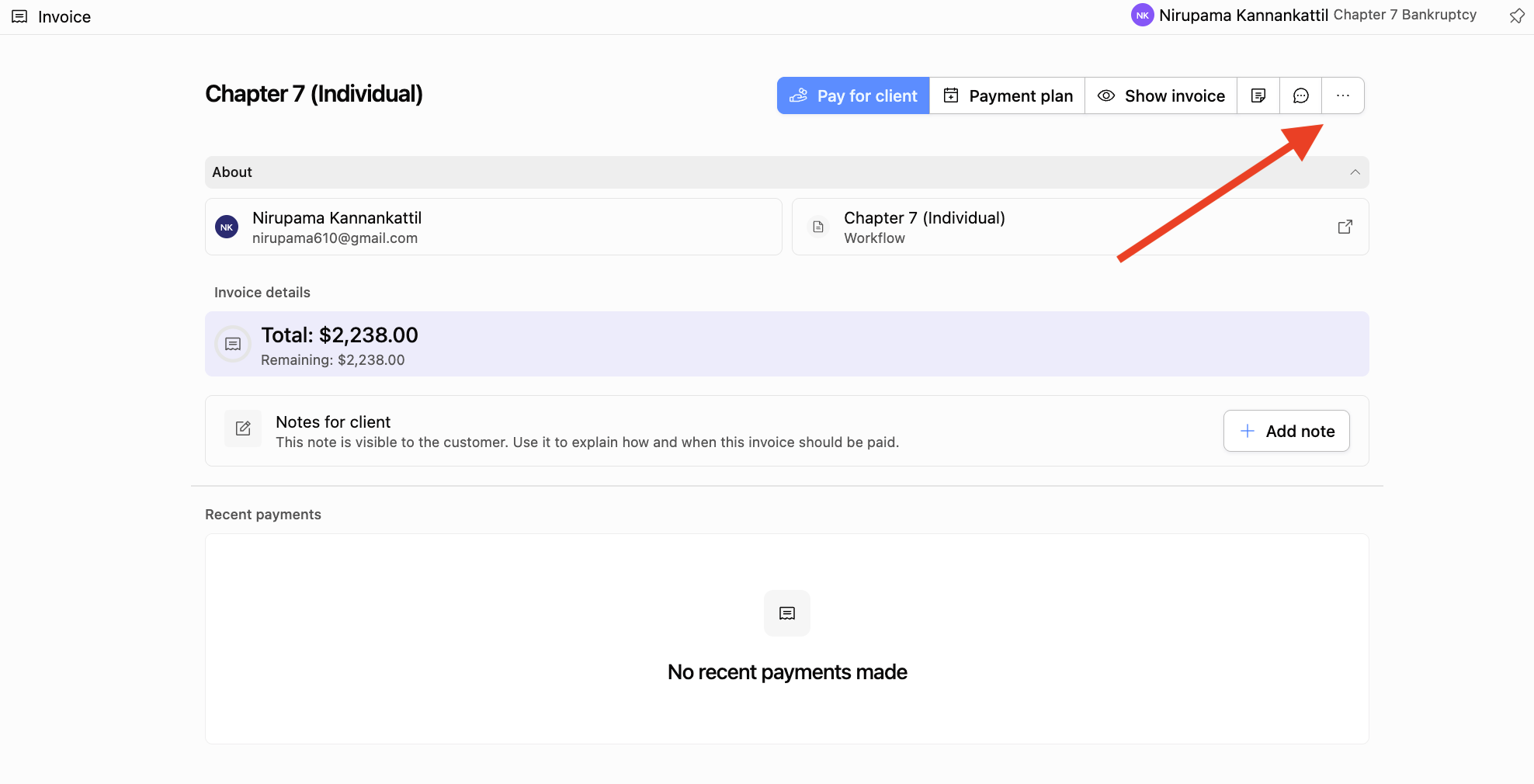
On the invoice, open More actions (⋯).
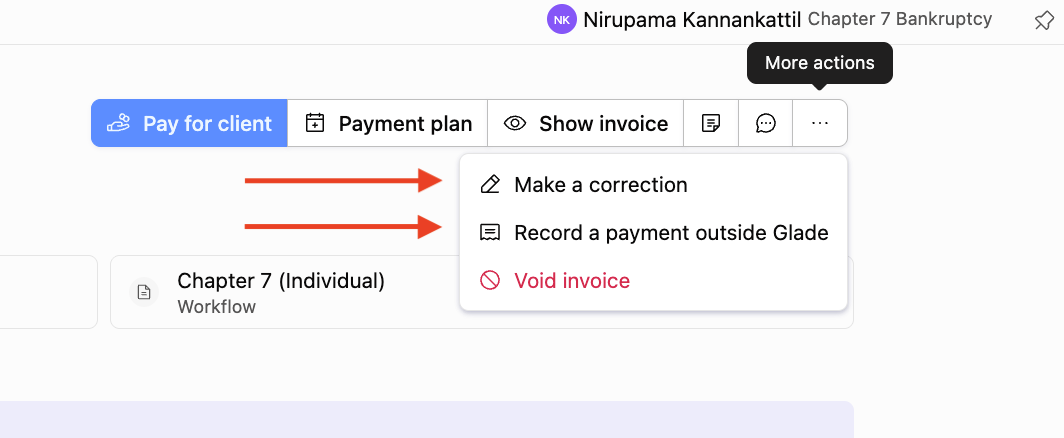
Choose Record a payment outside Glade.
In the Record a payment outside Glade modal, enter the Amount and Date received. Add an optional Note if helpful.
Select Record payment.
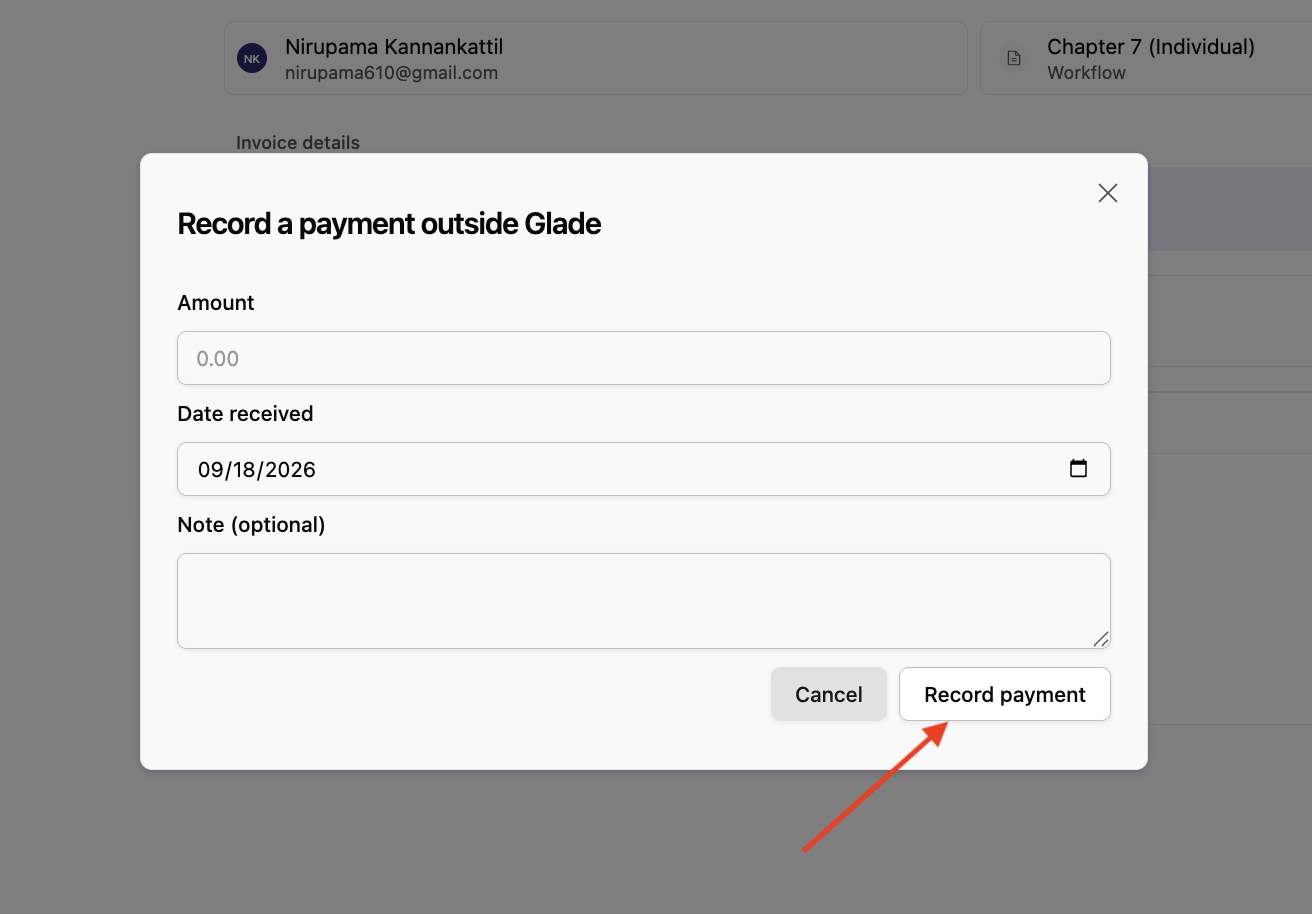
Glade updates the invoice balances (Amount paid / Remaining). If the payment covers the full balance, the invoice is marked paid.
Make a correction
Use Make a correction when you need to edit the invoice. Glade generates a new invoice marked as an edited version of the previous one. Glade cannot automatically move or edit existing payment data, so that history stays intact.
Open the workflow → Invoices → select the invoice.
Open More actions (⋯) and choose Make a correction.
Review the confirmation: a new invoice will be generated as an edited version of the previous one.
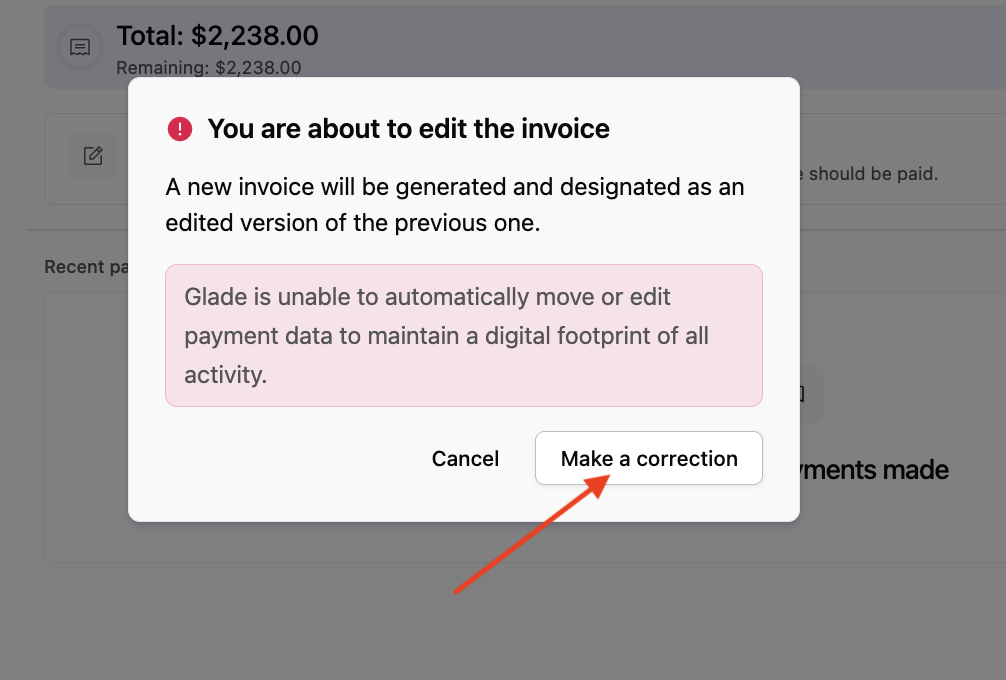
Select Make a correction to continue, then complete the invoice edits.
Need help?
If you do not see these options, confirm you are on the invoice detail view (not only the Invoices list). For help with a payment processed through Glade (card/ACH), contact support@glade.ai.