
How to Switch a Case Between Chapter 7 and Chapter 13 or vice-versa
When a client's situation changes, you can move their case from a Chapter 7 workflow to a Chapter 13 workflow, or the other way around, yourself from the workflow's settings. Glade opens the new case and carries your existing work across, so you do not have to rebuild the case or ask us for a manual transfer.
Watch the 50-second demo: Switching a Chapter 7 case to Chapter 13, with the income organizer carried over
Overview
The Switch workflow option archives the current case and opens a new one on the workflow you choose. Everything the client and your team already did is moved onto the new case, and you can watch each step happen as it runs.
Use it when:
A Chapter 7 client turns out to need a Chapter 13 (or the reverse).
The case should go through an attorney recommendation workflow before the chapter is decided.
The client has already uploaded documents, filled in schedules, or paid, and you do not want to lose that.
Before You Start
Switching cannot be undone from the switch screen. The original case is archived, and a new case is opened.
The client will need to sign the new workflow's retainer. Retainers that were not yet signed on the old case are cancelled.
Do not close the window while the switch is running (see step 6).
If you do not see Switch workflow in your workflow settings, it may not be turned on for your firm yet, or your firm has no other enabled workflow to switch to. Contact Glade support and we will check.
How It Works
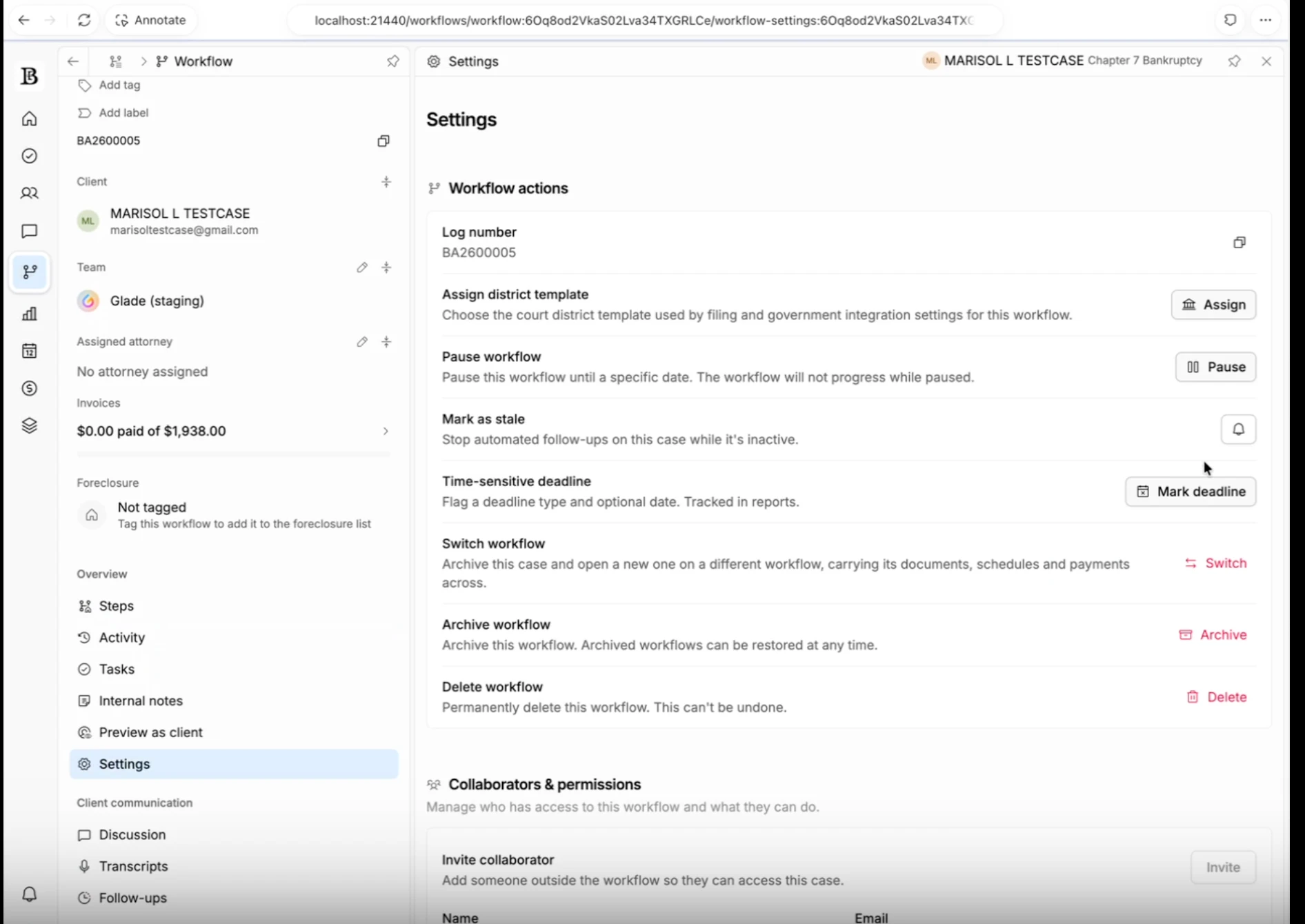
Open the case's workflow. Go to the client's workflow and open its Settings (in the left-hand menu under the workflow's overview).
Find Switch workflow. In the list of case actions you will see a Switch workflow row with a Switch button. Click Switch.
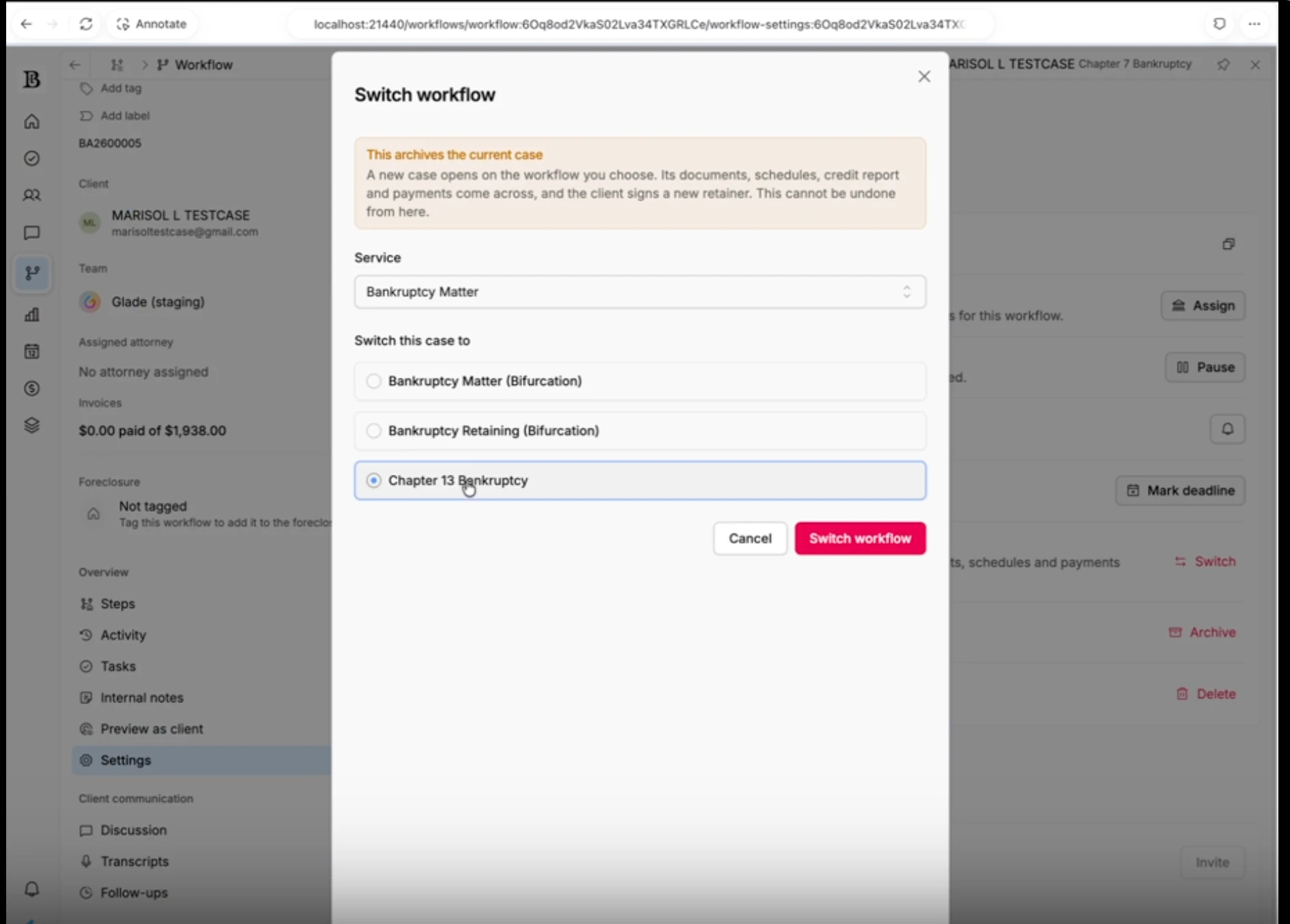
Read the warning. A message at the top of the window, This archives the current case, explains that a new case will open on the workflow you choose and that its documents, schedules, credit report and payments come across.
Choose the service, if asked. If your firm keeps its workflows under more than one service (for example, Bankruptcy Matter and Attorney Retaining), a Service dropdown appears and starts on the service the case is already in. Pick a different service to see its workflows. If all of your workflows are in one service, you will not see this dropdown.
Choose the workflow. Under Switch this case to, pick the workflow you want, for example the Chapter 13 workflow when switching a Chapter 7 case, or the Chapter 7 workflow when switching a Chapter 13 case. Only your firm's enabled workflows are listed.
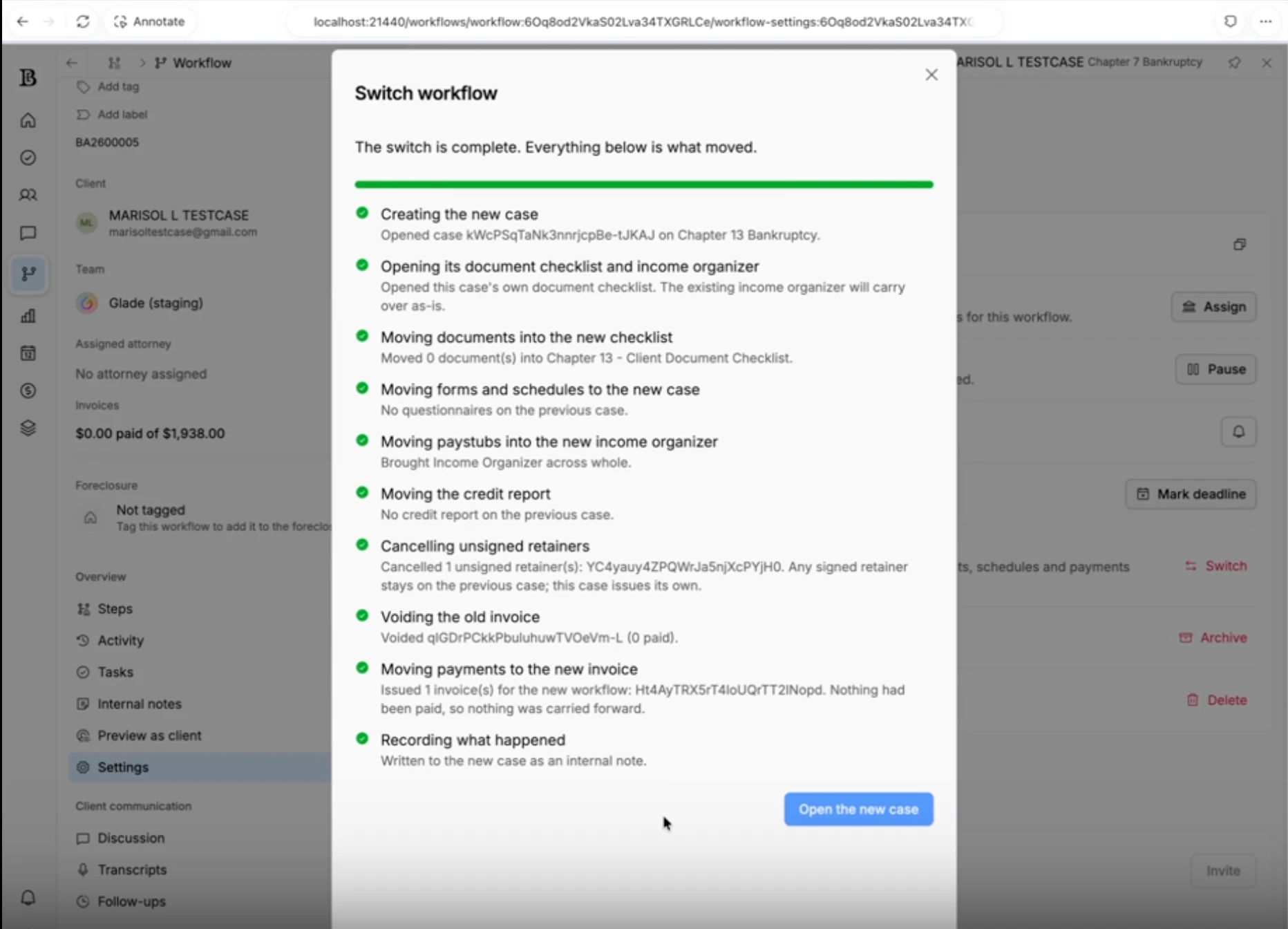
Some workflows ask a question or two before you can continue, such as a retainer amount that the old workflow did not collect. Answer anything marked required. Glade fills in what it can from the existing case.Confirm and wait. Click Switch workflow. The window turns into a progress list, with each step checked off as it finishes. There is no cancel once it starts, and it can take a little while. Leaving the page will not stop the switch, but you will not see how it ended.
Open the new case. When the list says The switch is complete, the Open the new case button becomes available. Click it to go straight to the new workflow. The original workflow is listed under Linked workflows on the new case, marked Archived, so you can still open it for reference.
What Moves to the New Case
The progress list shows the steps in order:
Creating the new case
Opening its document checklist and income organizer
Moving documents into the new checklist
Moving forms and schedules to the new case
Moving paystubs into the new income organizer
Moving the credit report
Cancelling unsigned retainers
Voiding the old invoice
Moving payments to the new invoice
Recording what happened
Item | What happens |
|---|---|
Uploaded documents | Moved onto the matching items in the new document checklist. |
Schedules and case data | Your existing schedules, creditors, property and other case information carry across, including a schedules questionnaire already in progress. |
Income organizer and paystubs | Moved to the new income organizer. Open the new case's income organizer and the paystubs you already collected, with their pay dates and amounts, appear in the table view. |
Credit report | The report you already pulled is moved to the new case. You do not need to pull it again. |
Payments already made | Recorded on the new case's invoice. The old invoice is voided. |
Retainers | Unsigned retainers are cancelled. The client signs the new workflow's retainer. Retainers that were already signed stay on the archived case. |
The original case | Archived, not deleted. You can still open it for reference. |
Key Details
Works in both directions. Chapter 7 to Chapter 13 and Chapter 13 to Chapter 7 use the same steps.
The new case starts at its first stage. Its steps show as upcoming, and you start each one from the case when you are ready.
Check the ledger note. Every switch adds an internal note on the new case that lists what was moved and flags anything that needs a person to finish. It is only visible to your team, not the client.
If the new invoice is smaller than what the client already paid. This happens when the two chapters have different fees. Glade records the amount the new invoice can hold, and the note names the remainder so you can issue a credit or refund.
Notes on the original case stay with the archived case.
Filed cases. You can switch a case that has already been filed, but check the new case carefully afterward, since it will not carry the court's case number or filing history as a fresh workflow.
Your firm only. You can switch to workflows in your own firm, not to another firm.
FAQ
Q: Do I still need to contact Glade to transfer a case that already has a lot of data?
A: No. Documents, schedules, income organizer data, the credit report and payments now move automatically. If the ledger note on the new case flags a step that did not finish, contact support and share the note.
Q: Does the client have to do anything?
A: The client signs the new workflow's retainer. Anything they already uploaded or filled in is kept.
Q: Will the client be charged again for a credit report?
A: No. The existing report is moved over rather than pulled again.
Q: Can I undo a switch?
A: Not from the switch screen. The old case is archived and stays available, so if you switched by mistake, contact support and we will help.
Q: I need to change between an individual and a joint case. Can I?
A: The list shows your firm's enabled workflows. If you do not see the individual or joint version you need, contact support and we will check how it is set up for your firm.
Q: The Switch workflow row is missing.
A: Either your firm has no other enabled workflow to switch to, or the feature is not yet turned on for your firm. Contact support to have it checked.