
Client View for Firms (Preview as Client)
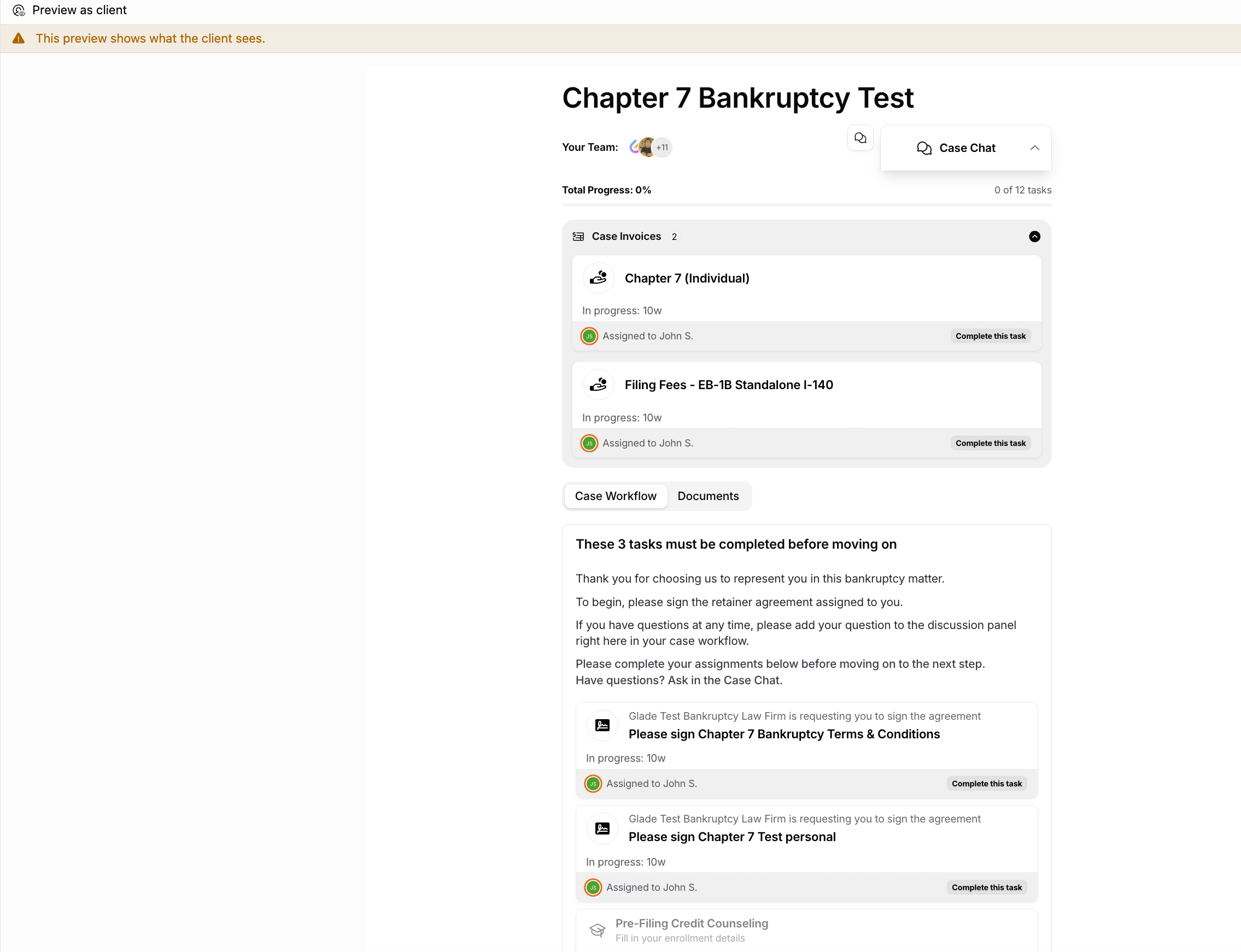
Glade lets you see any workflow exactly as your client sees it, so you can check what they'll experience before — or while — they work through their case. This preview shows the case chat, everything the client needs to do, and all of their assigned tasks, without leaving the workflow.
Watch the walkthrough (under 1 minute)
Overview
When you manage a workflow, you're in the firm-side view — every step, setting, and detail on your side of the case. Your client sees something simpler: just the parts meant for them. In Glade, your client is the workflow's Contact, so this preview is often called the Contact's view (or client view). Turning it on switches you into their perspective so you can confirm the chat, tasks, and to-dos look right.
How to preview as the client
Open the workflow you want to review.
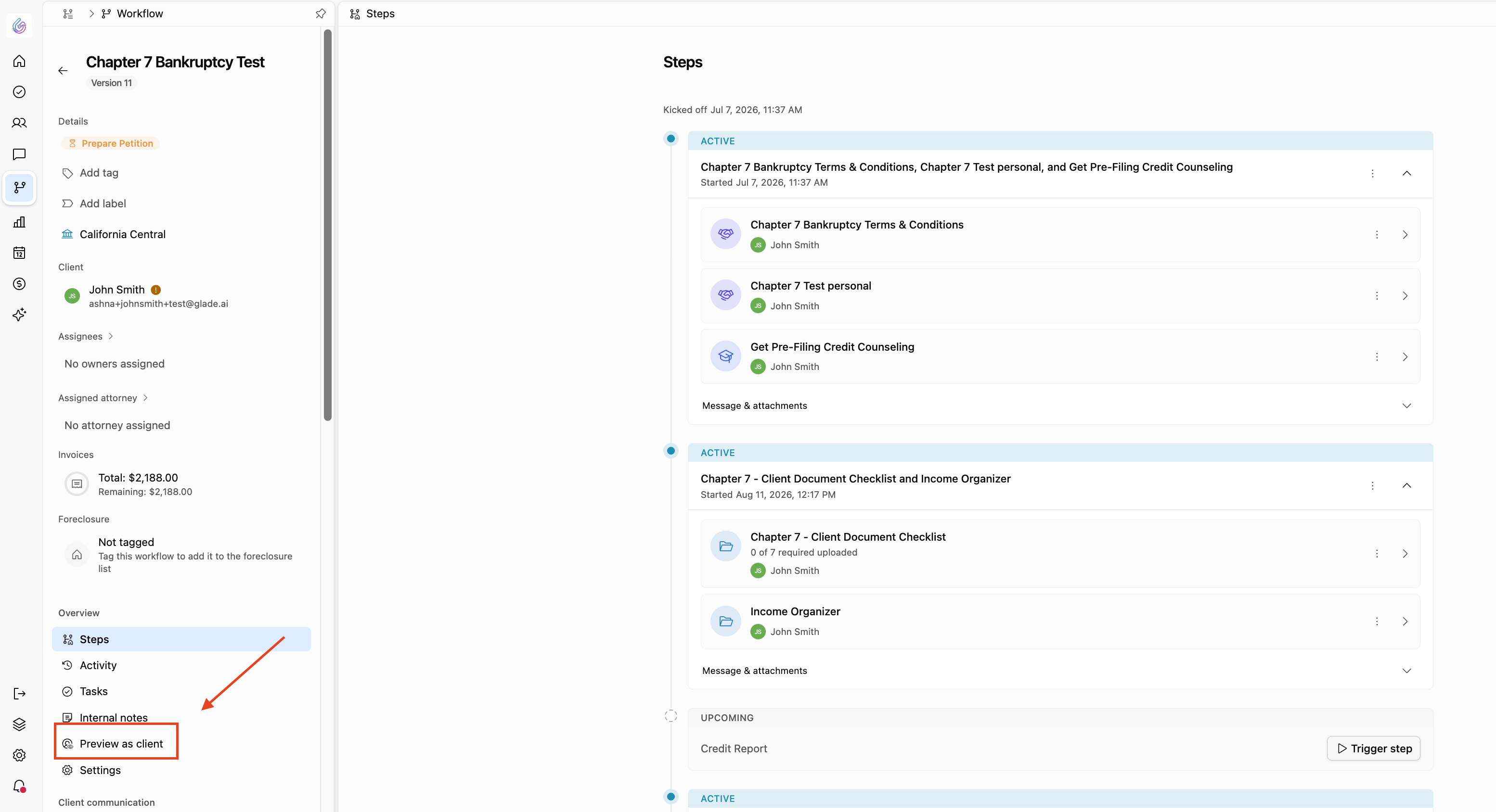
In the left-hand panel (the workflow step / view list), click Preview as client.
An orange Contact's view bar appears across the top, with the preview toggle on. Everything below that bar is what your client sees — including case chat, client to-dos, and assigned tasks.
When you're done, turn the toggle off in the orange bar to return to the normal firm-side view.
Key details
Preview is read-as-they-see-it: it mirrors the client experience so you can confirm chat and tasks are set up correctly.
Switching in and out of preview does not change anything for your client.
You can toggle preview as often as you like.
FAQ
How do I get into the client view?
Open the workflow, then click Preview as client in the left-hand panel. An orange bar appears; everything below it is the client view.
What does the client actually see?
The case chat, anything they need to do, and the tasks they need to complete — everything shown beneath the preview bar.
How do I get back to my normal view?
Turn off the toggle in the orange Contact's view bar, or select a step in the left-hand panel to return to the firm-side view.
Does previewing change anything for my client?
No. It's only a way to look at the workflow from their perspective.