
Custom booking statuses (appointment outcomes)
Custom booking statuses are a firm-owned catalog of appointment outcomes — for example No Show, Intake, or Cancellation — that you create once, then assign on each booking. They show up on the calendar, the Bookings list, and reports/exports so your team can track what actually happened on each appointment.
They are not the same as the Bookings list Upcoming / Past / All filter, not the cancel/reschedule lifecycle for an appointment, and not workflow statuses.
See it in action:
Overview
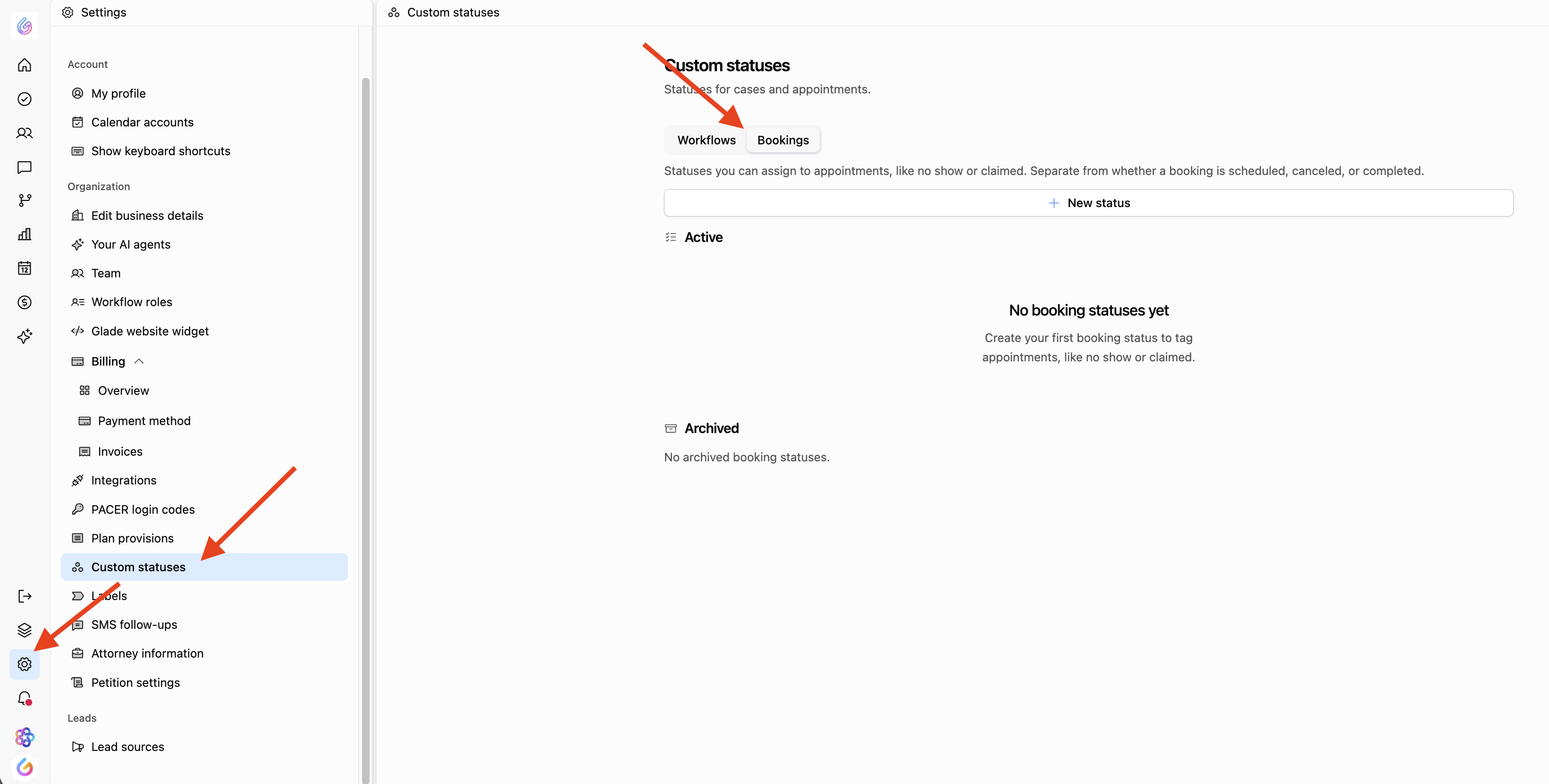
Every firm can define its own booking outcome statuses under Settings → Custom statuses → Bookings (the Bookings tab sits next to Workflows). Until your firm creates statuses, the catalog is empty — nothing is pre-loaded.
Once statuses exist, you can:
Assign (or clear) a status on an open booking via the Status picker
See the outcome on the calendar pill and in the Bookings list Status column
Include the outcome column on booking reports / exports
Example names some firms use (illustration only — create whatever your firm needs): No Show, Claimed, Intake, Old Business, Cancellation, Rescheduled, In-Office, Sign and Pay.
Manage booking statuses
Go to Settings → Custom statuses.
Open the Bookings tab (sibling to Workflows).
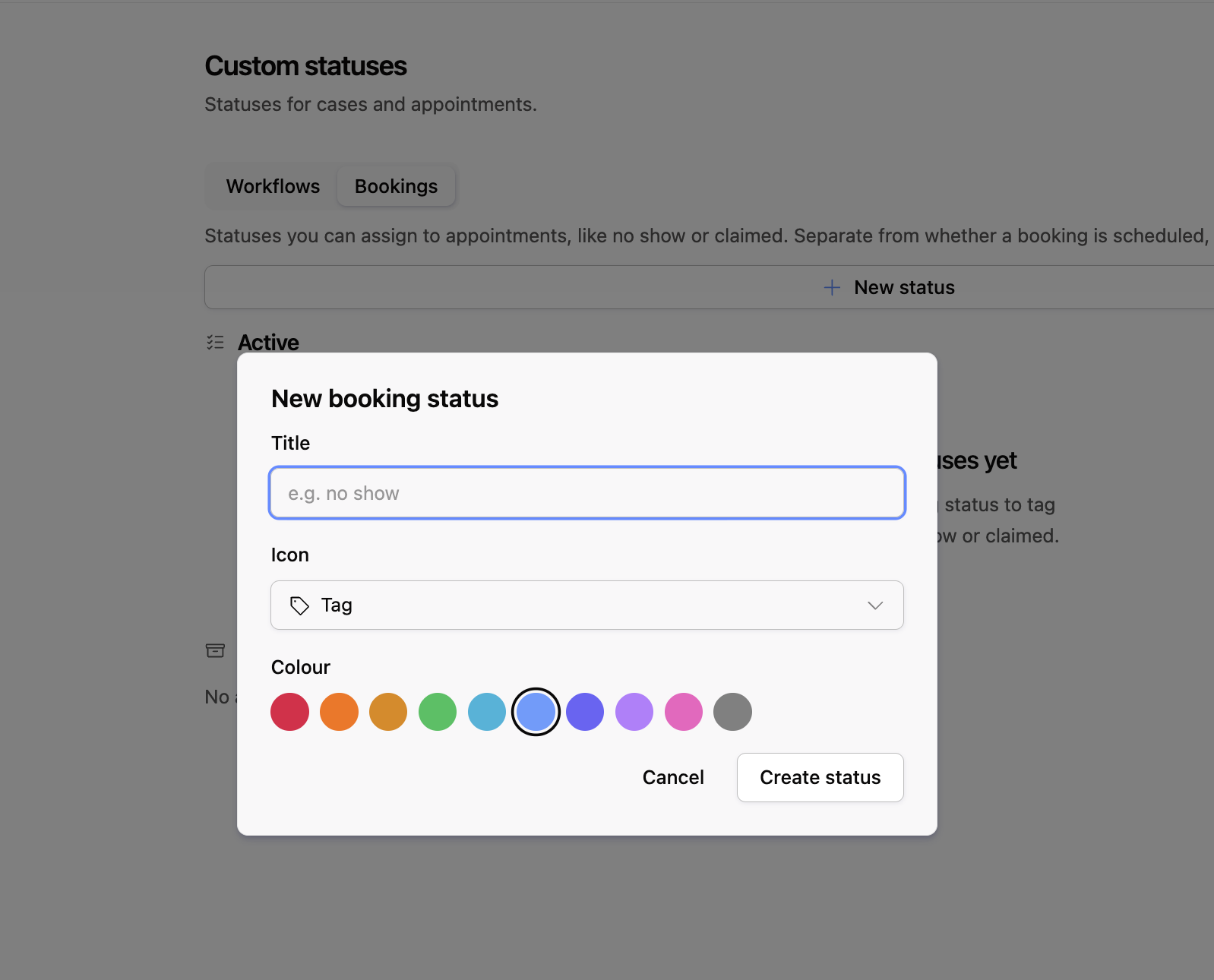
Create a status: set a title, icon, and colour.
Drag to reorder the list your team sees in the picker.
Archive statuses you no longer want offered (you can unarchive later).
If your Settings labels differ slightly, look for Custom statuses with a Bookings tab — that's the booking outcome catalog.
Assign a status on a booking
Open the booking (from the calendar or the Bookings list).
Use the Status picker to set an outcome from your firm's catalog.
Clear the status if you need to remove the outcome.
Assigning a custom status does not cancel or reschedule the appointment by itself — it's an outcome/label your firm tracks on top of the booking.
Where statuses appear
Calendar — as a pill / indicator on the appointment
Bookings list — in the Status column (separate from the Upcoming / Past / All filter)
Reports / export — as an outcome column you can include when reporting on bookings
Key details
Statuses are firm-owned. Your firm builds the catalog; it starts empty until someone creates statuses.
Bookings custom statuses are separate from Workflows custom statuses (same Settings area, different tab).
They are not the Upcoming / Past / All filter on the Bookings list — that filter is about whether the appointment time has passed.
They are not cancel/reschedule actions. Use your normal booking tools to cancel or reschedule; use Status for the outcome taxonomy (No Show, Intake, etc.).
FAQ
Q: Why don't I see any statuses in the picker?
A: The catalog is empty until your firm creates them under Settings → Custom statuses → Bookings.
Q: Is this the same as filtering Past vs Upcoming bookings?
A: No. Upcoming / Past / All filters by appointment time. Custom booking statuses are firm-defined outcomes you assign on each booking.
Q: How is this different from workflow statuses?
A: Workflow statuses track where a matter is in your process. Booking statuses track the outcome of an appointment. They're managed on separate tabs under Custom statuses.
Q: Can we use names like No Show or Cancellation?
A: Yes — create whatever titles (with icon and colour) your firm needs. Sample names above are examples only.
Q: Where do I see past appointments?
A: On the Bookings list, use Filters and set the time filter to Past (or All). See How to View Past Bookings for that filter. Custom Status is a separate column/outcome on those rows.